Teacher: User Manual
9. Managing Course Participants and User Enrolment
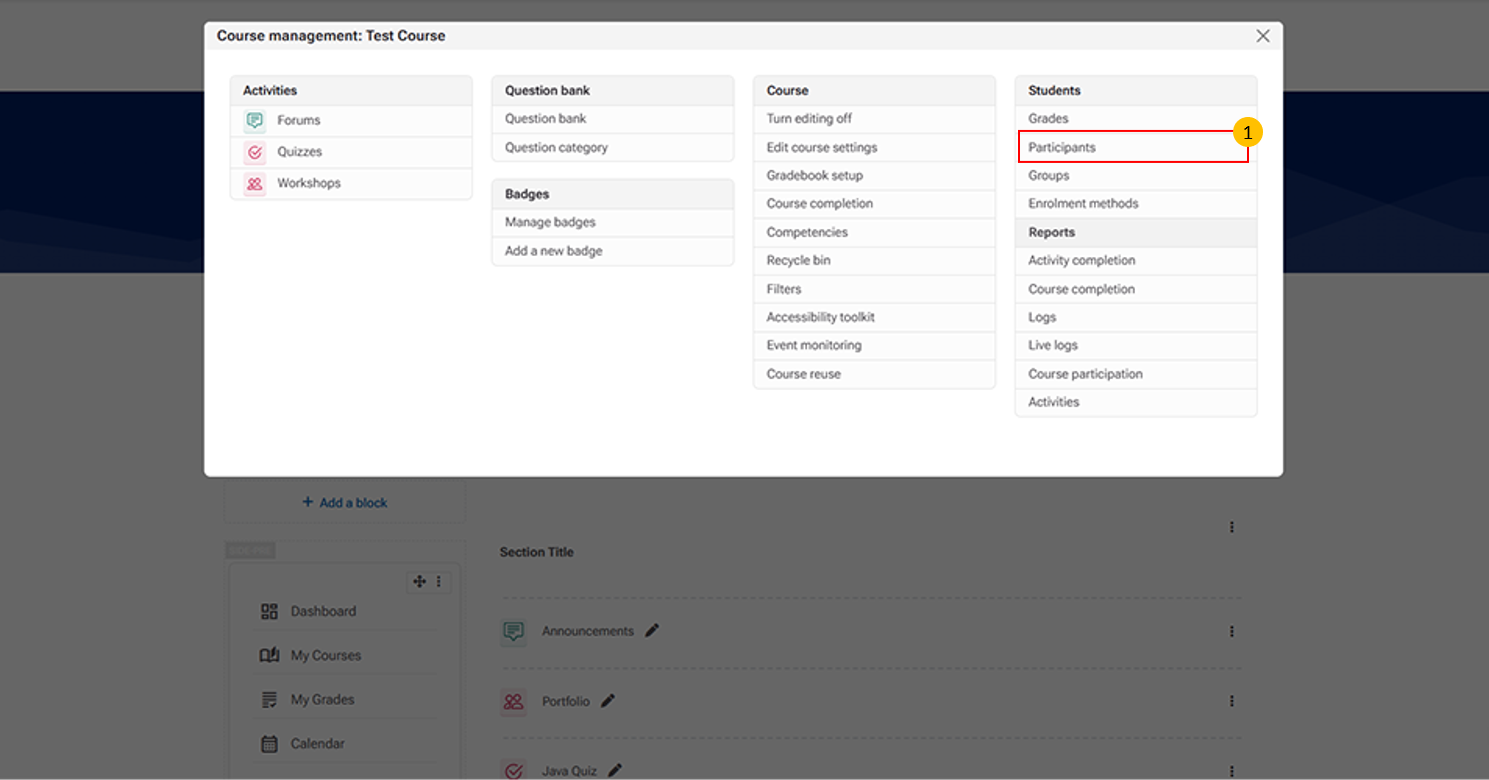
- Participants Tab: This tab displays all enroled users in the course.
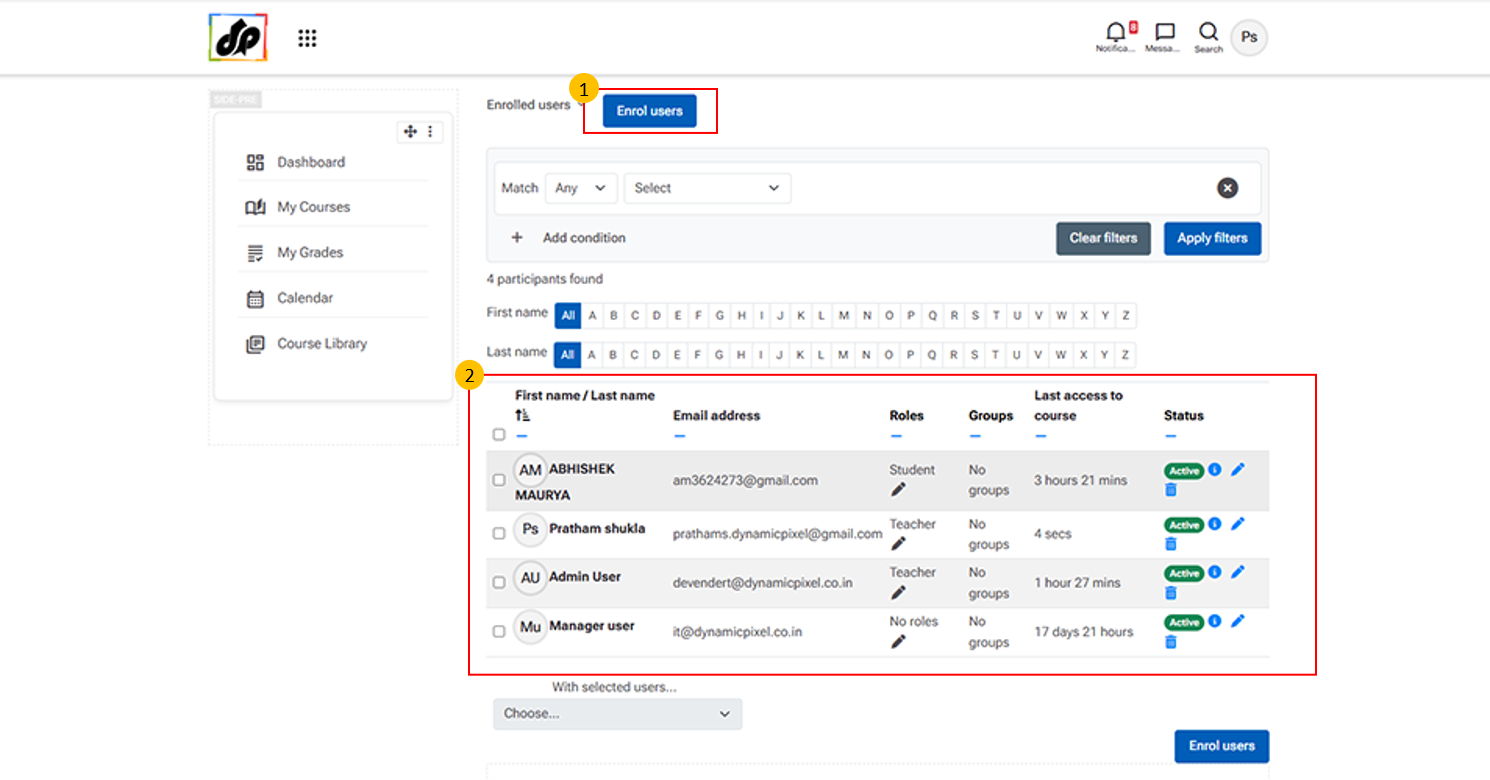
- Enrol Users Button
-
This option allows instructors or administrators to add participants to the course.
-
- Participant List
This section displays all users currently enroled in the course.
It includes details such as:
-
-
Name and email address – For identification and communication
-
Role – Indicates the user’s role (e.g., Student, Teacher, Manager)
-
Group membership – Shows the group assigned to the user
-
Last access – Displays the user’s most recent activity
-
Status – Indicates whether the user is active or inactive
-
Edit option – Allows you to modify user roles or details
-
-
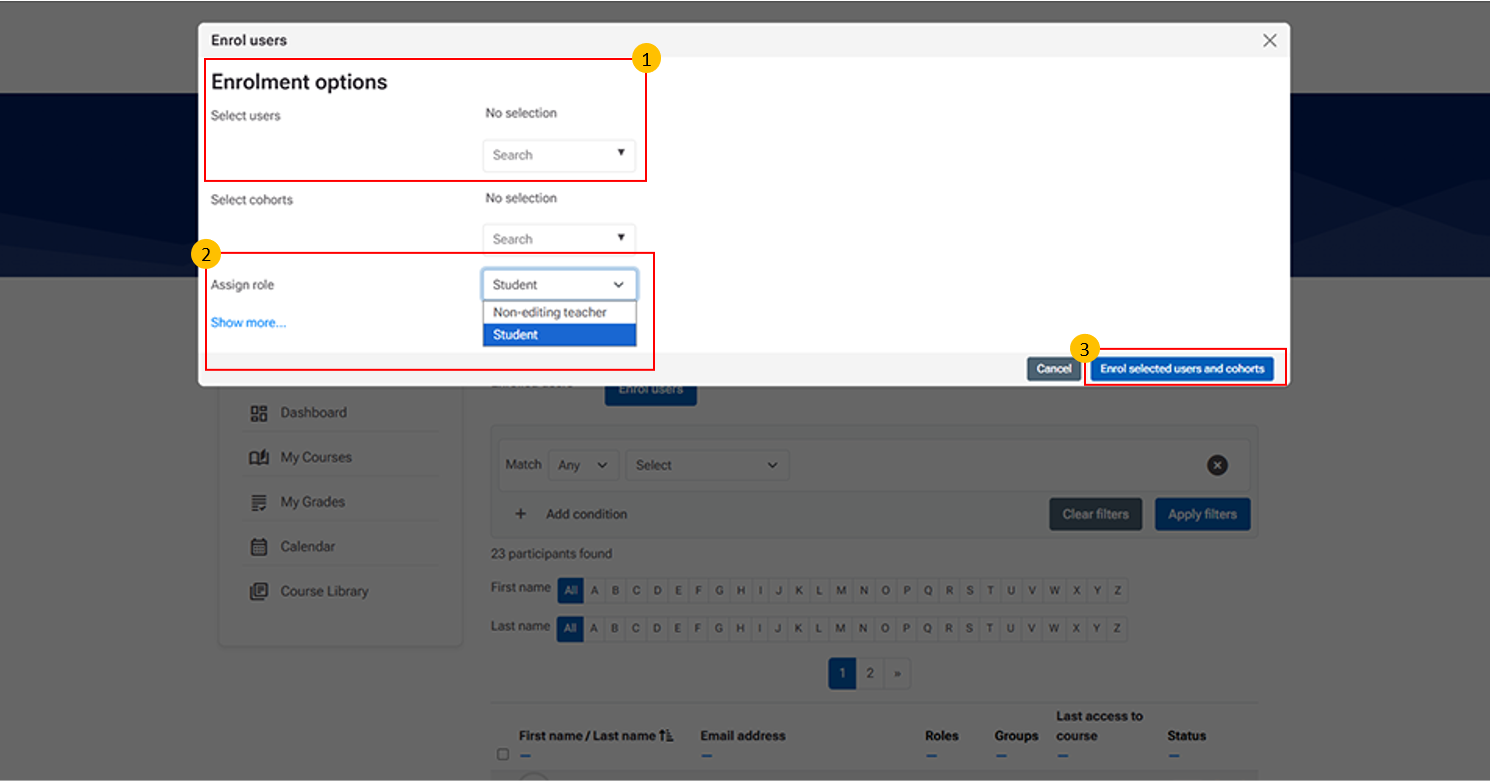
- Select Users / Select Cohorts
This section allows you to choose participants to enrol in the course.
You can select:
-
-
Users – Individual participants from the system
-
Cohorts – Predefined groups of users
-
-
-
Assign Role Dropdown
This option allows teachers to assign appropriate roles to the selected users or cohorts during enrolment.
-
Common roles include:
-
Student – Assigned to learners who will access course content and activities
-
Non-editing teacher – Assigned to users who can teach and grade but cannot modify course content
-
-
- Clicking “Enrol selected users and cohorts” finalizes the process and enrolls the participants in the course.