Teacher: User Manual
8. Adding Activities and Resources
8.2. Quiz
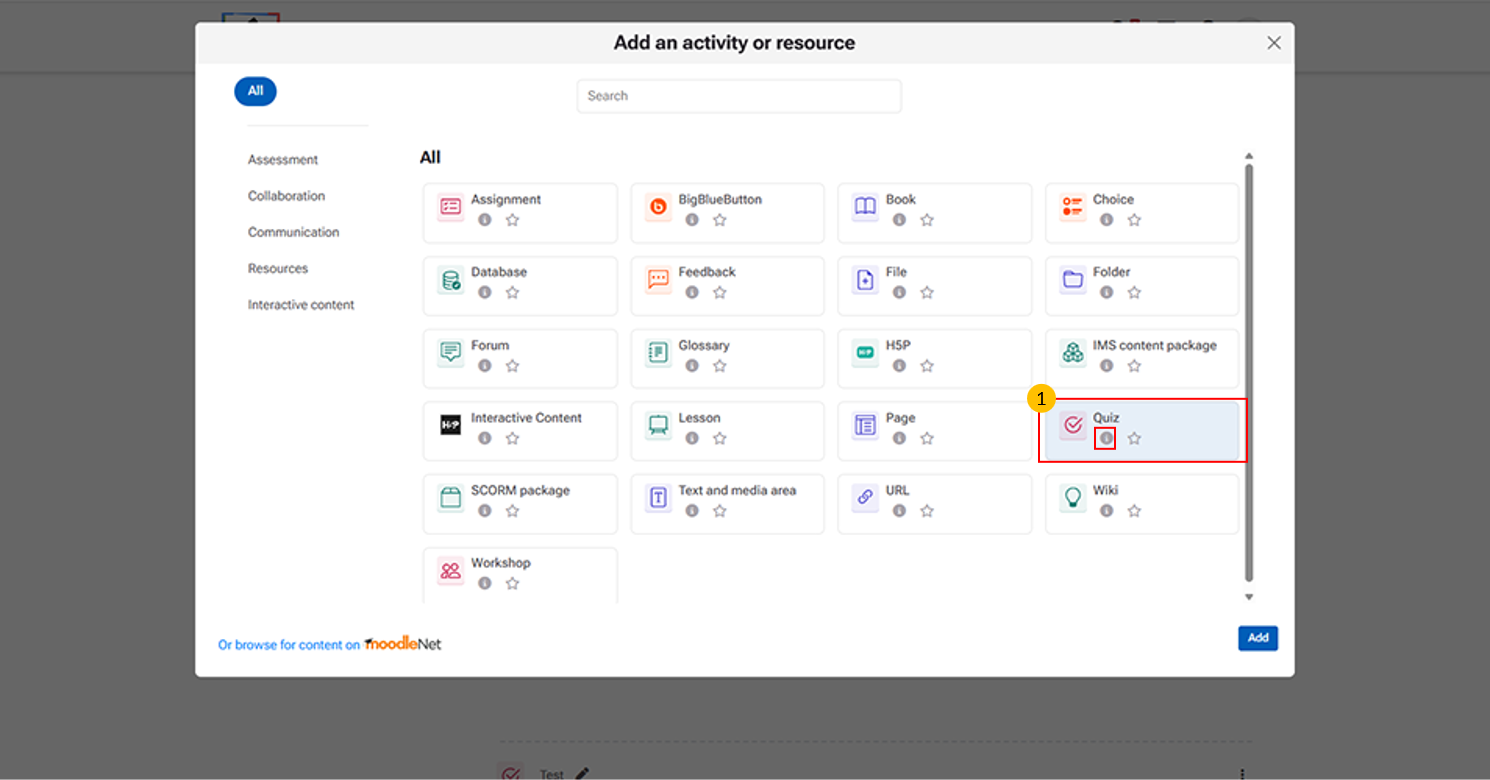
- Quiz Option This activity allows instructors to create online tests and assessments for students.
- “i” icon provides quick access to additional information about the Quiz activity.
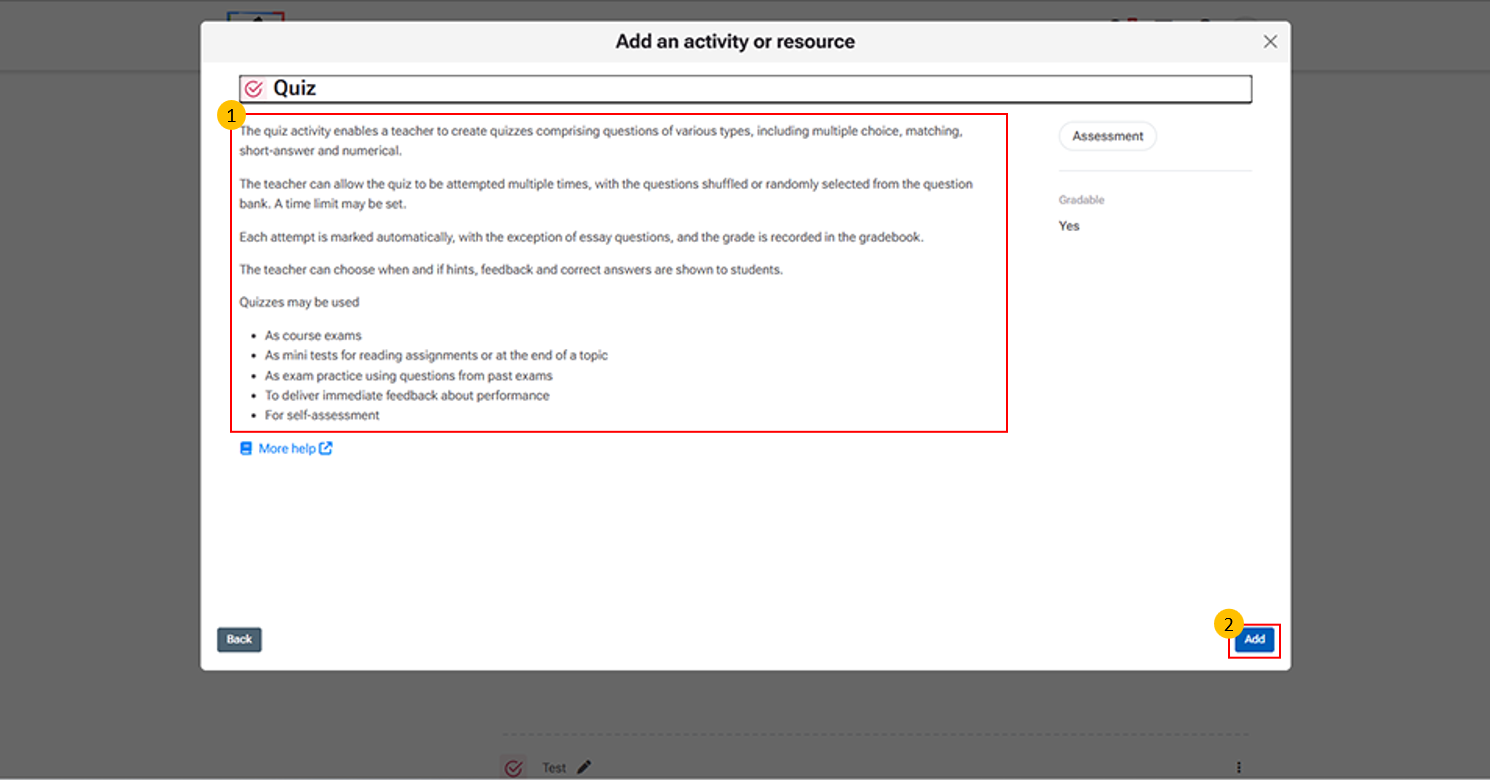
- Quiz Description Panel
- This section provides an overview of the Quiz activity:
- Purpose – Create quizzes with various question types (MCQ, short answer, etc.)
- Attempts & Randomization – Allow multiple attempts and shuffle/random questions
- Timing – Set time limits for quiz completion
- Grading – Auto-graded (except essays) and recorded in gradebook
- Feedback – Control when feedback and correct answers are shown
- Use Cases – Exams, practice tests, or self-assessments
- Add Button:
- This button is used to confirm the selection of an activity or resource and insert it into the course.
-
Click "More help" to open the official Moodle LMS help page with detailed information on the Quiz activity, including its features and settings.
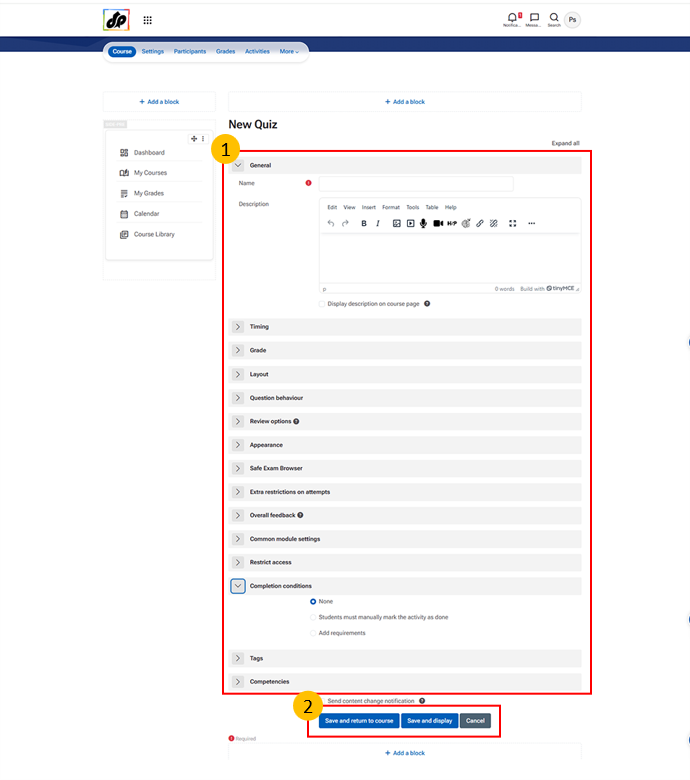
- General Section (Quiz)
- This section is used to define the basic details of the quiz.
- Name
- Enter the title of the quiz as it will be displayed to students.
- Description
- Provide instructions, guidelines, or any important information related to the quiz.
- Text Editor
- Use formatting options such as bold, italic, bullet points, and alignment to structure the content clearly.
- Display on Course Page
- Choose whether the description should be shown directly on the course page or only after opening the quiz.
- Save and return to course (saves the quiz and takes the instructor back to the course page)
- Save and display (saves the quiz and immediately opens it for further editing or preview)
- Cancel (discards changes and exits without saving)