Teacher: User Manual
8. Adding Activities and Resources
8.5. URL
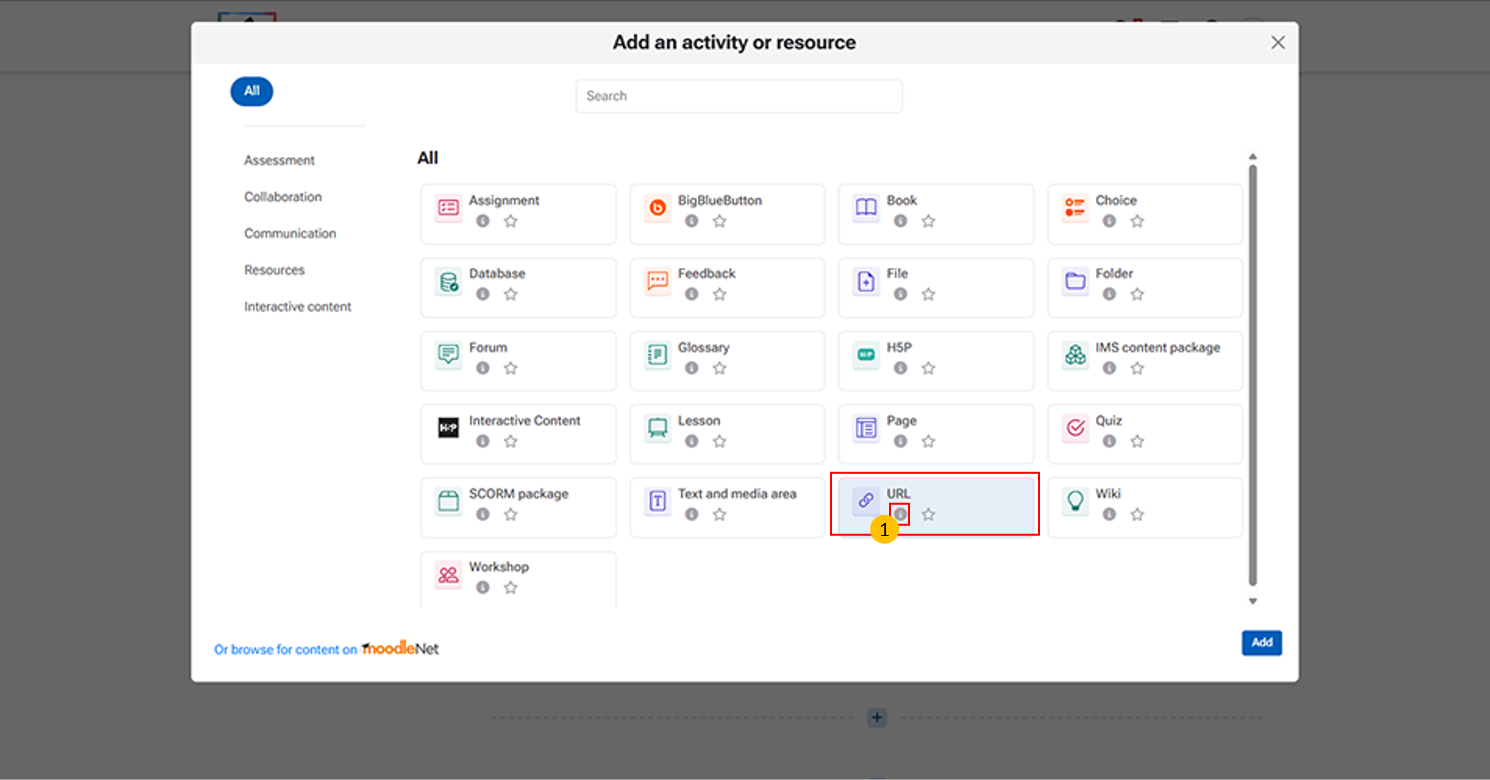
The URL activity is a simple way to connect your Moodle course with external online content.
“i” icon provides quick access to additional information about the URL activity.
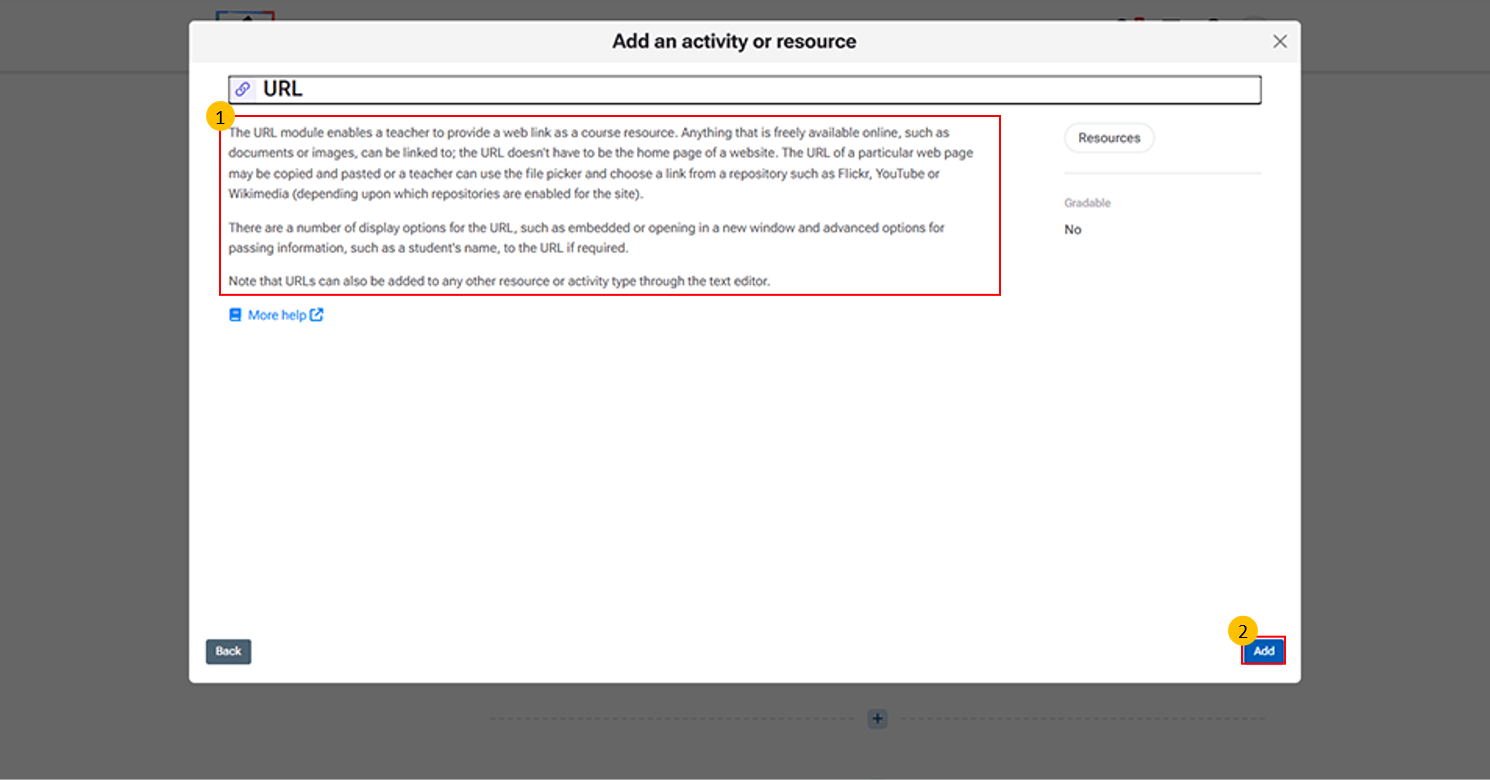
URL Activity Page Display
- Description panel → Explains that the URL module lets teachers add a web link as a course resource.
- Content options → Links can be copied/pasted directly or chosen from repositories (e.g., YouTube, Flickr, Wikimedia).
- Display settings → Choose how the link opens (embedded, new window, or inline).
- Advanced options → Can pass information (like student name) to the linked site if required.
- Add button → Confirms selection and opens configuration to enter the web address and settings.
-
Click "More help" to open the official Moodle LMS help page with detailed information on the URL activity, including its features and settings.
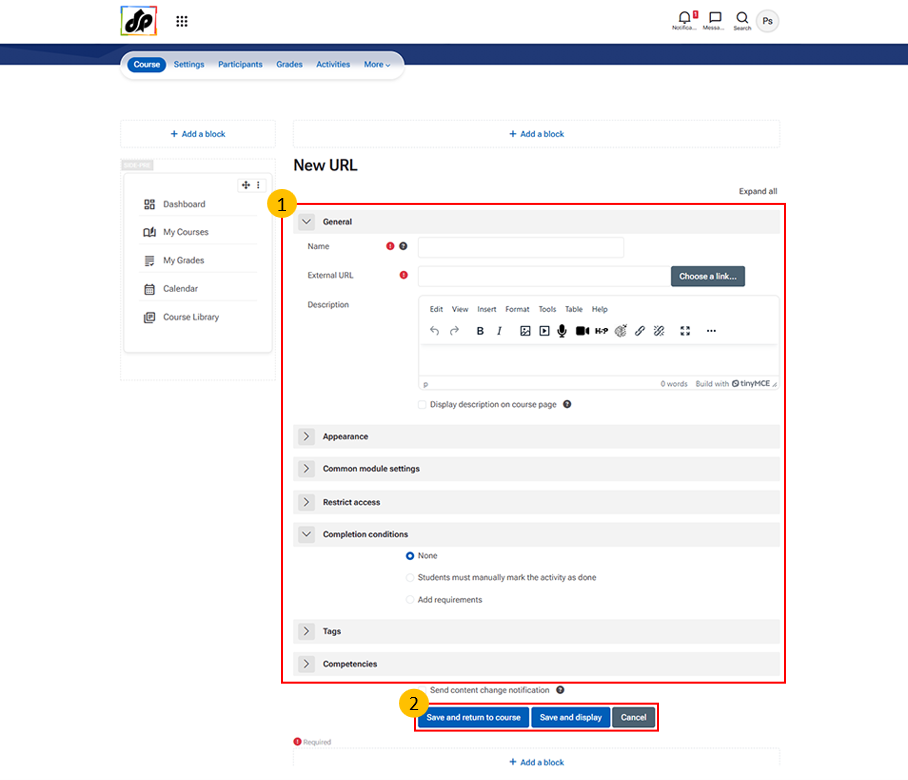
Steps for Creating a URL Resource
- Enter a Name → Title students will see in the course.
- Add External URL → Paste the web link (e.g., article, video, or tool).
- Add Description → Optional instructions or context for the link.
- Adjust Settings → Use Appearance, Access, or Completion options if needed.
- Save → Choose Save and return to course or Save and display.