Course Creation on KnowxBox: User Manual
3. Setting up Course Completion Settings using Bulk Method
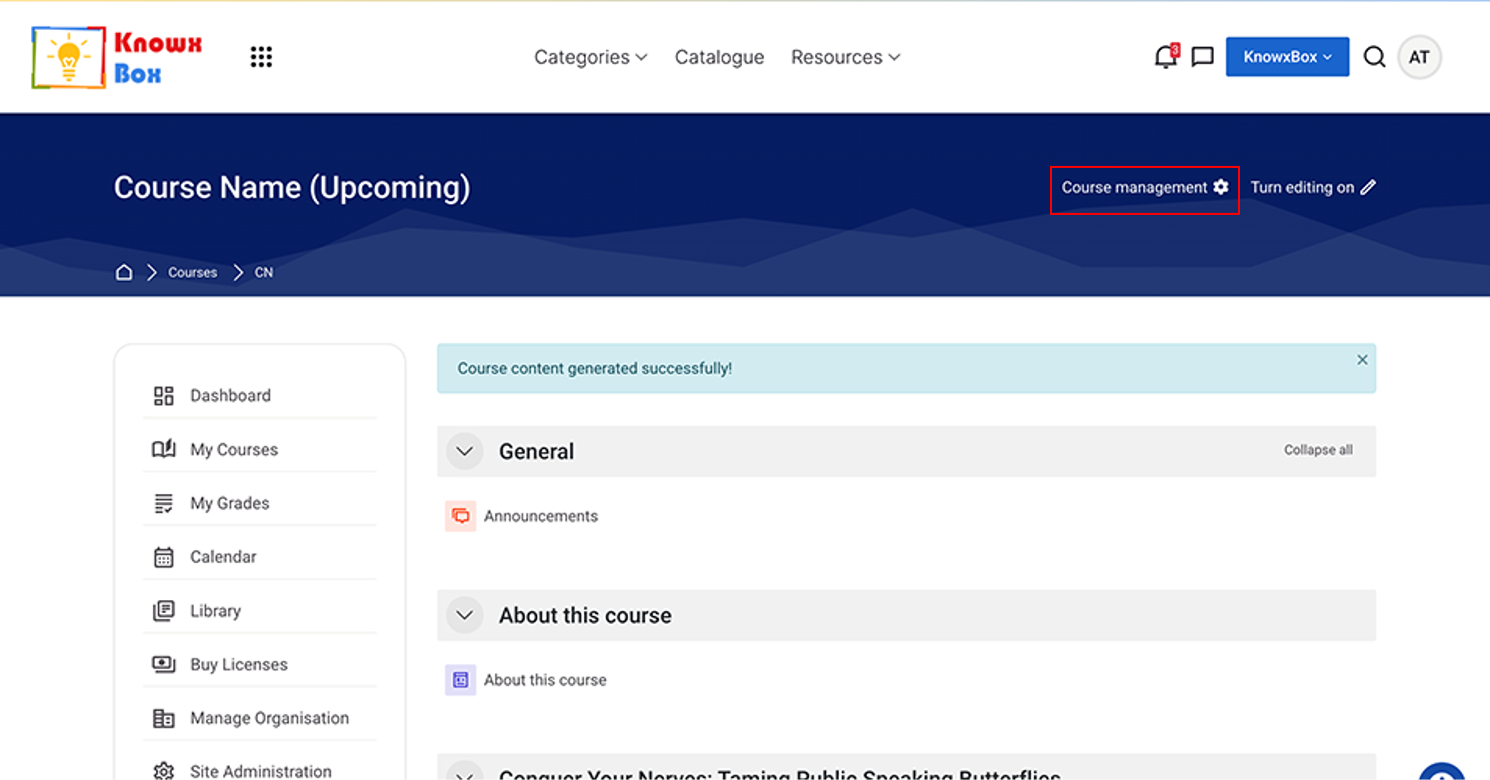
Again, Click on Course management.
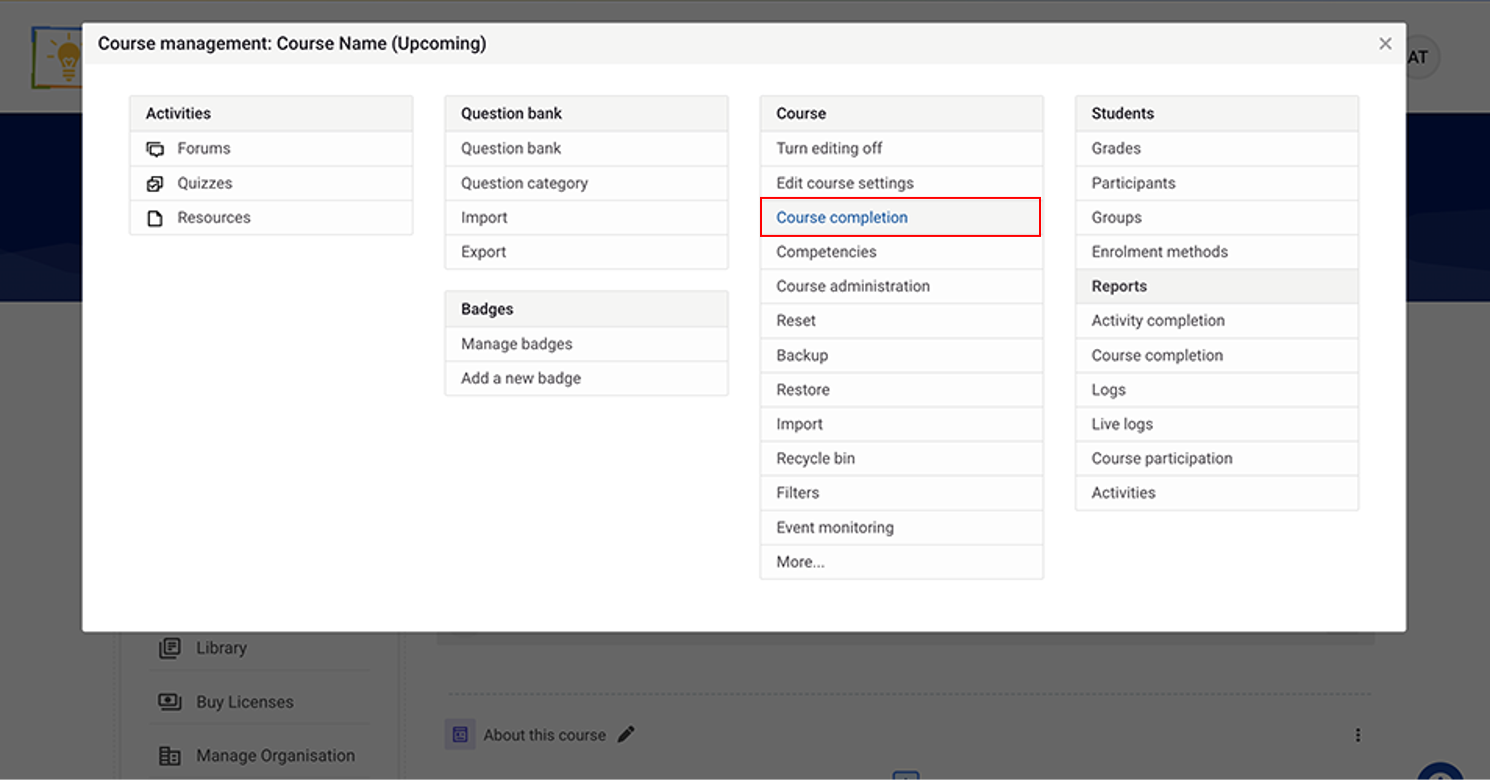
Click Course completion.
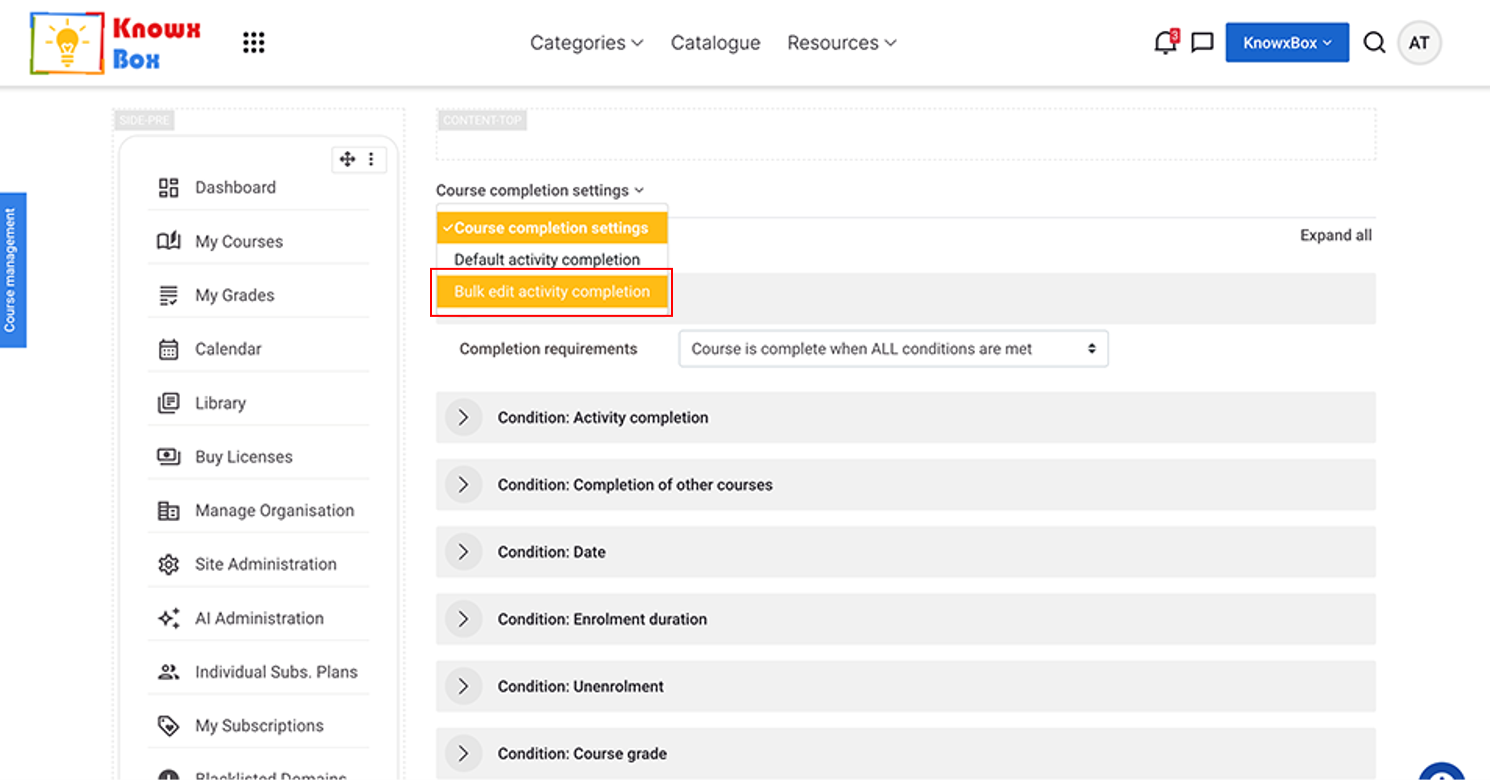
Select Bulk edit activity completion from dropdown under Course completion setting.
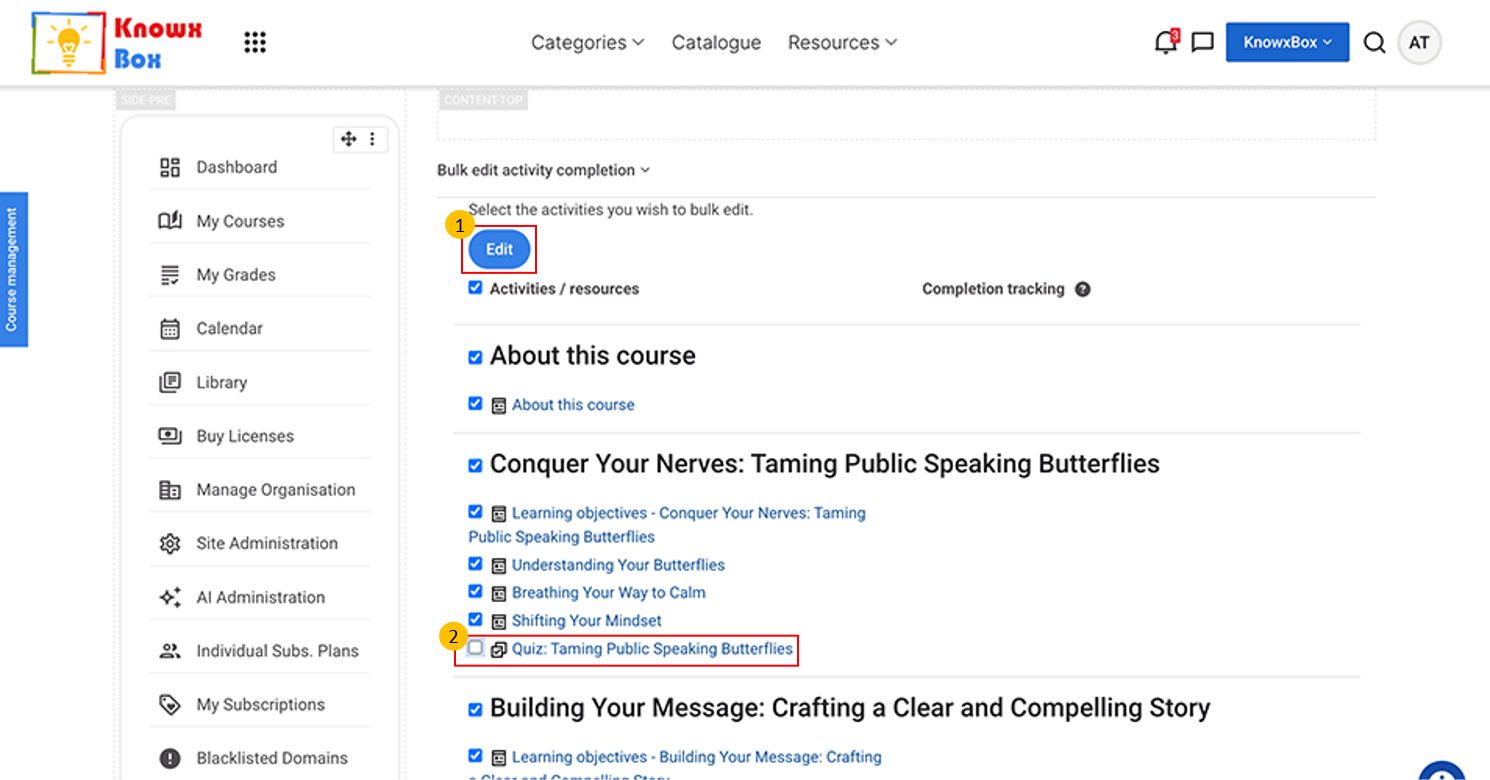
Select all activities except quizzes then Click on Edit
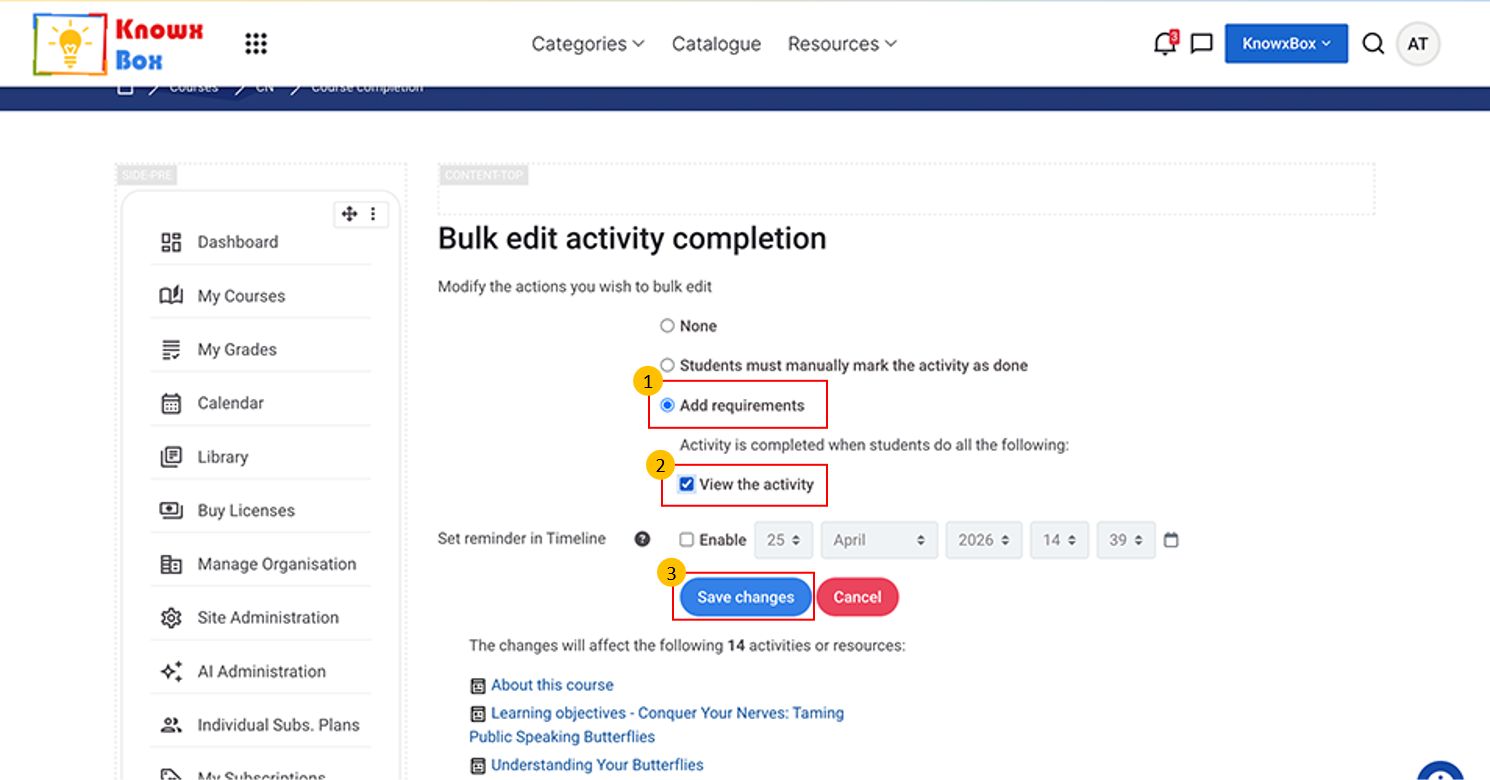
Now, select Add requirement, View the activity then Click on Save changes.
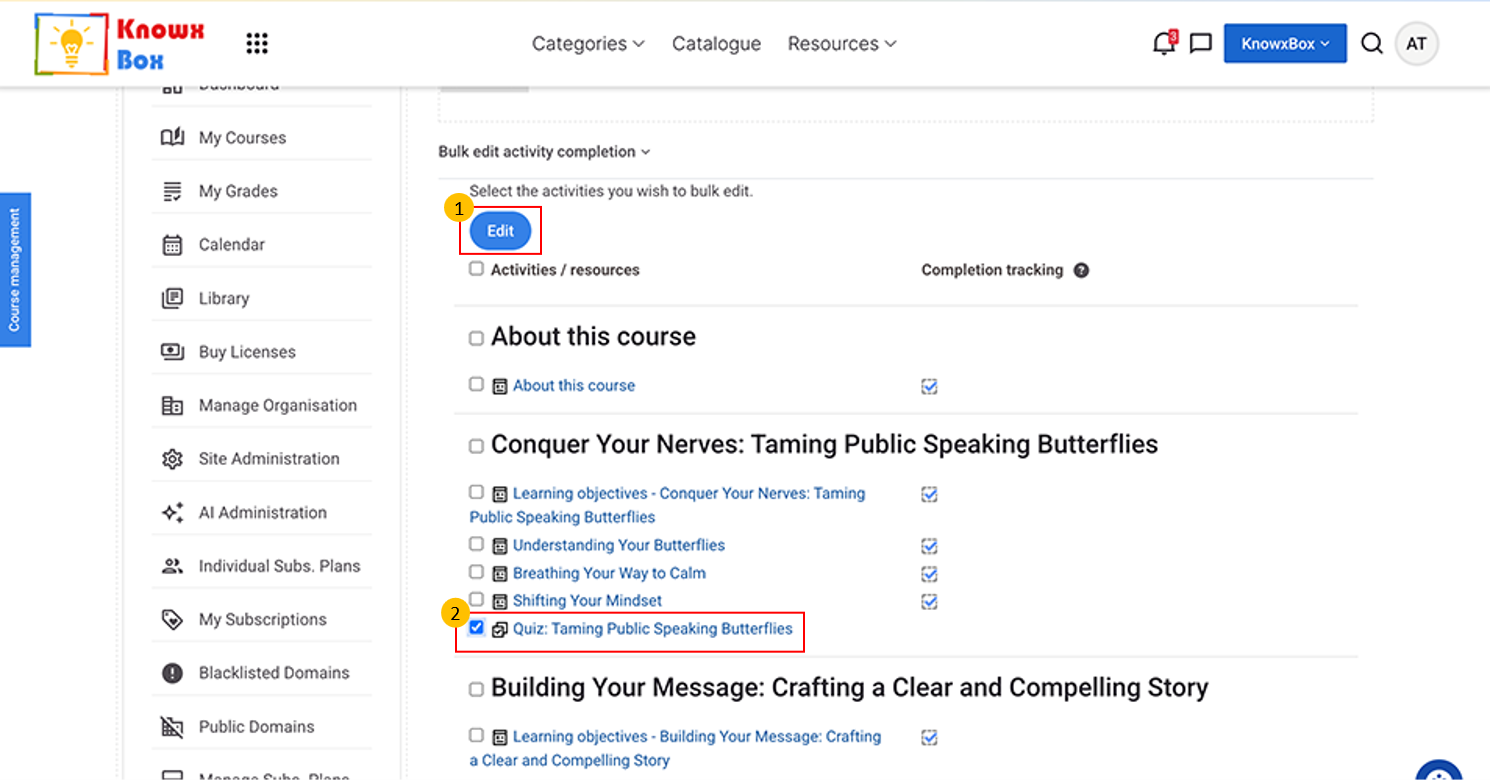
Now, select all the Quiz activities then click on Edit.
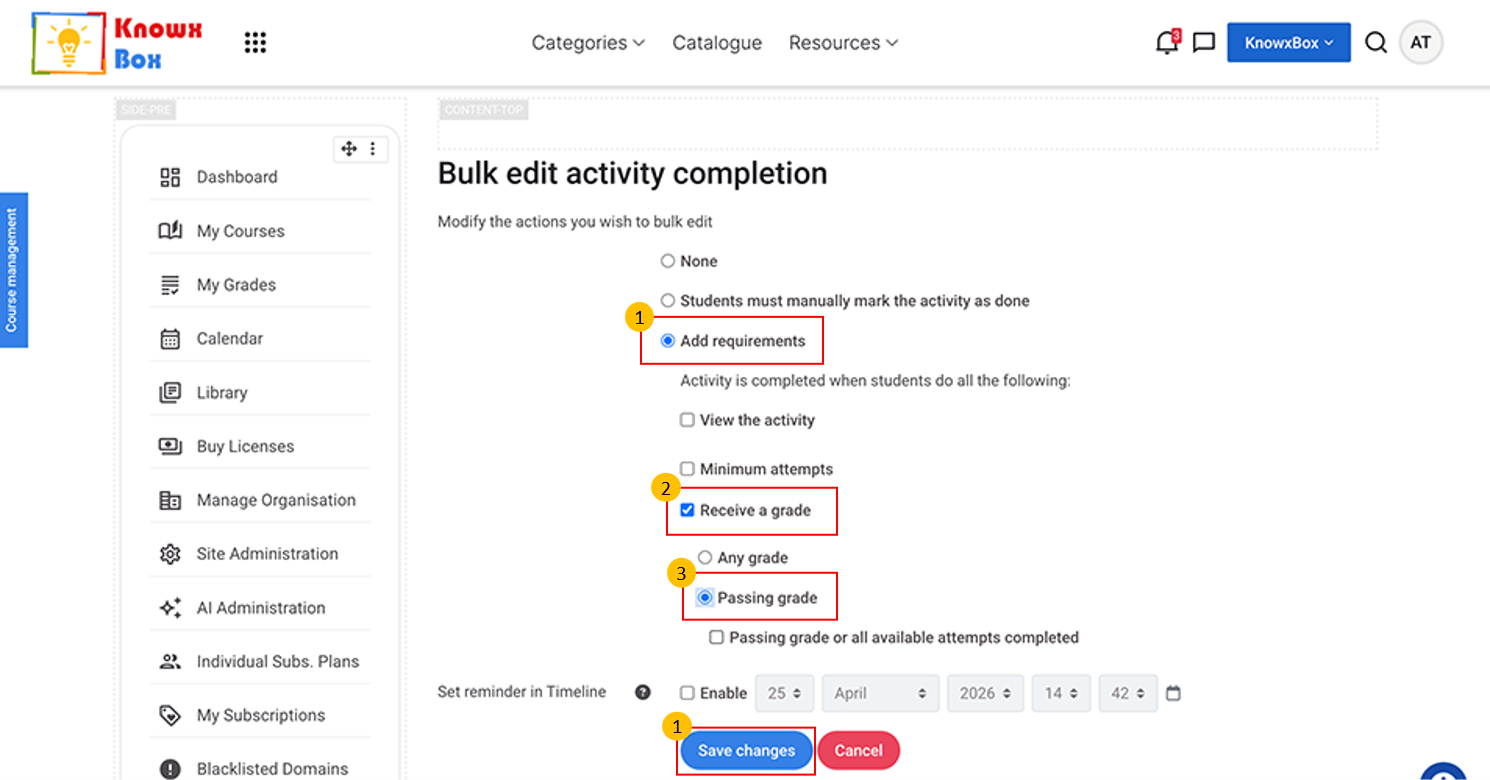
Select Add Requirements -> Receive a grade -> Passing Grade.
Fix this setting to all quiz activities.
Click on Save changes.
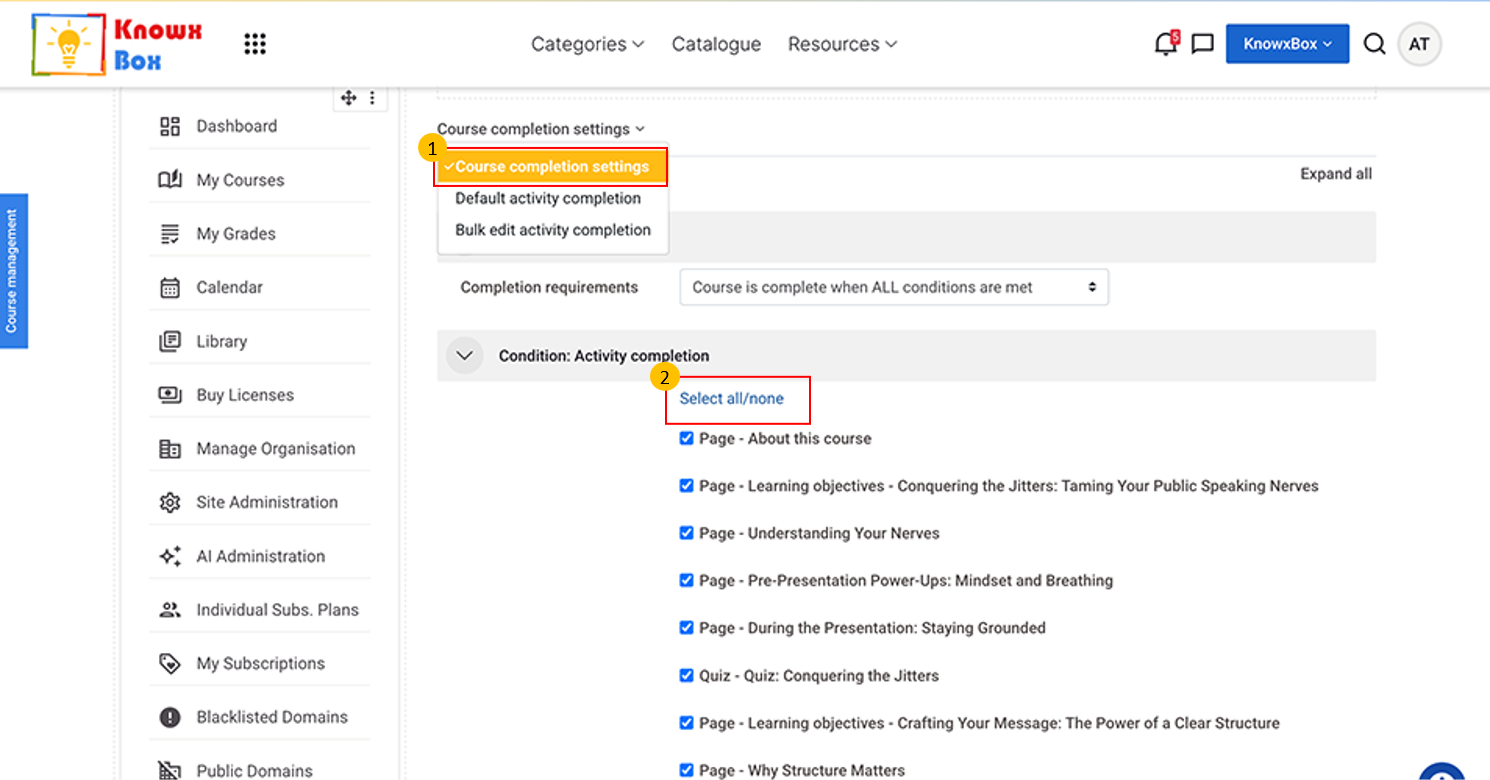
Again, come to the Course completion setting.
Click Select all. Make sure all activities checkboxes must ticked.
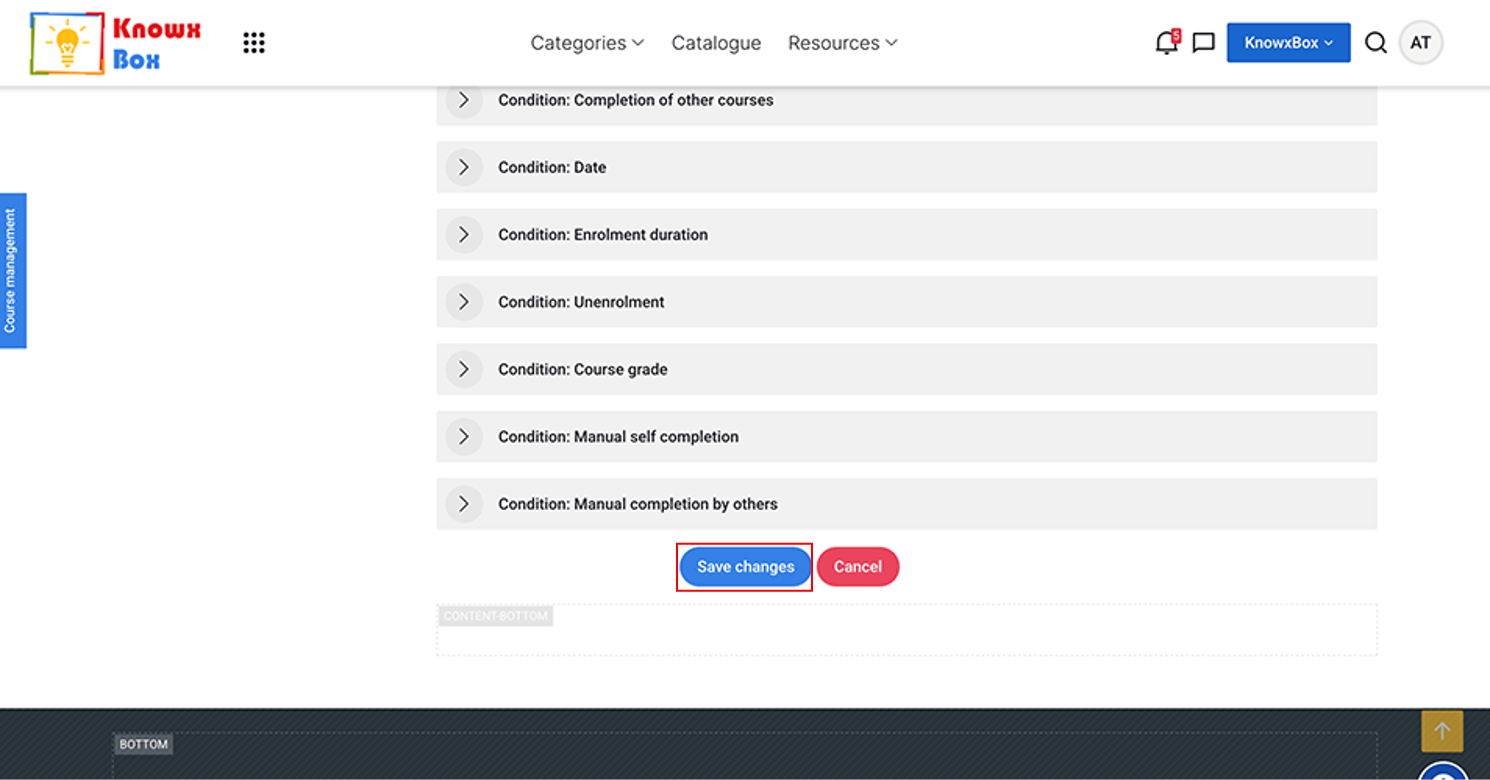
Click Save changes.
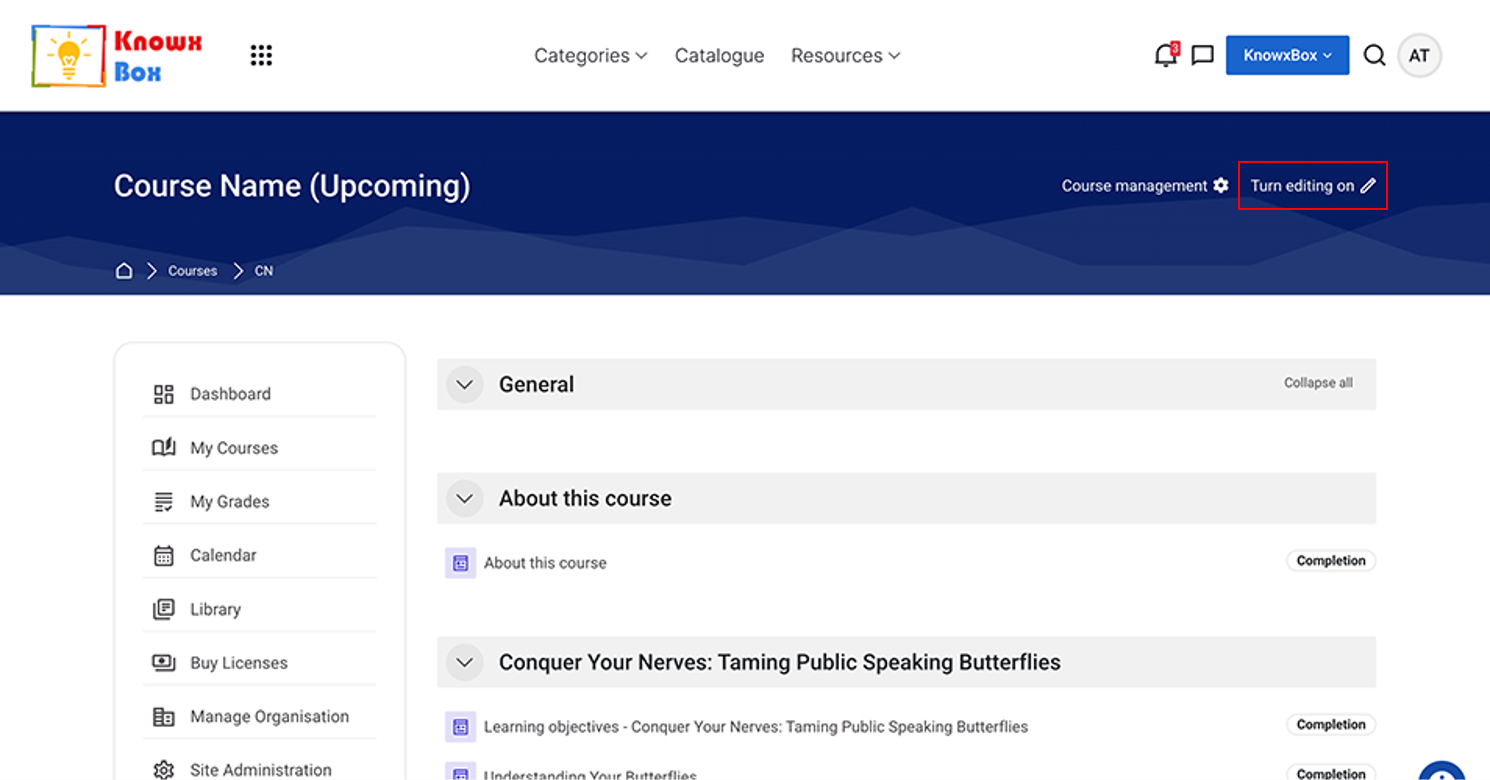
Make sure ‘Turn Editing On’ is selected.
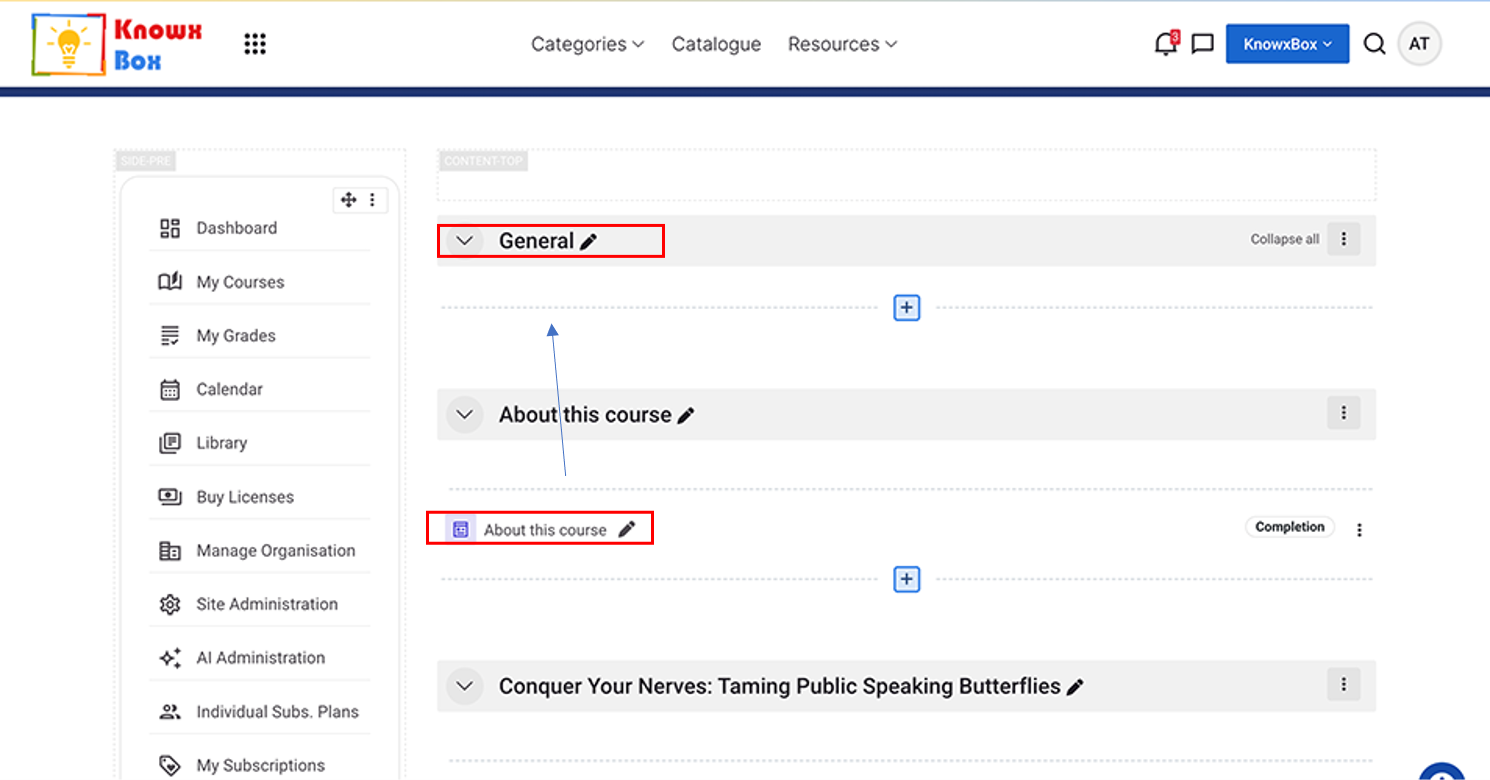
Replace General with About this Course by Drag and Drop.
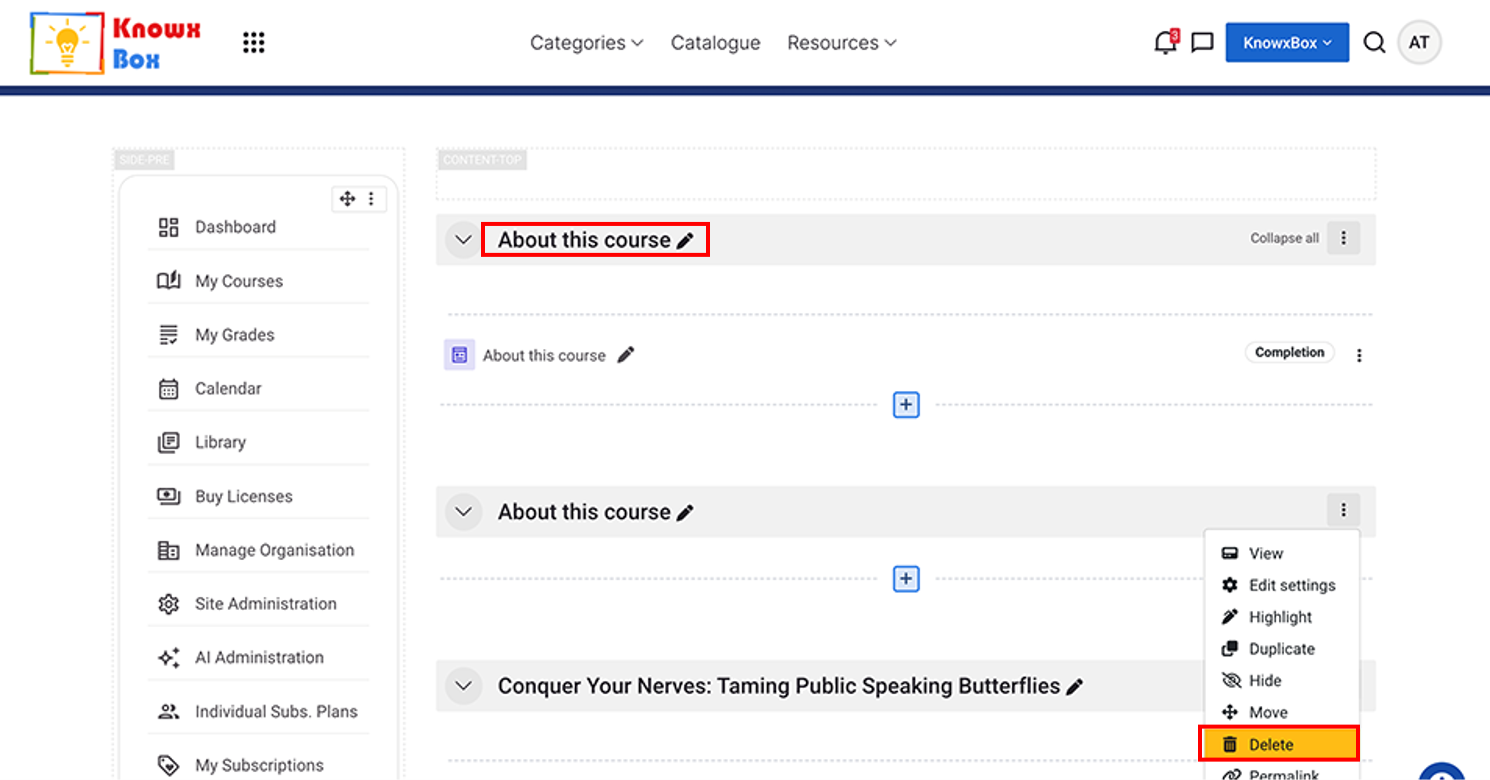
Now, Delete the 2nd activity by clicking on 3 dots.