HACC Gen working in Moodle LMS
| Site: | Dynamic Pixel Demonstration Environment |
| Course: | Moodle Documentation for Teacher |
| Book: | HACC Gen working in Moodle LMS |
| Printed by: | Guest user |
| Date: | Sunday, 25 October 2026, 7:11 PM |
1. Course Navigation and Structure
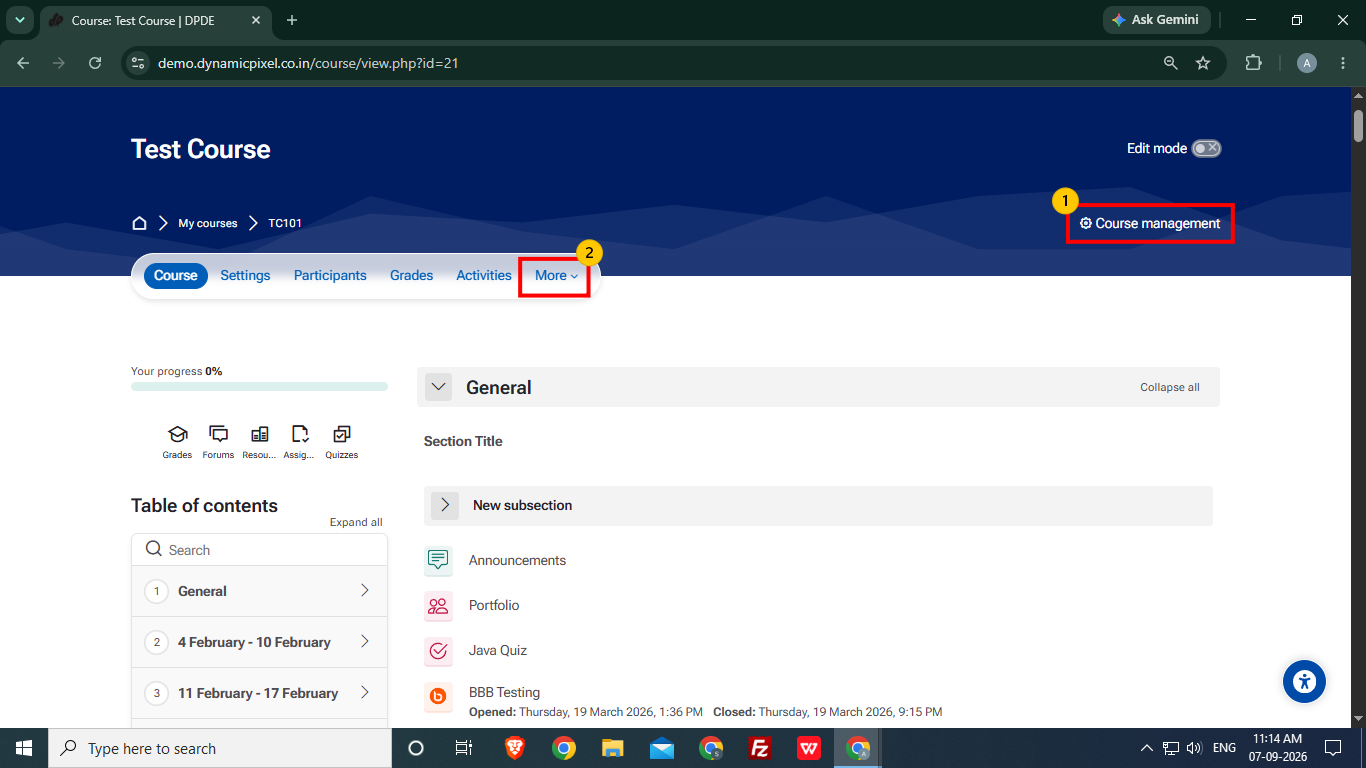
- Course Management Section-
This section provides key administrative tools for managing and maintaining the course. It includes options such as,
Edit course settings- Modify course name, summary, and format.
Participants- View and manage enrolled users.
Enrolment methods- Add or manage user enrolment.
Grades/Gradebook setup- Configure and manage grading.
Course Completion- Track course progress and completion criteria.
Reports- View course activity and participation reports.
Question bank- Mange questions for quizzes and assessments. - More Tab-
Use this tab to access additional course management options such as Reports, Competencies, Question Banks, Course Reuse etc.
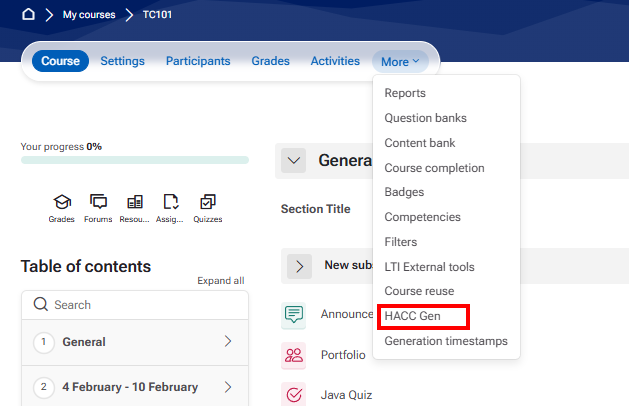
Select the HACC Gen option in the More tab to start creating the course content.
2. Creating Course Content using HACC Gen.
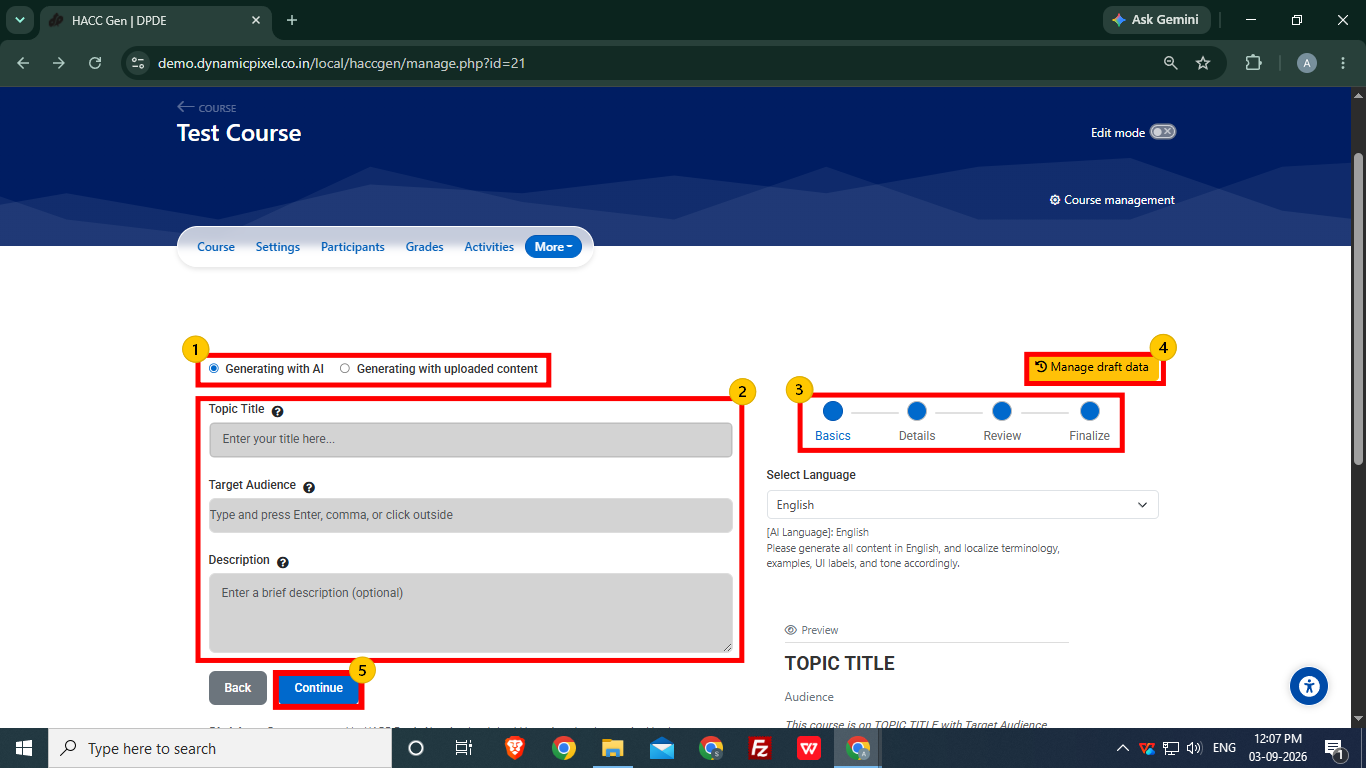
- Two options are available to create course content:
- Generating with AI
- Generating with uploaded content
Select “Generating with AI” (default option).
- Enter the basic details to define the type of content you want,
- Topic Title- Enter the topic of the course.
- Target Audience- Set the audience accordingly as the content will be generated with reference to the target audience.
- Description (Optional)- Adding the description is not mandatory, but user can add according to requirements.
- The course content creation is divided into 4 parts, i.e., Basics, Details, Review and Finalize.
- Drafts of the created course can be accessed using Manage draft data option.
- Click Continue to proceed to the next step.
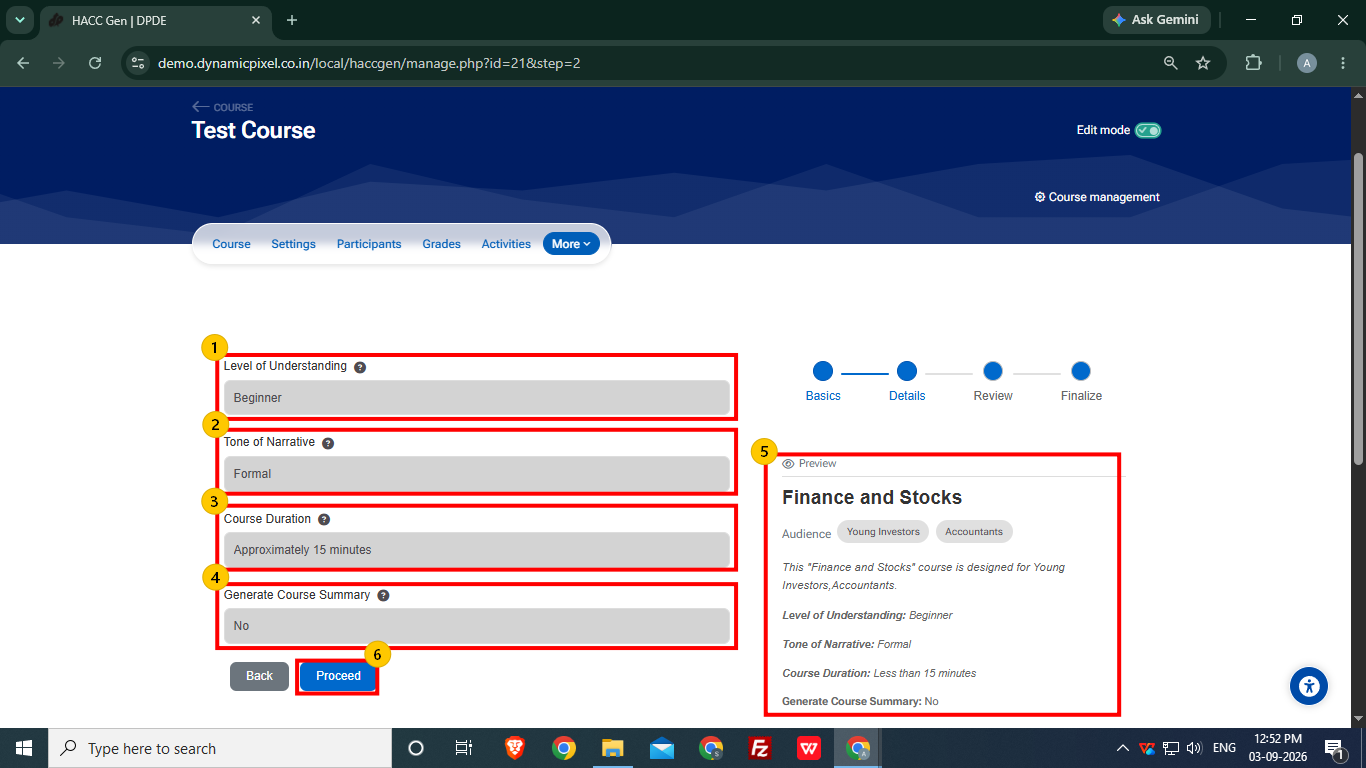
Set the details for the course content.
1. Select the Level of Understanding
-
- Beginner
- Intermediate
- Advanced
2. Select the Tone of Narrative
-
- Formal
- Conversational
- Engaging
3. Set Course Duration
-
- User set duration of course from approximately 15 minutes to 120 minutes.
4. Generate Course Summary (Optional)
-
- User can choose whether to generate the course summary or not.
5. User can view the content outline at the preview section after adding the required information.
6. After setting up details, click Proceed.
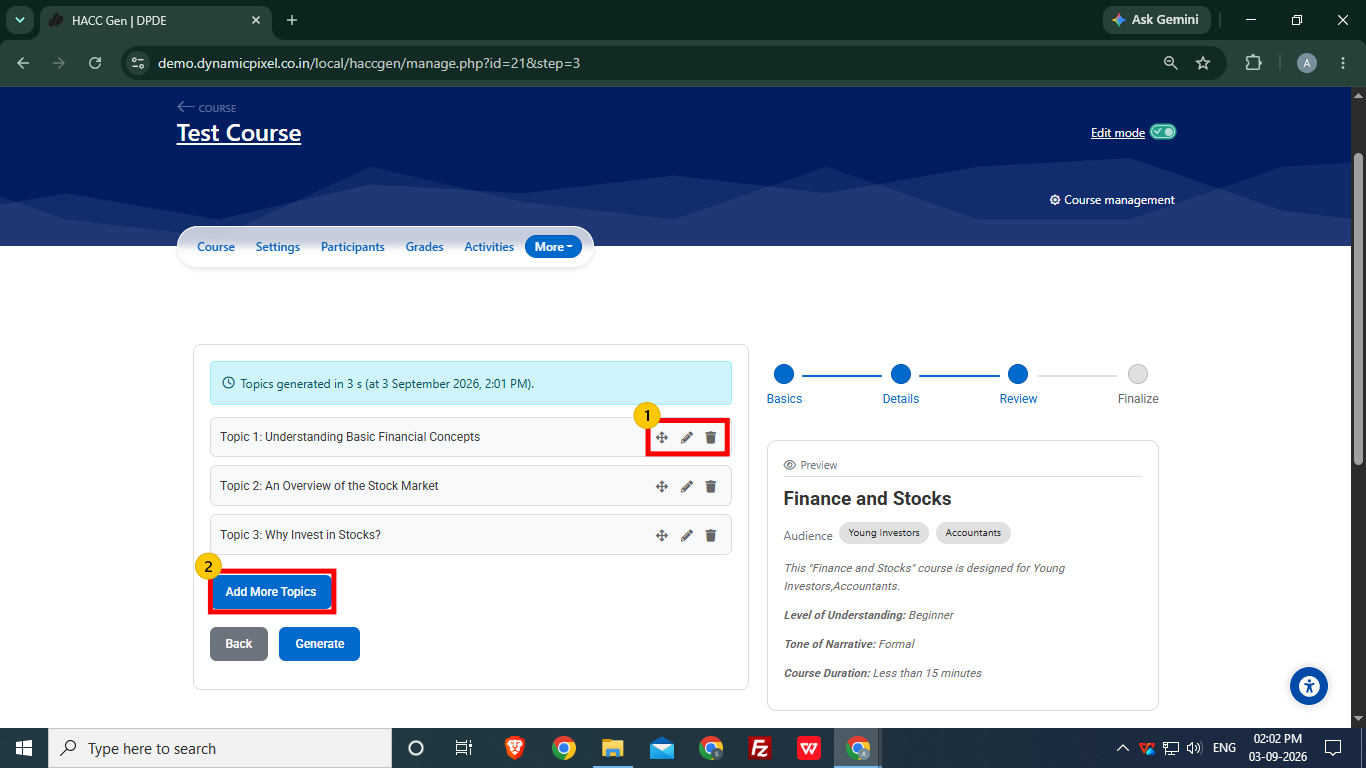
This is Review Section
- User can edit or remove a particular topics and sequence of the topics can be changed.
- User can more topics using Add More Topics option.
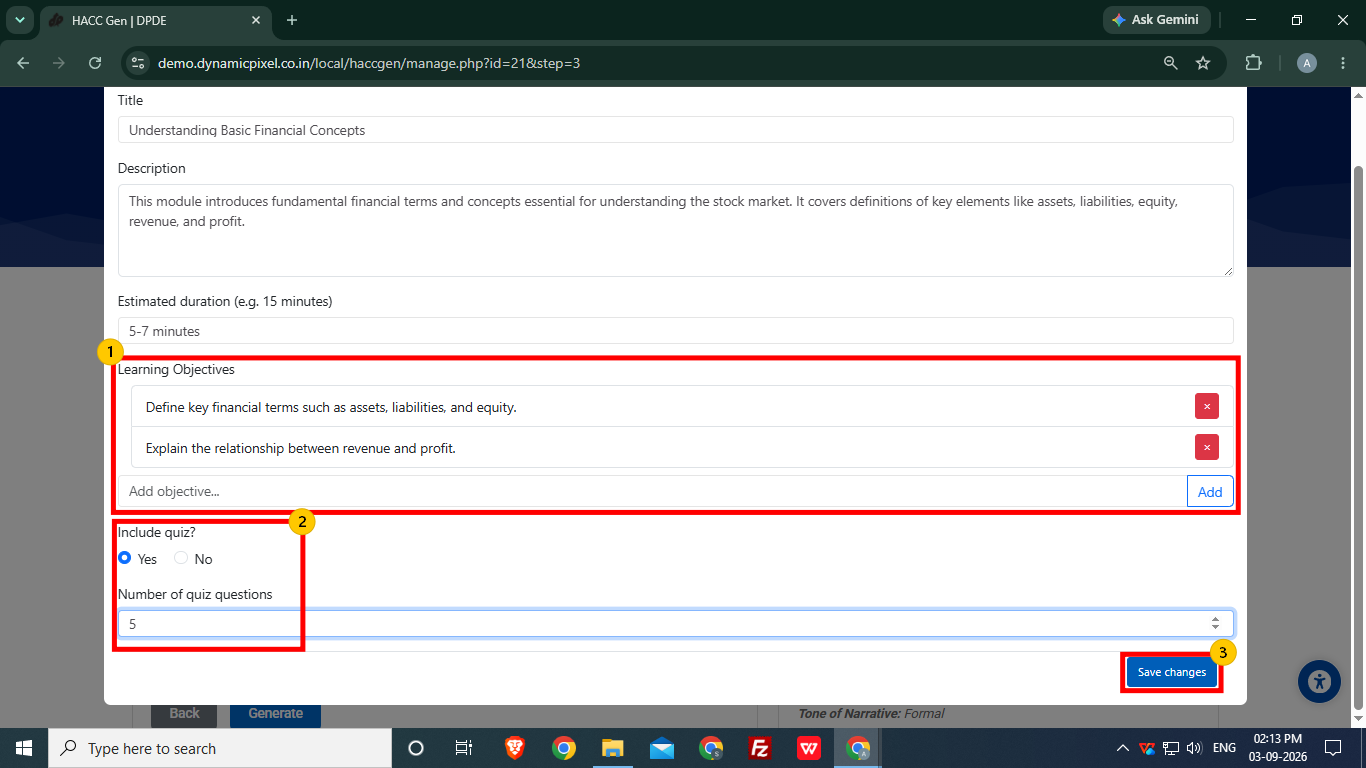
- The Learning Objectives can be edited/removed by users and more objectives can also be added.
- The user can select yes in Include Quiz option to add quiz questions with content and number of quiz questions can be set. User can set up to 20 questions.
- After reviewing the topic, click Save Changes.
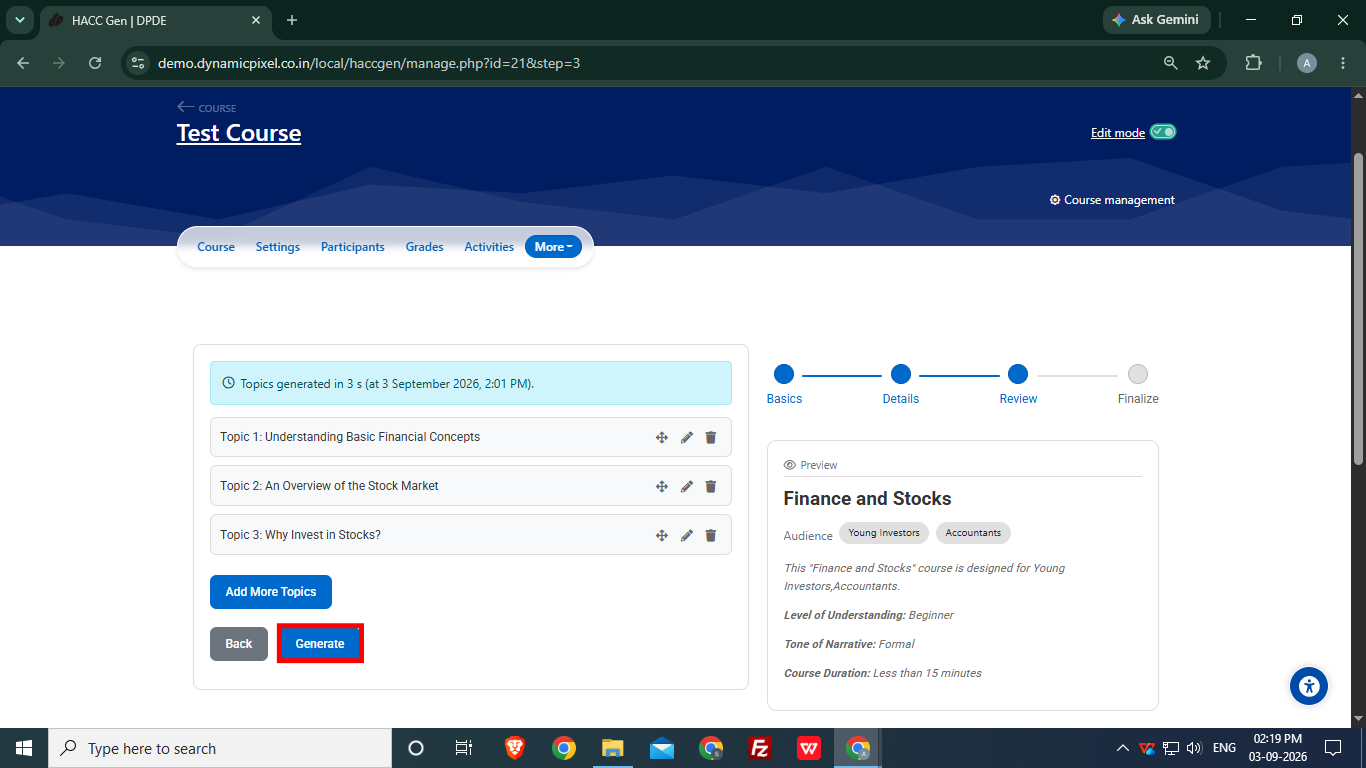
After reviewing the topics, click Generate to start generating the course content.
3. Course Finalize
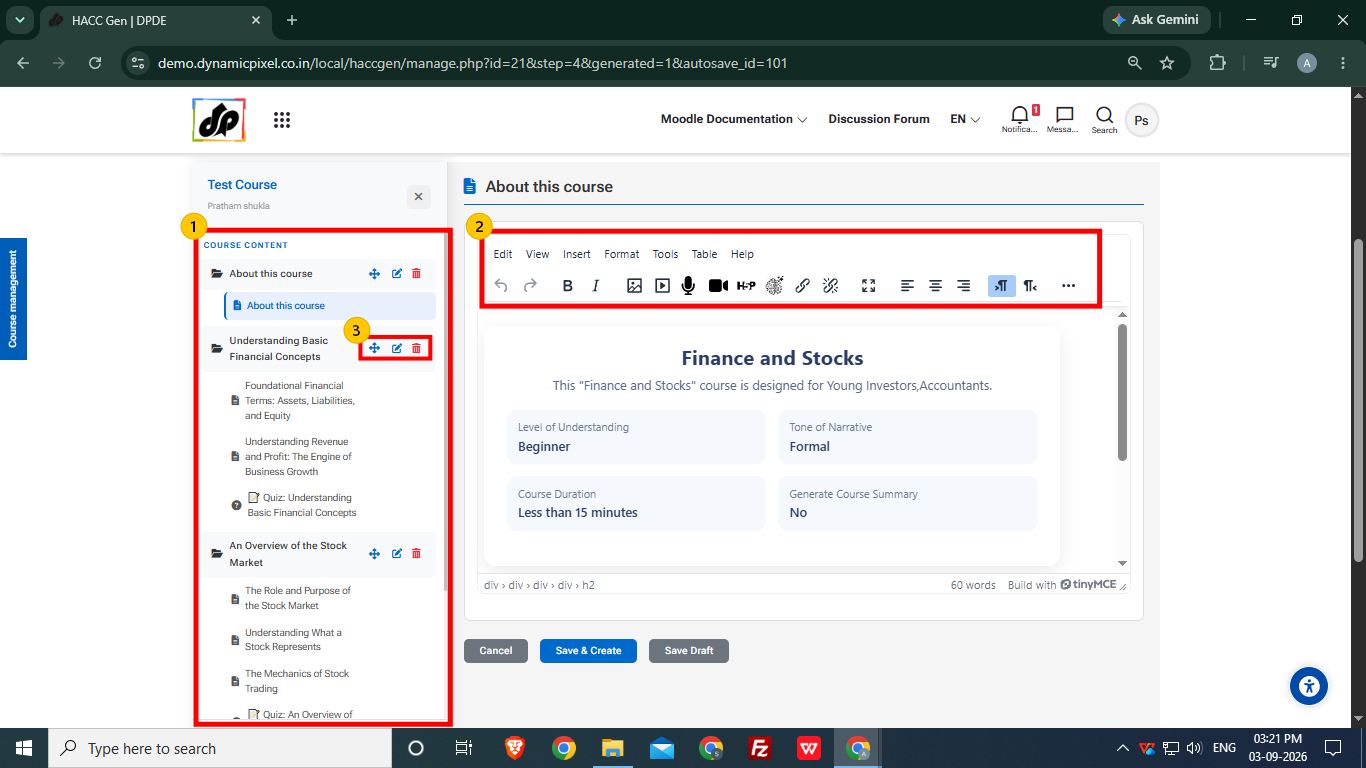
- The final course structure is generated for user to review/edit.
- The user can edit a particular page content using the tool bar.
- A particular topic and the pages inside the topic can be renamed/removed if required and sequence of topics and pages can also changed.
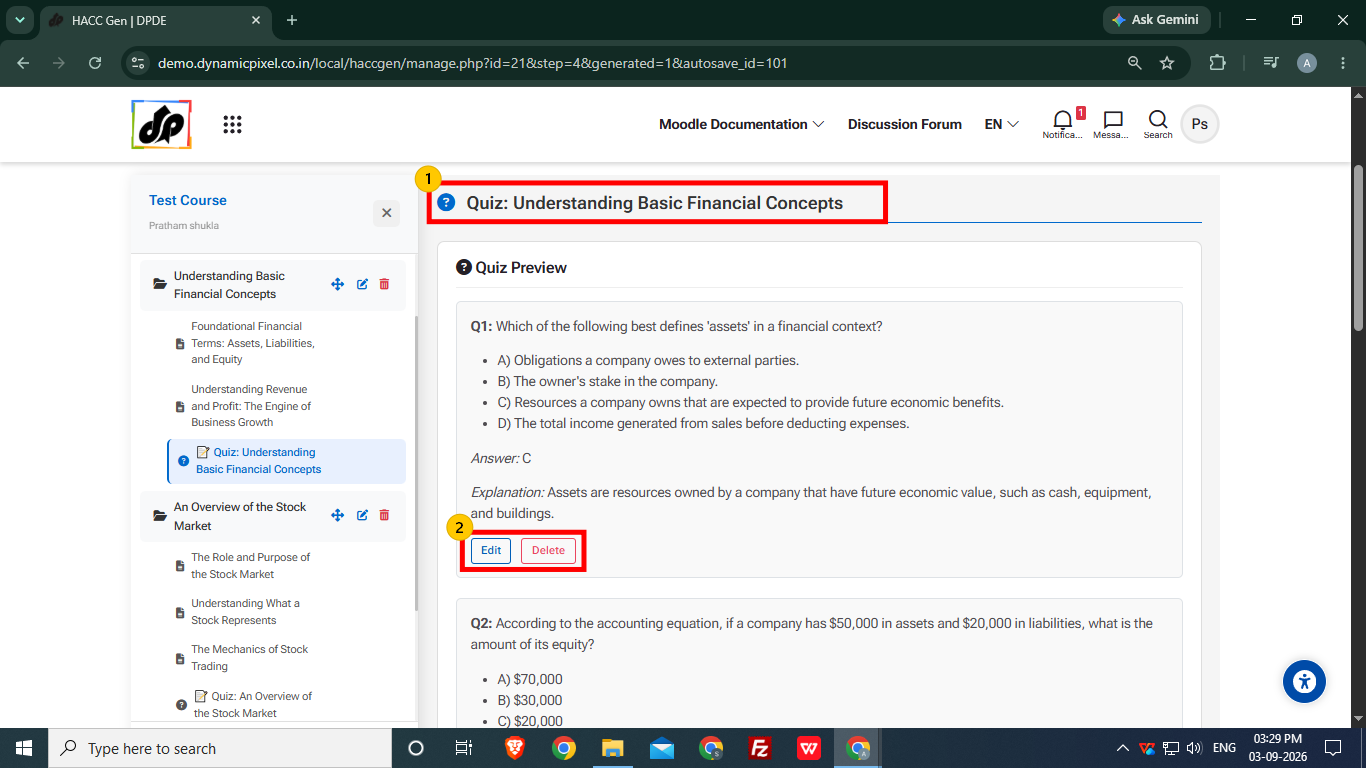
- The user can preview the quiz section and the questions in it.
- A particular quiz question can be edited or removed as per requirement.
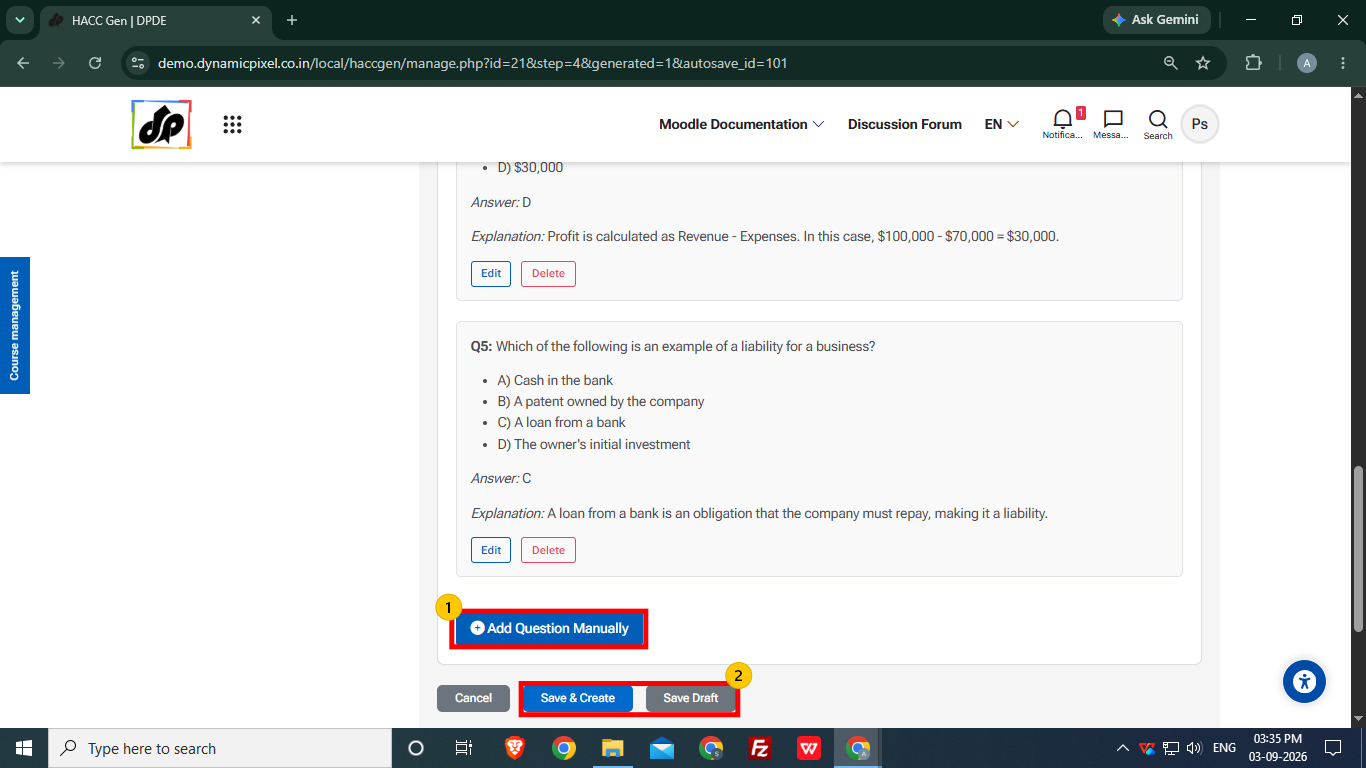
- User can also add question using Add Question Manually option.
- After reviewing, choose the saving option.
-
- Save and Create- It is used to final save the course and add it to the course section.
- Save Draft- It is used create a draft of the course which can later be accessed using Manage Draft Data option.
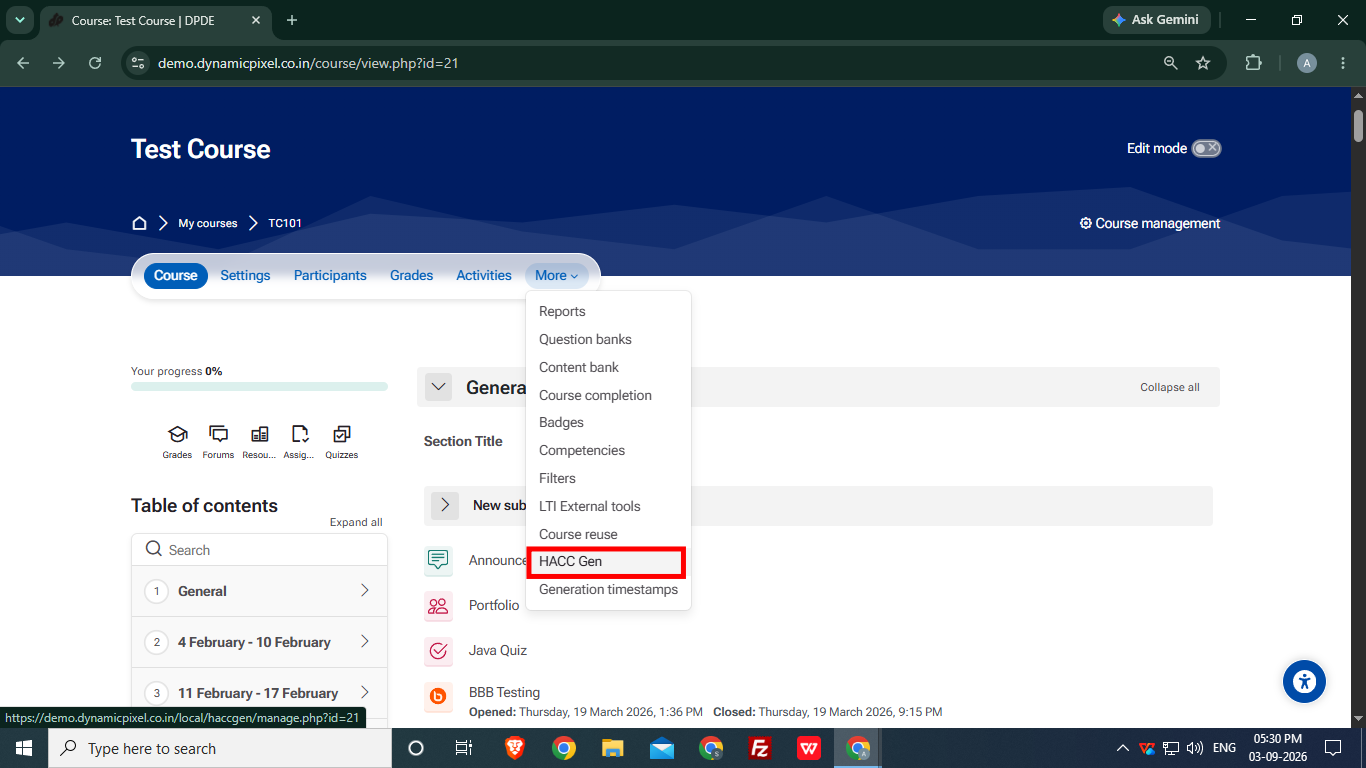
After saving the course in drafts, the user will be redirected to the course navigation and structure.
Select HAC Gen in the More option again.
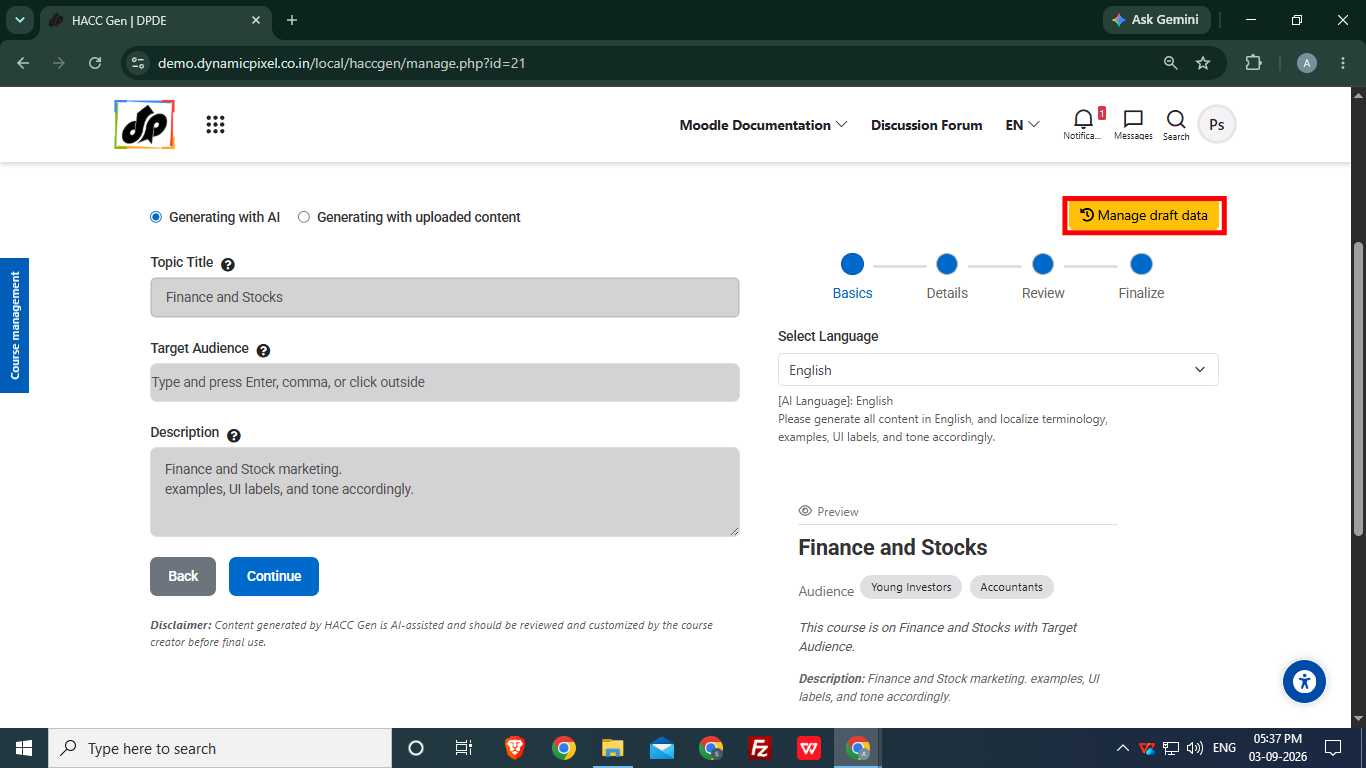
Select Manage Draft Data option.
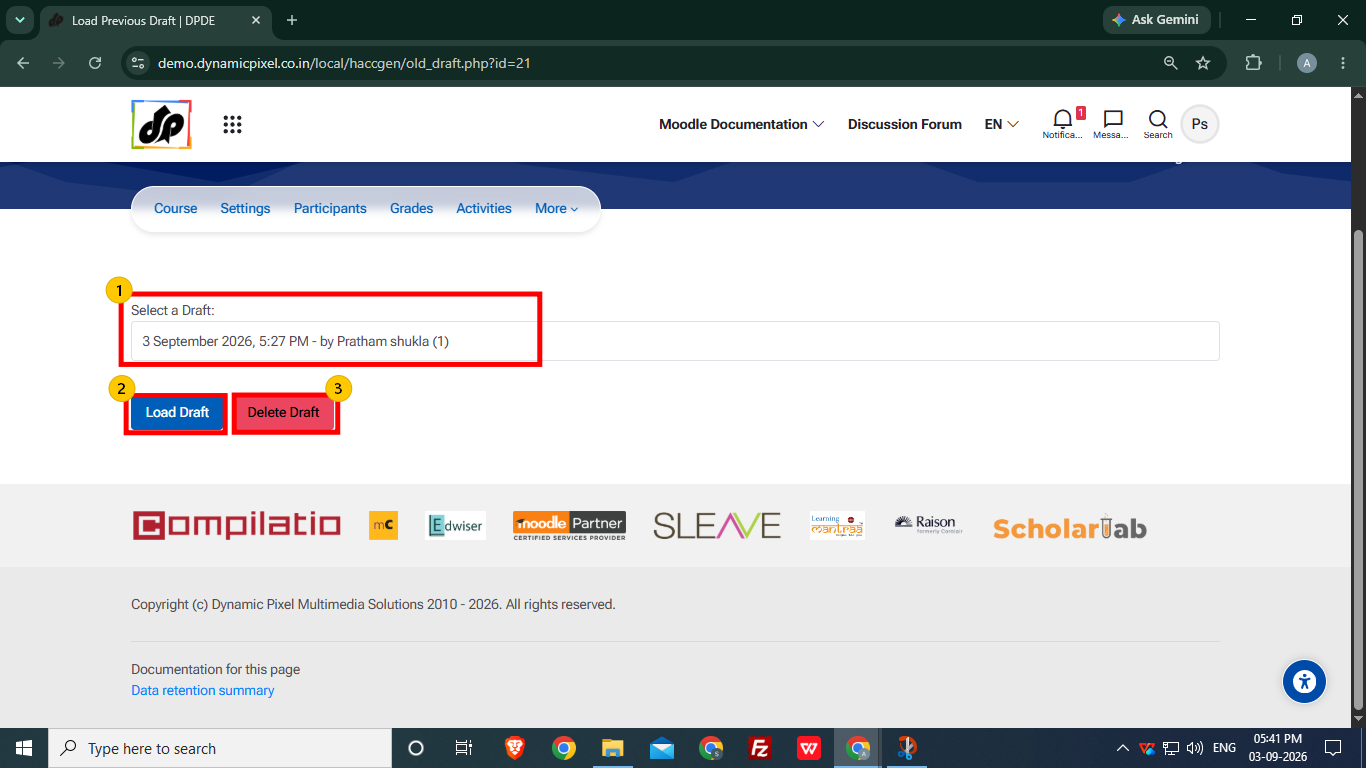
- User can select the saved draft to load or delete it.
- Load Draft option allows user to load the course structure for further editing or modification before the final save.
- To remove the selected draft, click Delete Draft option