Skip accessibility options4. Understanding the Dashboard
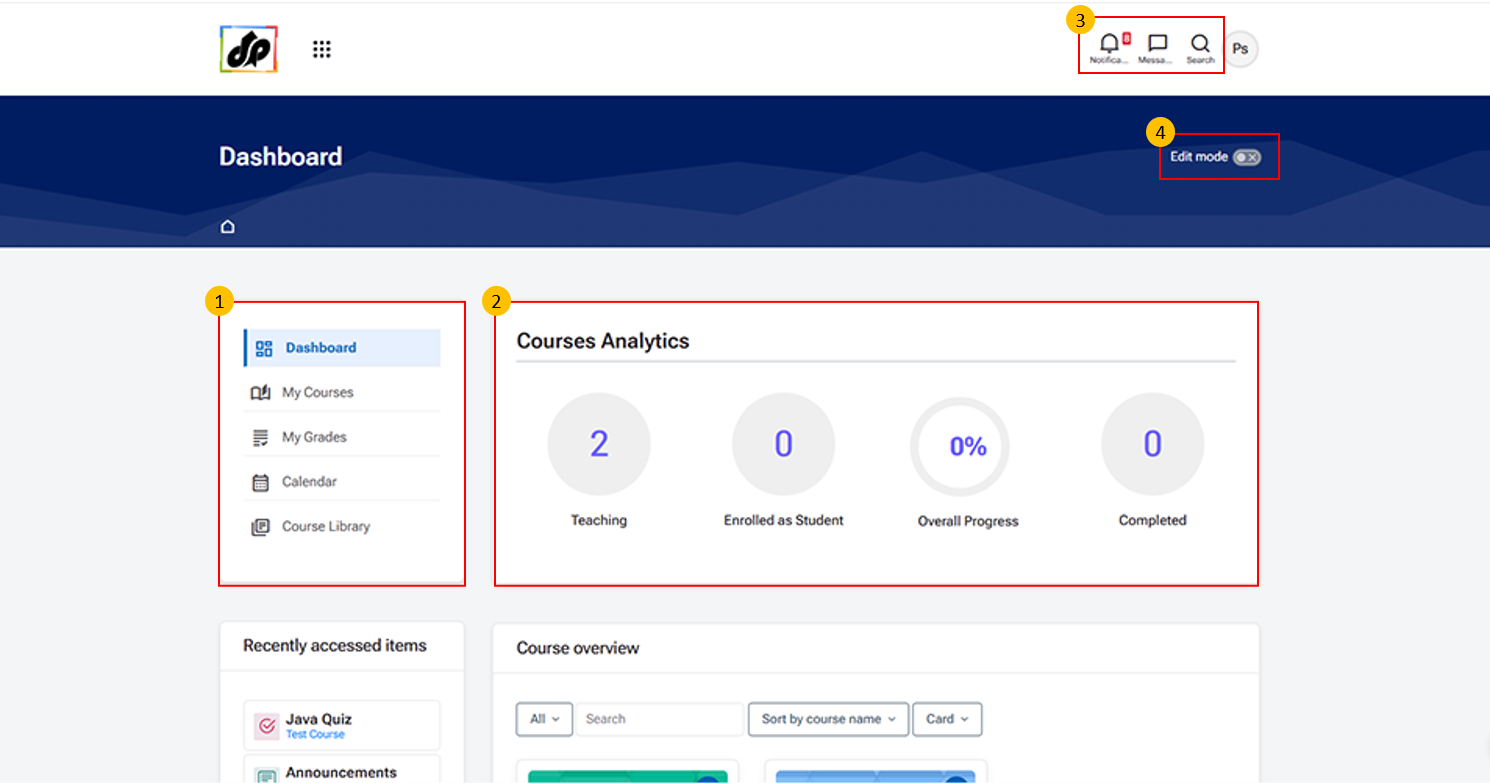
- Navigation Panel (Left Menu)
- This section provides quick access to key features of the platform:
- Dashboard – View overall summary and activity
- My Courses – Access courses assigned to you
- My Grades – View grading details
- Calendar – Check scheduled events and deadlines
- Course Library – Browse available courses
- Course Analytics Section
- This section displays a summary of your course activity:
- Teaching – Number of courses you are teaching
- Enrolled as Student – Courses where you are enrolled as a learner
- Overall Progress – Completion percentage across courses
- Completed – Number of completed courses
- Top Navigation Icons
- These icons provide quick access to important options:
- Notifications – View recent alerts and updates
- Messages – Access communication with users
- Profile/Search Icons – Manage account or search content
- Edit Mode Toggle
- Use the “Edit mode” button to enable or disable editing on the dashboard or course pages.
- Turn ON to make changes (e.g., add or modify the layout of Home page)
- Turn OFF to view content normally