Text size
Line height
Text spacing
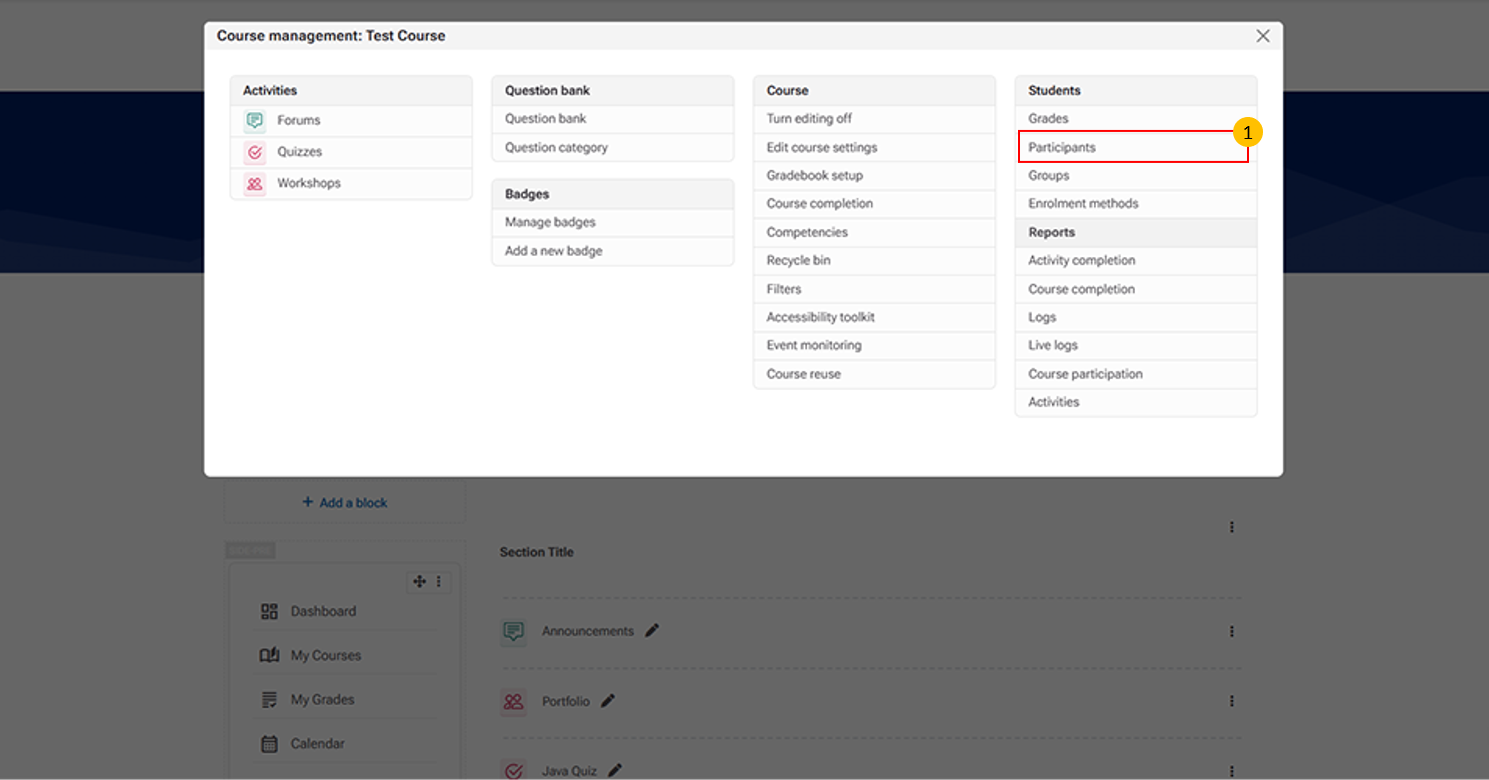
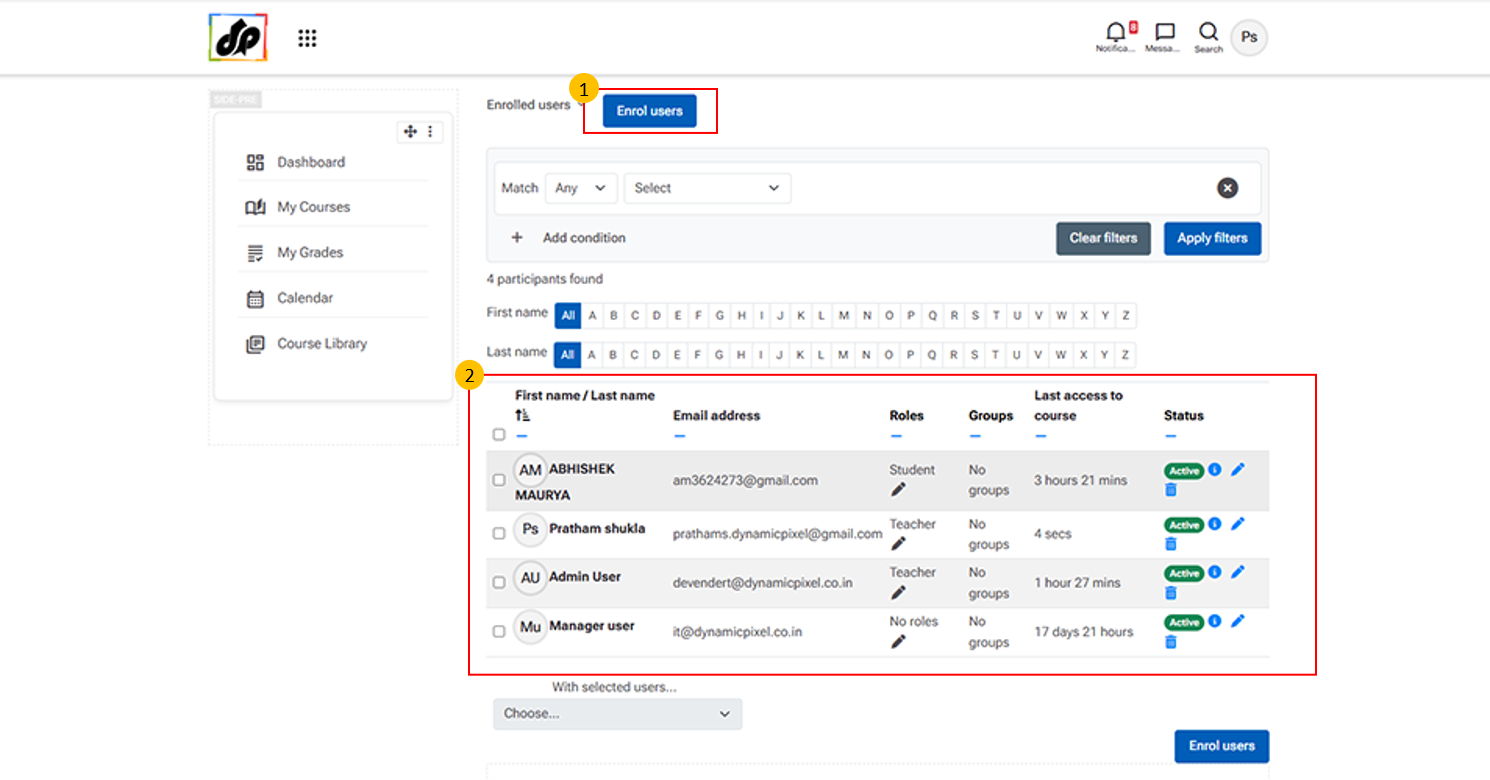
This option allows instructors or administrators to add participants to the course.
This section displays all users currently enroled in the course.
It includes details such as:
Name and email address – For identification and communication
Role – Indicates the user’s role (e.g., Student, Teacher, Manager)
Group membership – Shows the group assigned to the user
Last access – Displays the user’s most recent activity
Status – Indicates whether the user is active or inactive
Edit option – Allows you to modify user roles or details
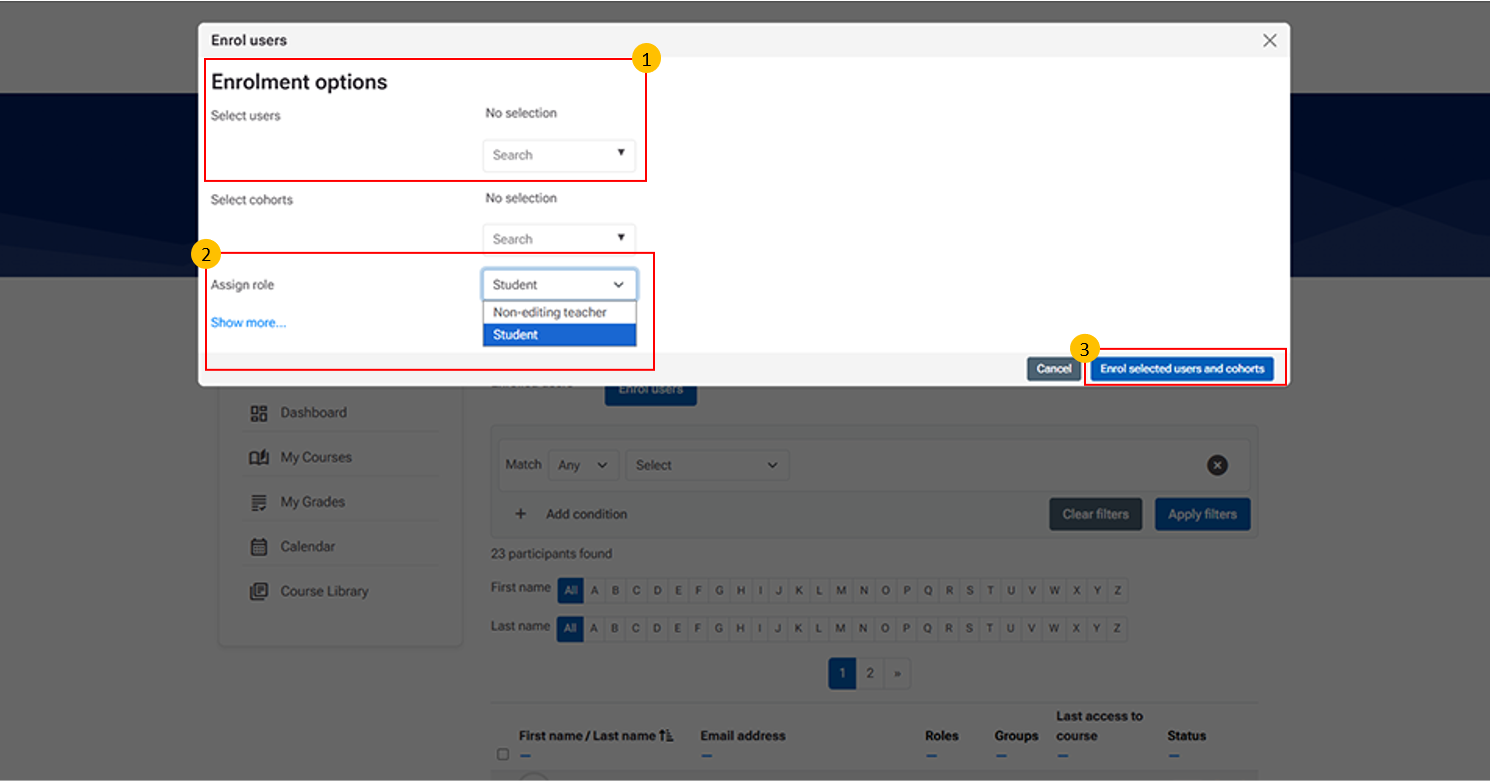
This section allows you to choose participants to enrol in the course.
You can select:
Users – Individual participants from the system
Cohorts – Predefined groups of users
Assign Role Dropdown
This option allows teachers to assign appropriate roles to the selected users or cohorts during enrolment.
Common roles include:
Student – Assigned to learners who will access course content and activities
Non-editing teacher – Assigned to users who can teach and grade but cannot modify course content