8. Adding Activities and Resources

8.2. Quiz

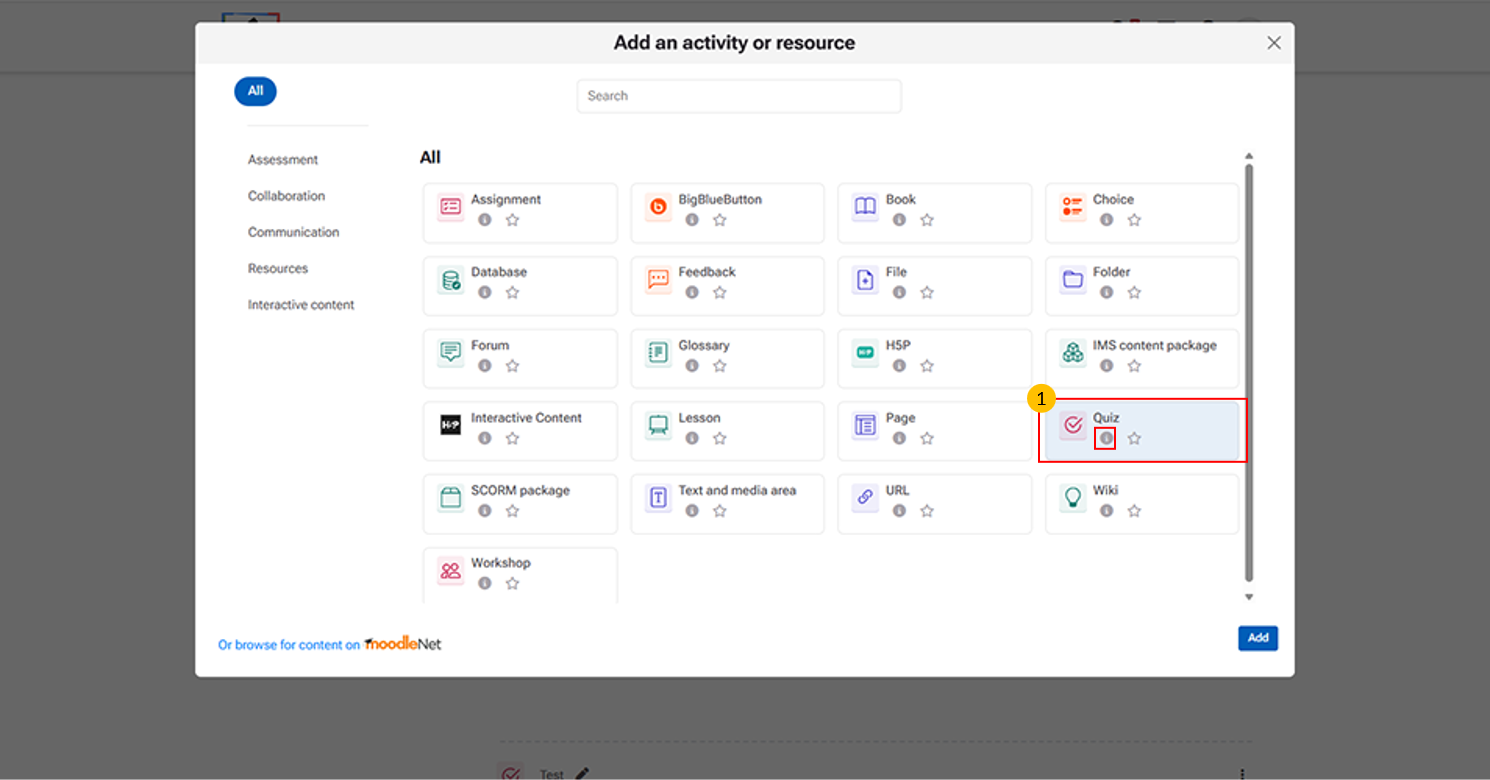
  1. Quiz Option This activity allows instructors to create online tests and assessments for students.
  2. “i” icon provides quick access to additional information about the Quiz activity.

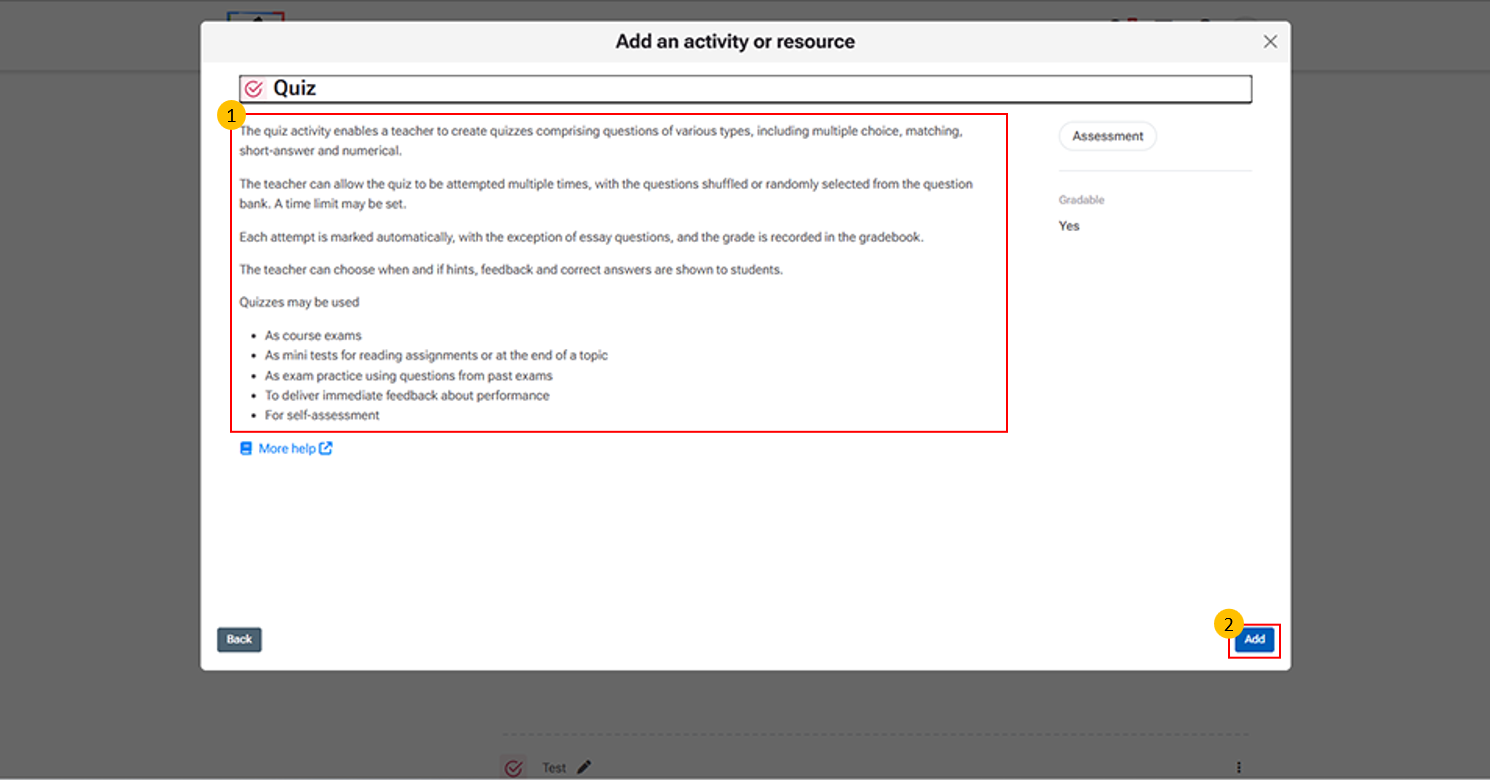
  1. Quiz Description Panel
    • This section provides an overview of the Quiz activity:
    • Purpose – Create quizzes with various question types (MCQ, short answer, etc.) 
    • Attempts & Randomization – Allow multiple attempts and shuffle/random questions 
    • Timing – Set time limits for quiz completion
    • Grading – Auto-graded (except essays) and recorded in gradebook 
    • Feedback – Control when feedback and correct answers are shown 
    • Use Cases – Exams, practice tests, or self-assessments
  2. Add Button: 
    • This button is used to confirm the selection of an activity or resource and insert it into the course.
  3. Click "More help" to open the official Moodle LMS help page with detailed information on the Quiz activity, including its features and settings.
  1. General Section (Quiz)
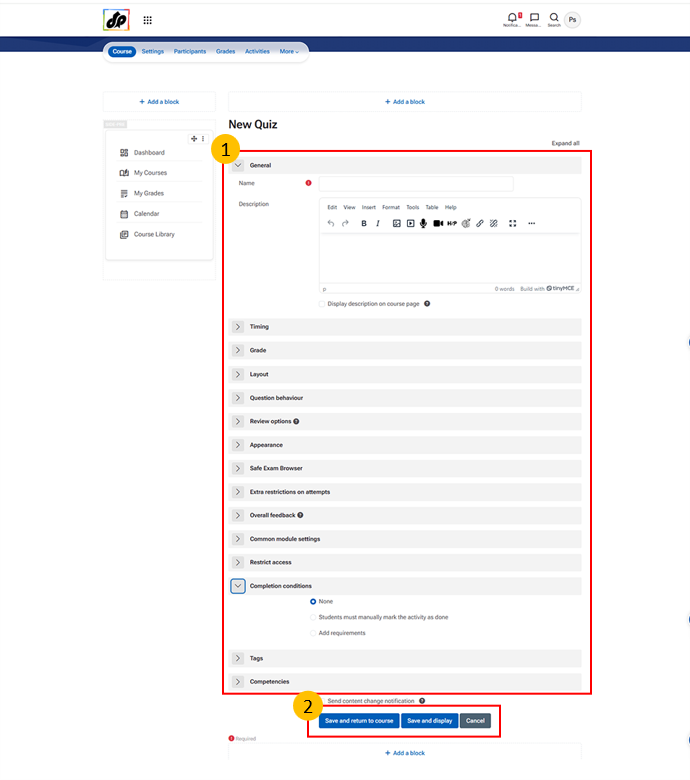
    • This section is used to define the basic details of the quiz.
    • Name
      • Enter the title of the quiz as it will be displayed to students.
    • Description
      • Provide instructions, guidelines, or any important information related to the quiz. 
    • Text Editor
      • Use formatting options such as bold, italic, bullet points, and alignment to structure the content clearly. 
    • Display on Course Page
      • Choose whether the description should be shown directly on the course page or only after opening the quiz.
  2. Save and return to course (saves the quiz and takes the instructor back to the course page)
  3. Save and display (saves the quiz and immediately opens it for further editing or preview)
  4. Cancel (discards changes and exits without saving)