8. Adding Activities and Resources
8.4. Page
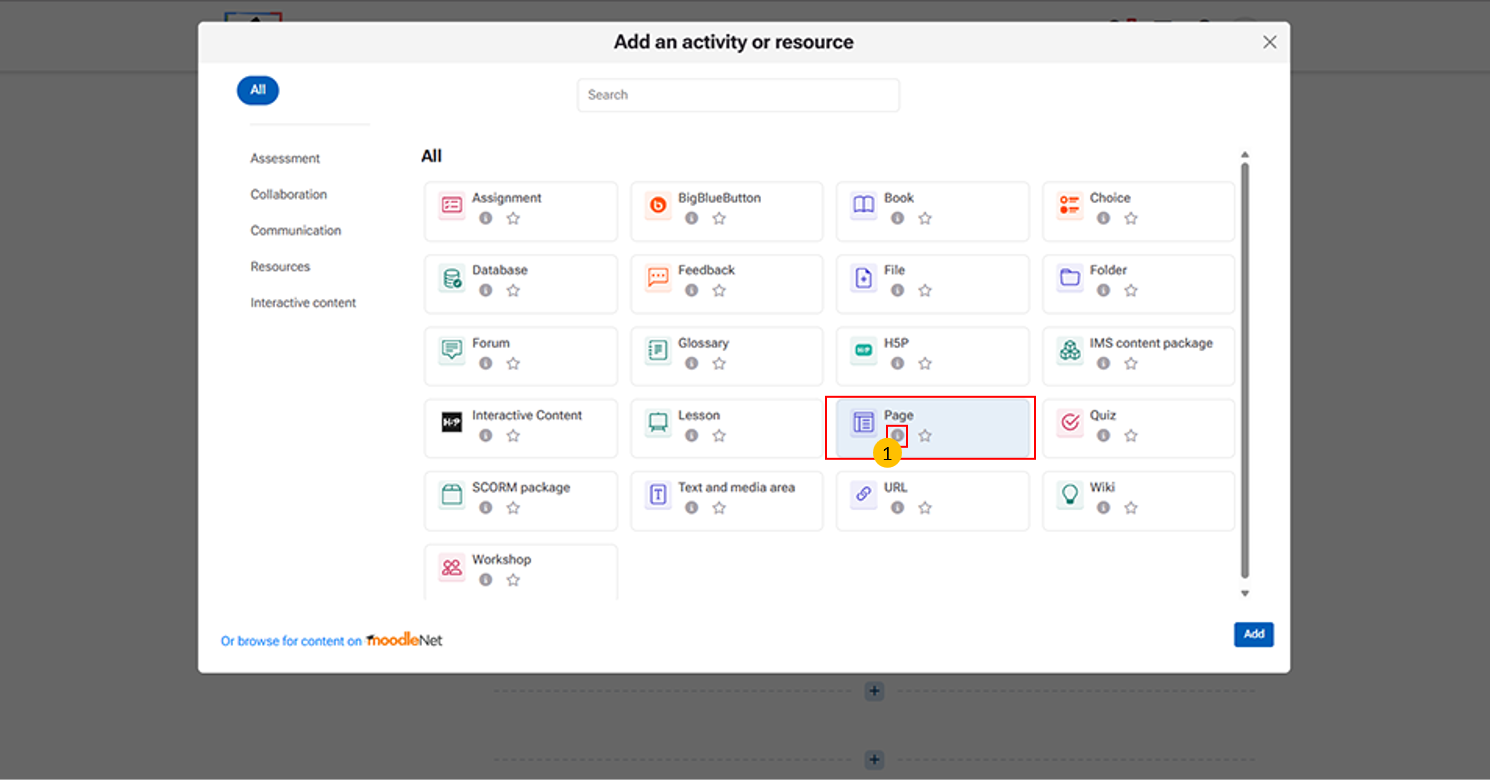
Page Activity: This resource allows instructors to create a single, scrollable page of content within a course.
“i” icon provides quick access to additional information about the Page activity.
-
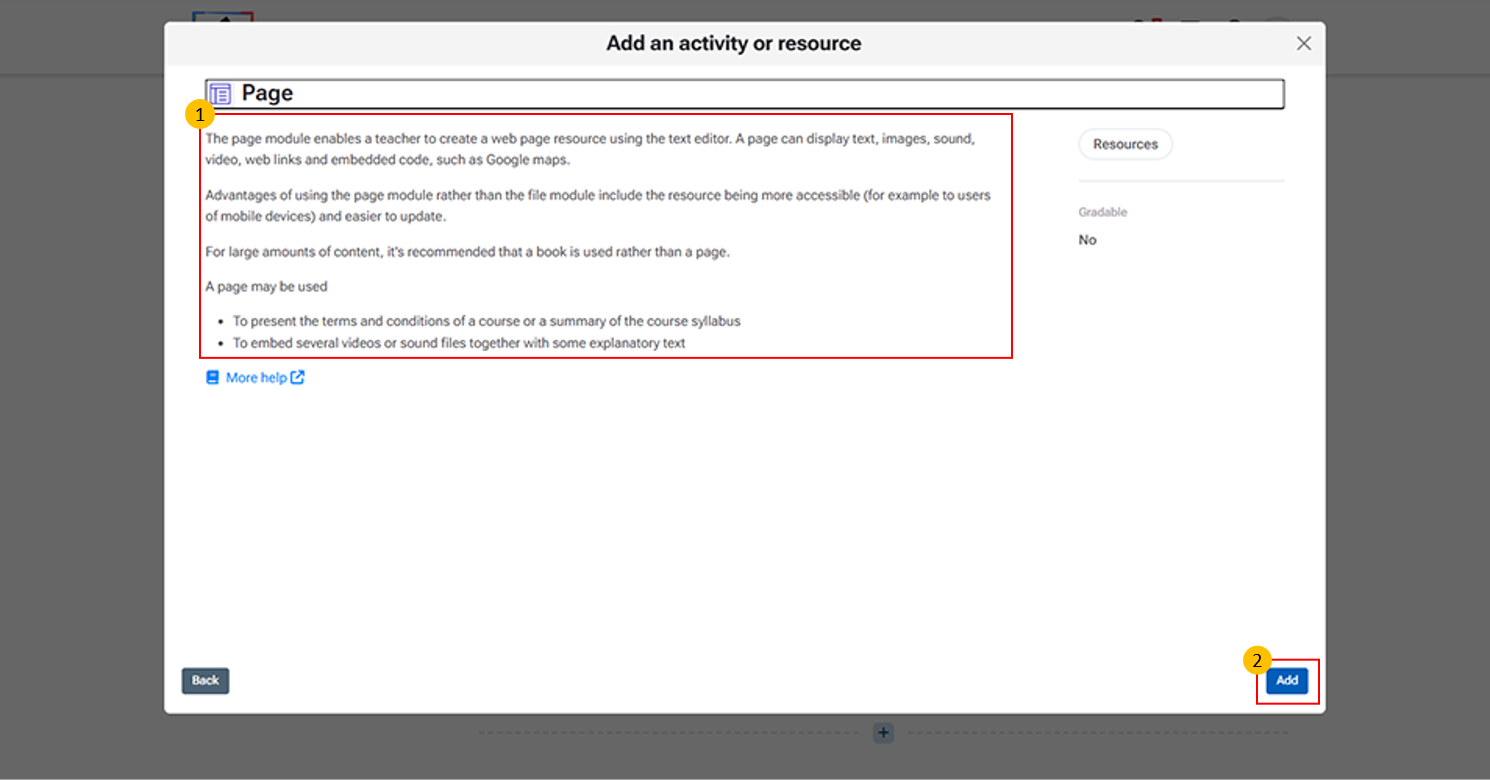
Page Description Panel:
- This section provides an overview of the Page resource in Moodle LMS.
- Allows teachers to create a web page using the text editor to present course content.
- Content Types: Supports text, images, audio, video, web links, and embedded content (e.g., maps or external media).
- Advantages: Easily accessible on all devices, including mobile
- Simple to edit and update without re-uploading files.
Recommendations:
- Use Page for short to medium content
- Use Book for large, multi-page content
- Use Cases:
- Sharing course information or syllabus
- Embedding videos or audio with explanations
-
Click "More help" to open the official Moodle LMS help page with detailed information on the Page activity, including its features and settings.
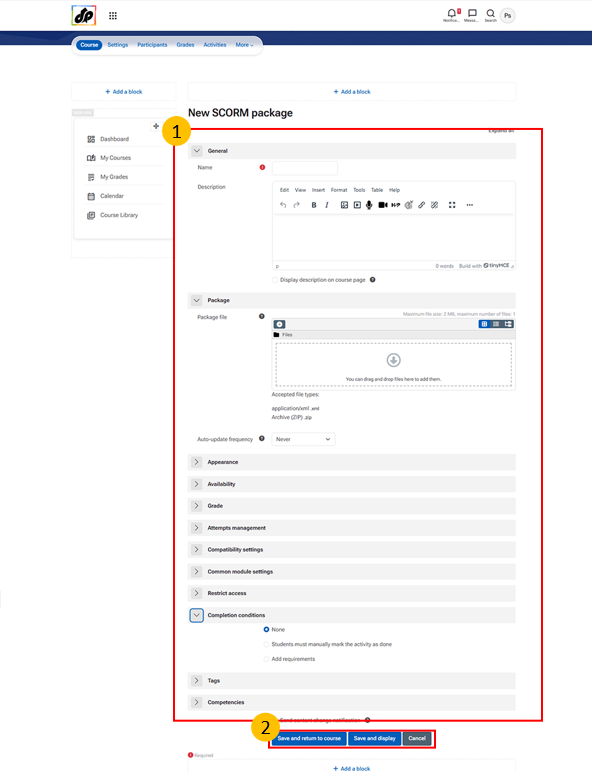
Steps for Creating a Page Activity:
- Enter a Name – This is the title visible to students.
- Add a Description – Provide instructions or context (optional).
- Add Page Content – Use the text editor to include text, images, links, or media.
- Configure Appearance and Access – Set visibility, restrictions, or access conditions if required.
- Set Completion Conditions – Define when the activity will be marked as complete.
- Add Tags – Helps in organizing and searching the page later.
- Click Save – Choose Save and return to course or Save and display to finalize.