Skip to navigation
Skip to navigation
Skip to search form
Skip to login form
Skip to main content
Skip to accessibility options
Skip to footer
Skip accessibility options
Reset settings
Close
Accessibility profiles
Visual impairment
Seizure and epileptic
Color vision deficiency
ADHD
Dyslexia
Learning
Content adjustments
Readable font
Dyslexia-friendly font
OpenDyslexic
Highlight headings
Highlight links
Highlight buttons
Hide images
Tooltips
Stop animations
Text size
+
+ +
+ + +
Line height
+
+ +
+ + +
Text spacing
+
+ +
+ + +
Color adjustments
Dark contrast
Light contrast
Invert colors
Change colors
High contrast
High saturation
Low saturation
Monochrome
Orientation adjustments
Reading guide
Reading Mask
Big black cursor
Big white cursor
Menu
Search
Log in
Register
Log in to Dynamic Pixel Demonstration Environment
Create new account
Moodle Documentation
For Teachers
Course Creation on KnowxBox
Discussion Forum
en
English
ta
Tamil
gu
ગુજરાતી
Search
Log in
Log in
Register
Course
Moodle Documentation for Teacher
Home
Courses
Moodle Documentations
moodleforteacher
Activity
Book
Print book
(Opens in new window)
Print this chapter
(Opens in new window)
More
Teacher: User Manual
Completion requirements
10. Grade
10.1. Grade Report
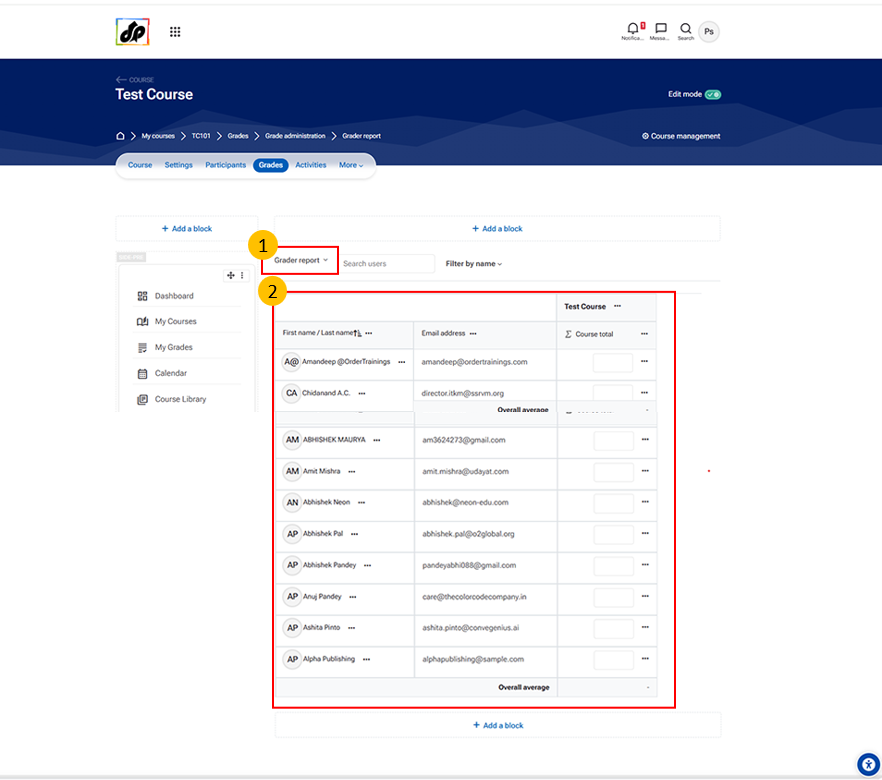
Grader Report Tab
The Grader Report allows
teachers
to
view
and
manage student grades
in a
tabular
format.
It displays:
List of students (rows)
Grade items like assignments, quizzes (columns)
This is the
default and most commonly used grading interface
.
Student Grades Table
This section shows a complete overview of grades for all students.
Key elements:
Student Name Column
Displays enrolled students in the course
Grade Columns
Each column represents an activity (Assignment, Quiz, etc.)
Shows marks obtained by each student
Editable Fields
Teachers can enter or update grades directly
Course Total Column
Displays the overall grade of each student
Close drawer
Next
HACC Gen working in Moodle LMS
Scroll to top
Close
Close