Text size
Line height
Text spacing
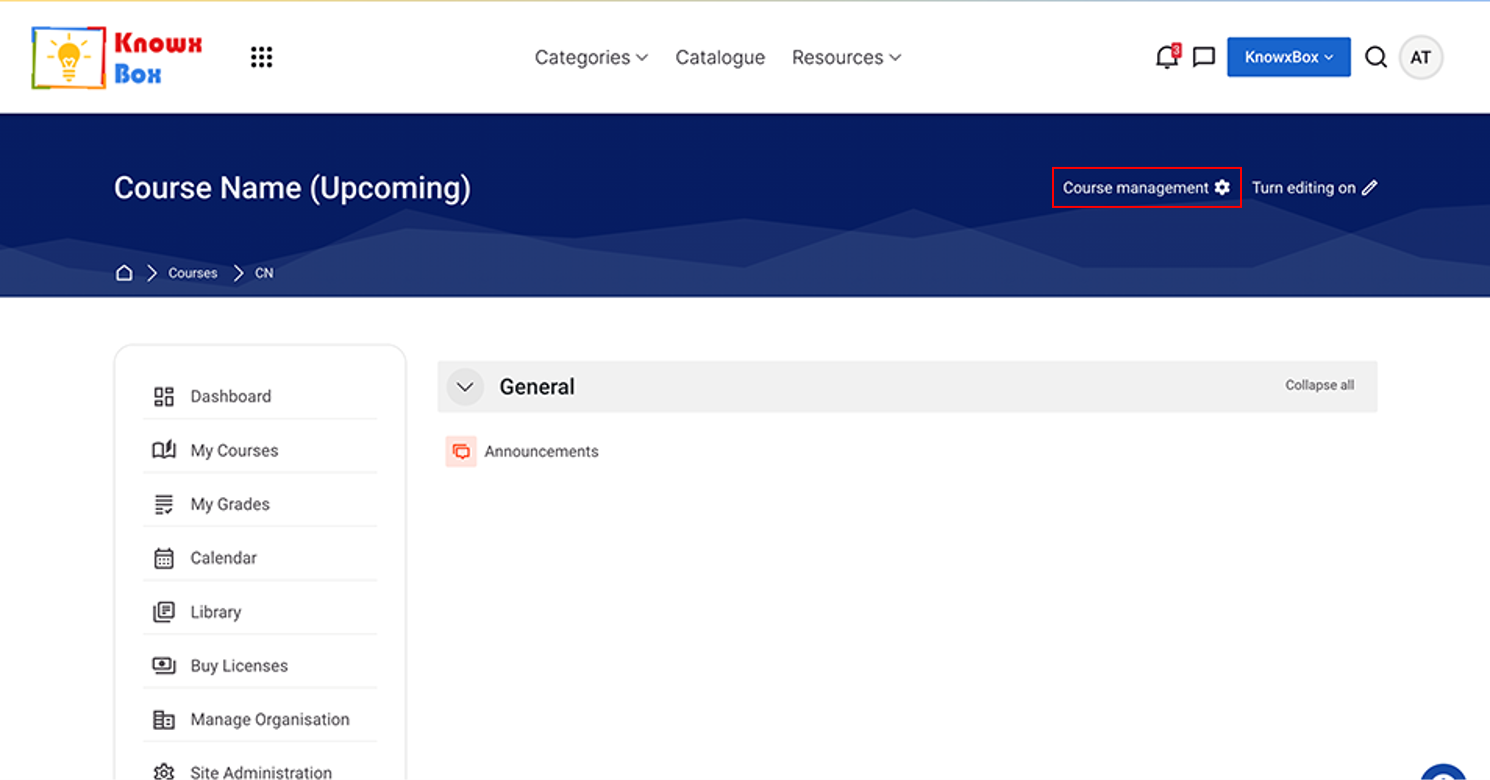
Click on Course Management.
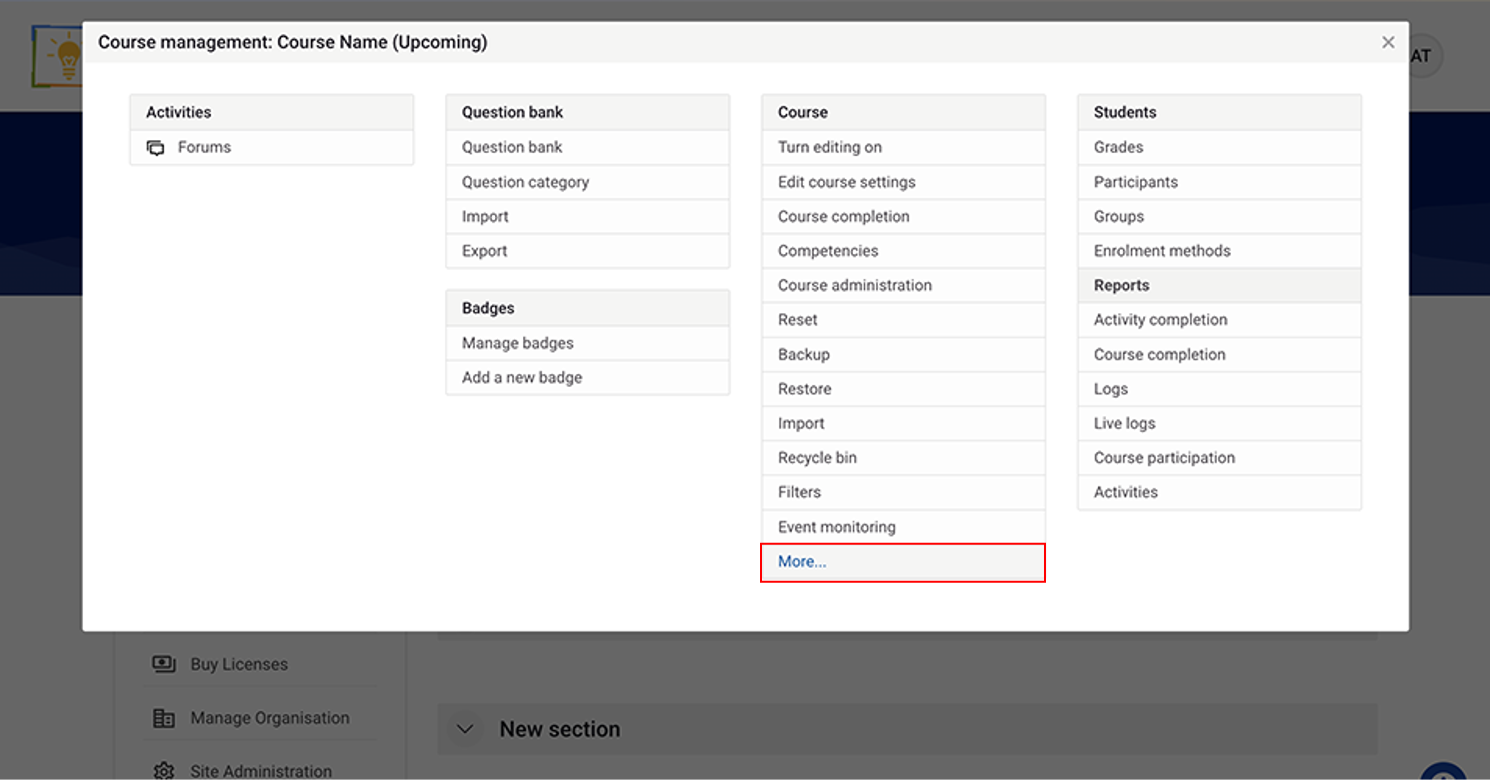
Go to “More…” Option under Course section.
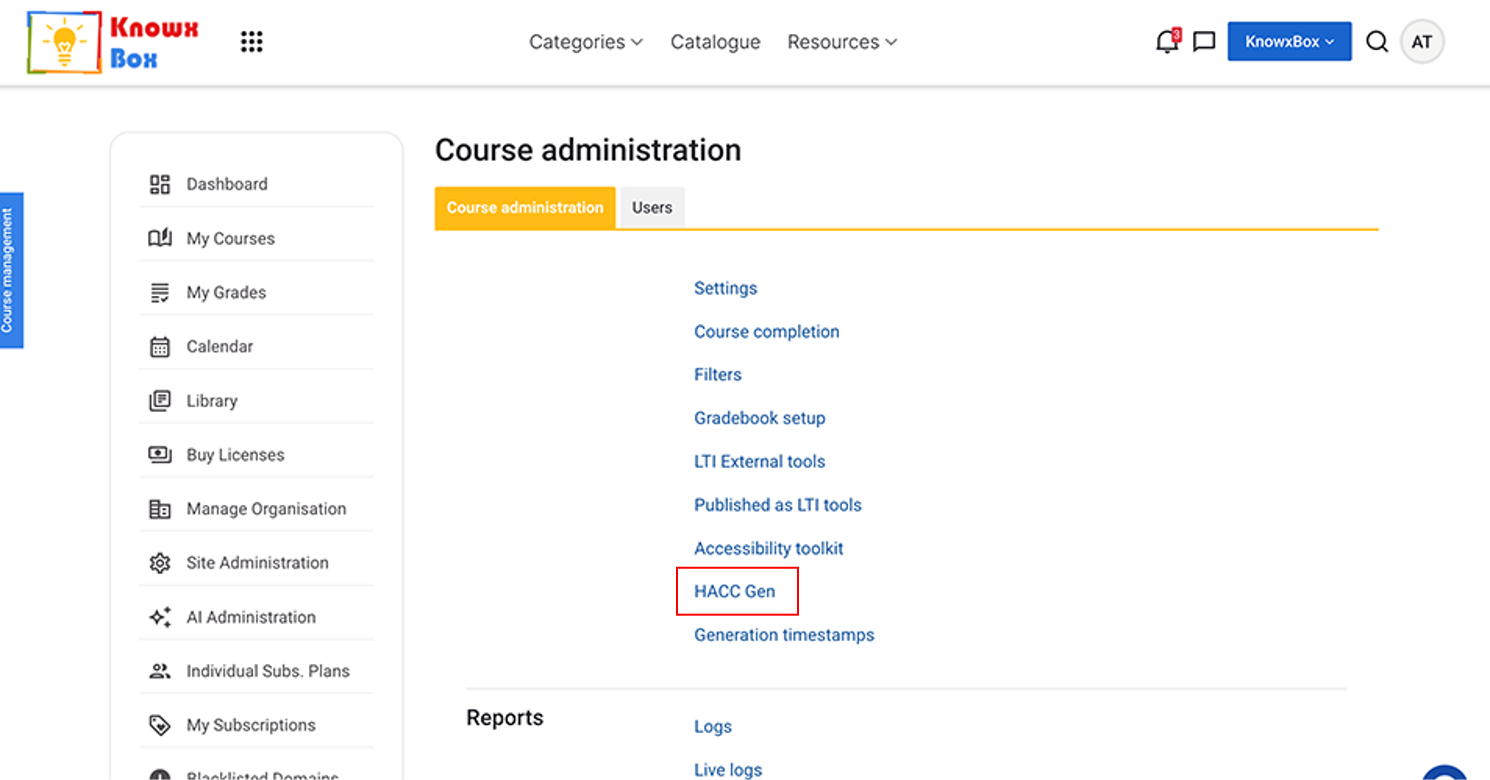
Select HACC Gen under Course Administration.
HACC Gen is our AI tool which will help us to create our course content.
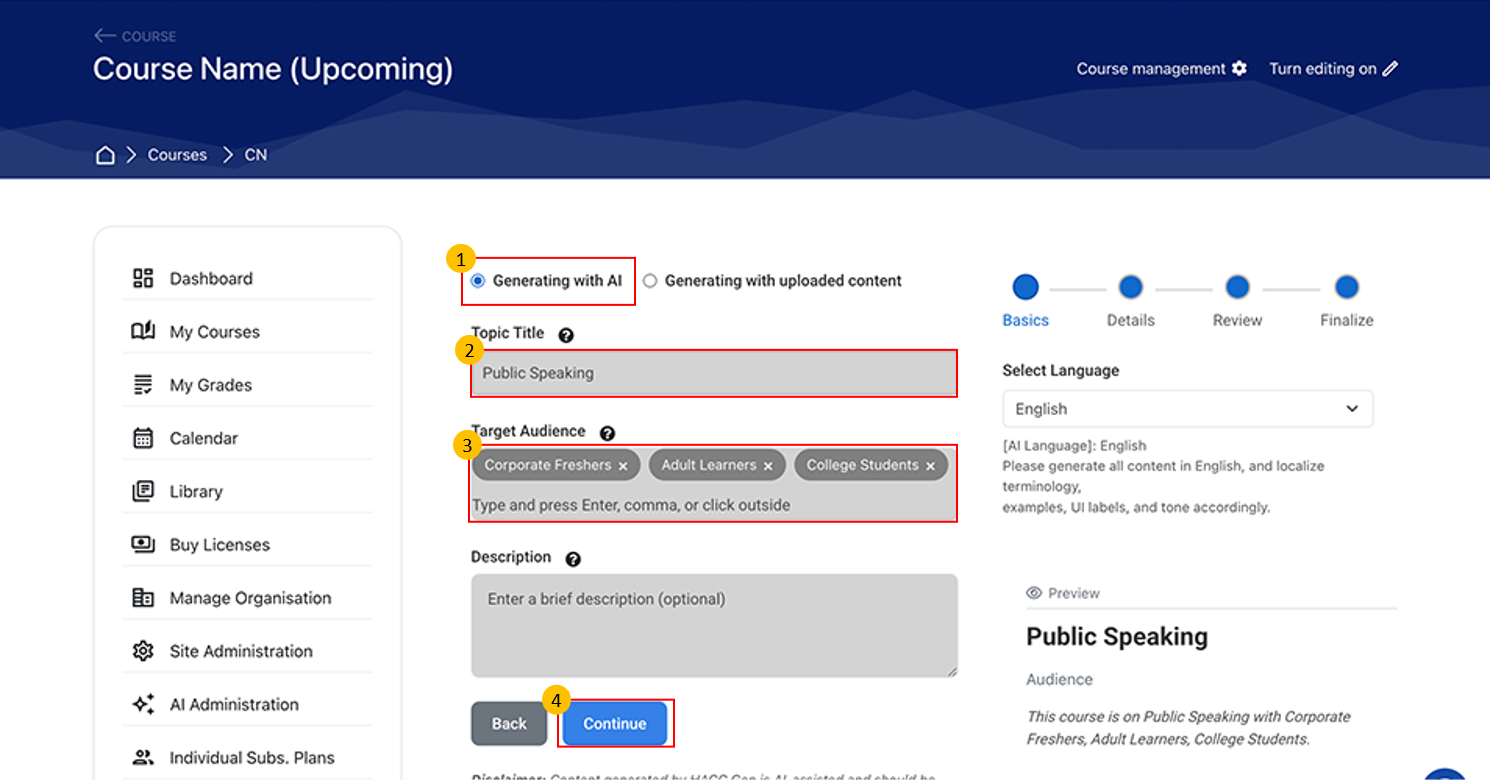
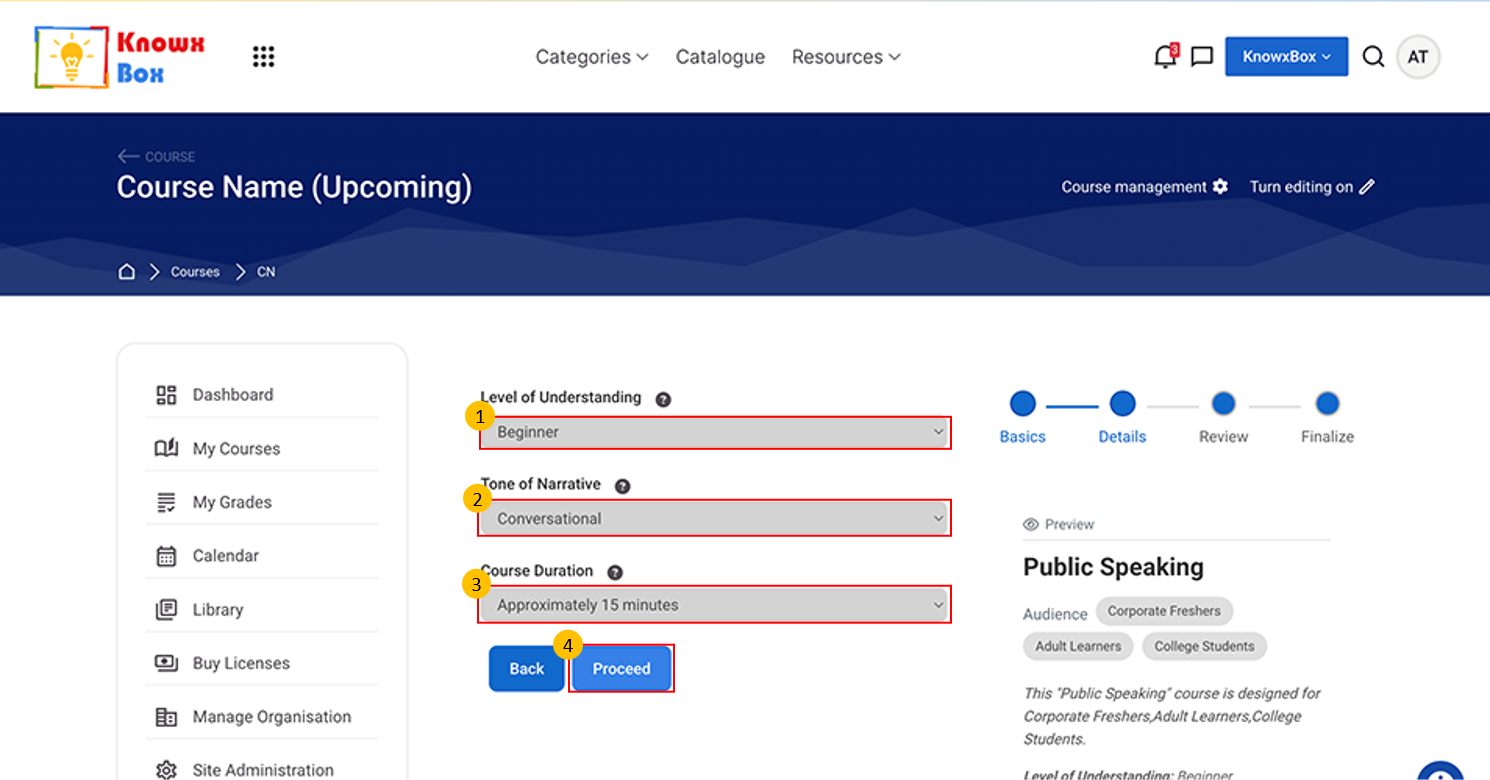
Step 2: Details
Select the Level of Understanding from the dropdown:
Tone of Narrative:
Select any one of these.
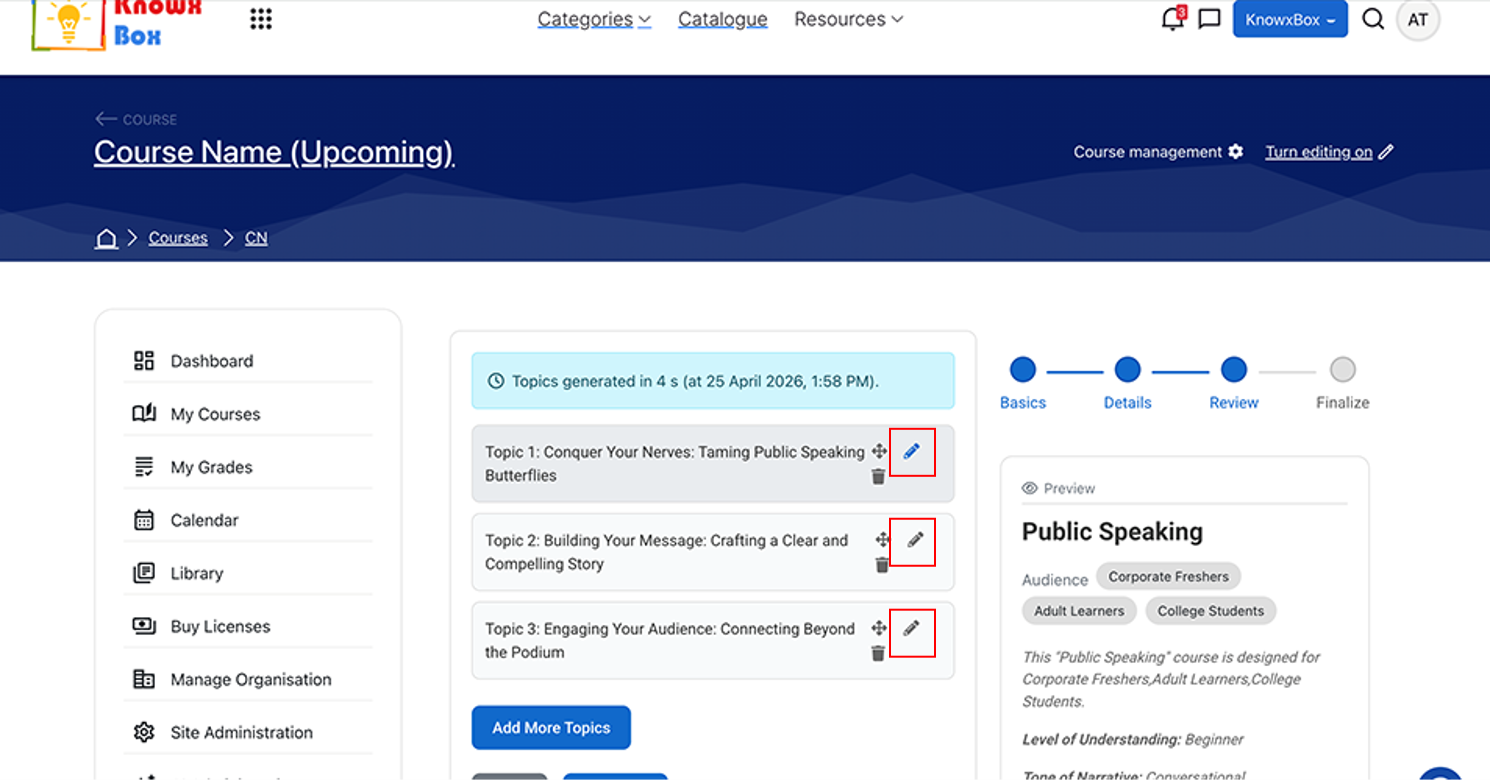
This is the review stage of the content generation. Here you can Add, Edit and Delete the Topics if required.
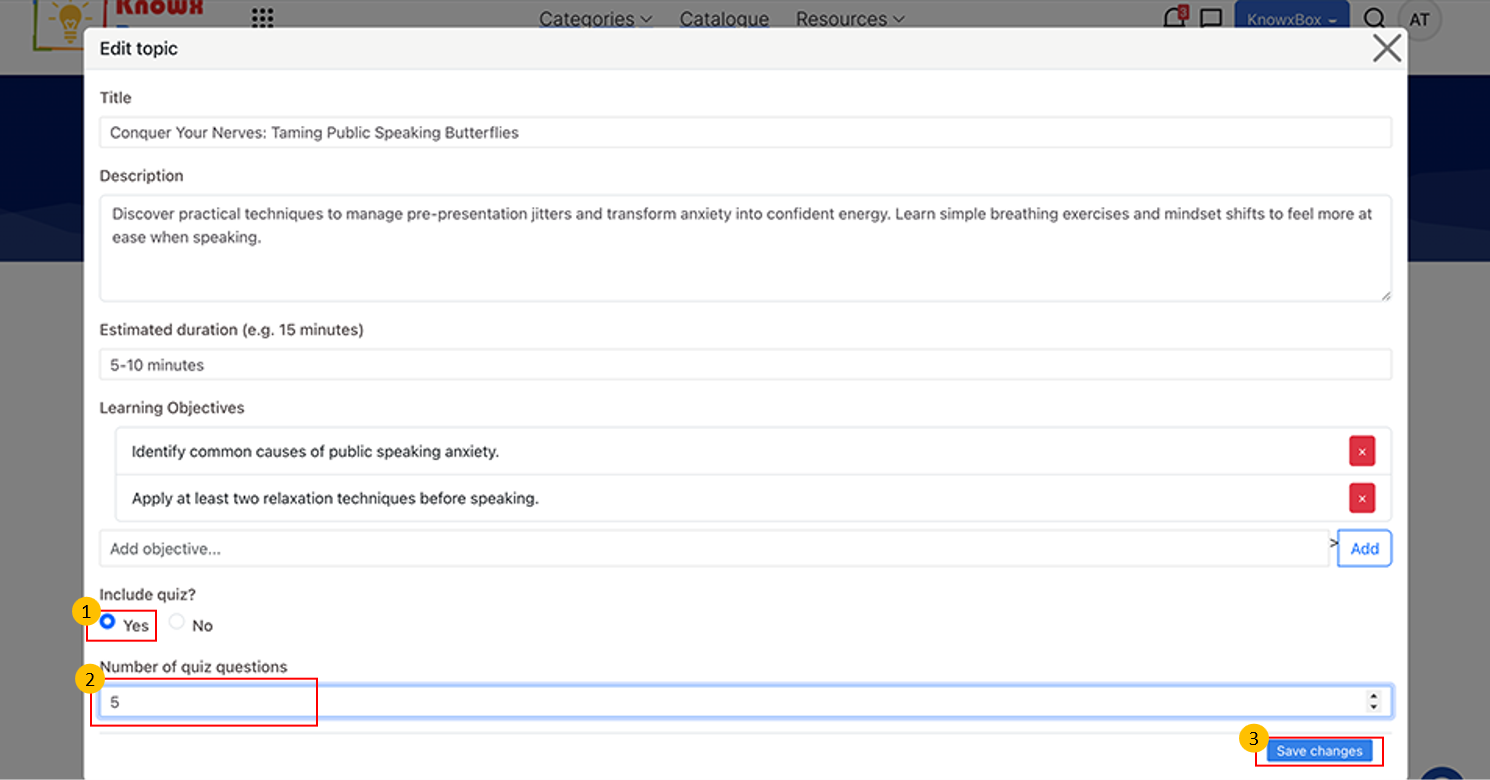
Add Quiz in all the topics and number of quiz questions should be 5.
Edit details whatever you want and click on Save Changes.
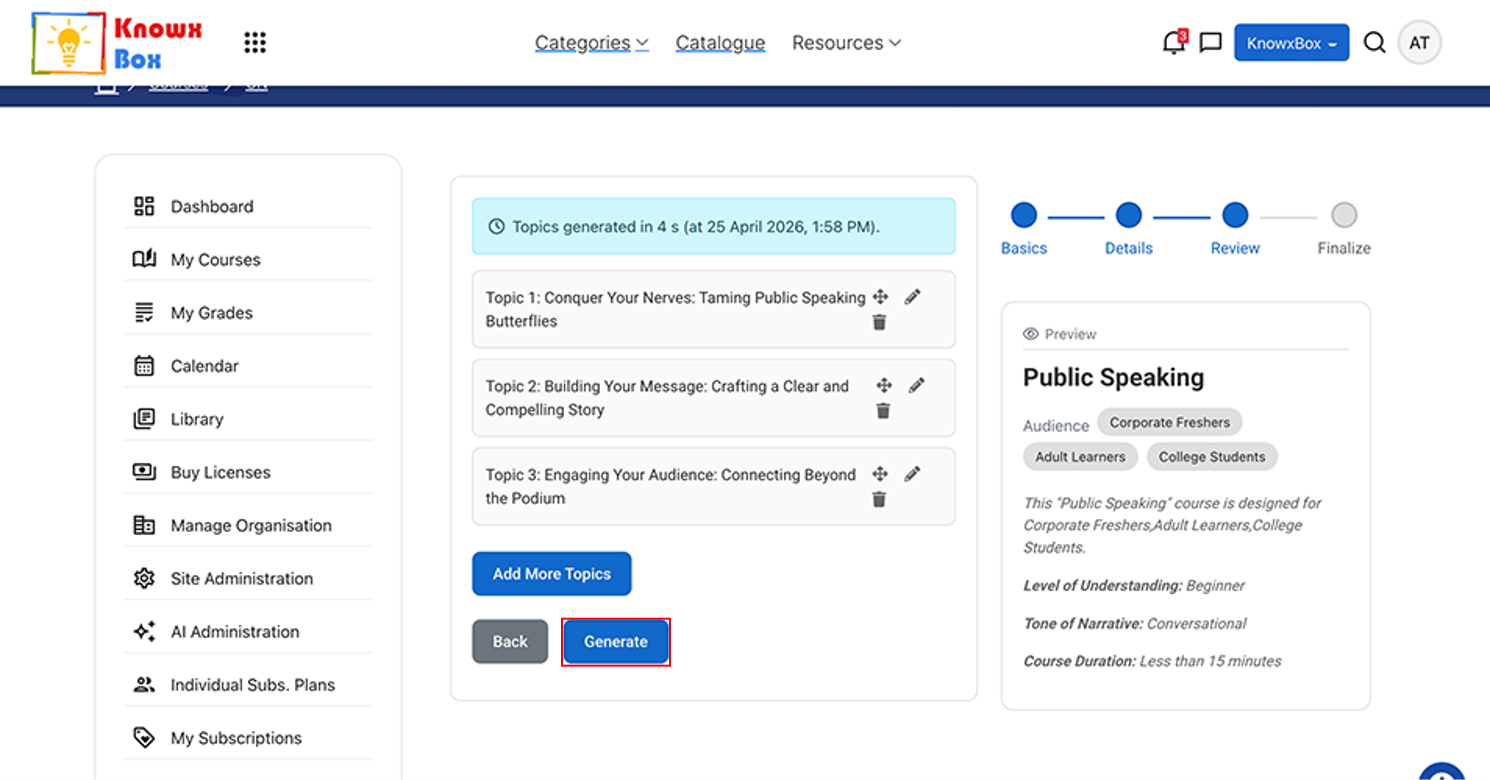
Now, click Generate.
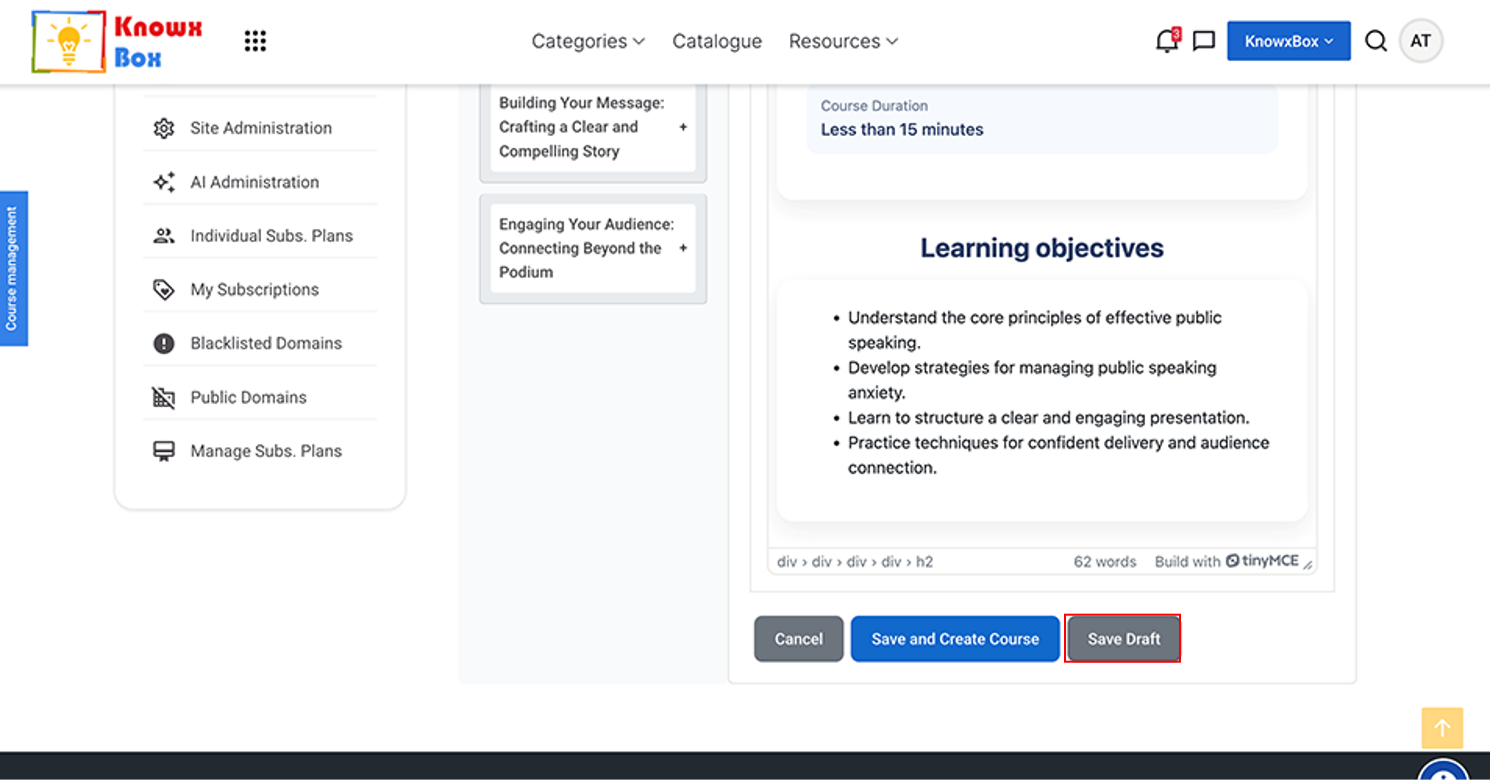
Now , you can save the content by clicking on Save Draft option.
Your complete editing in the content will be saved.
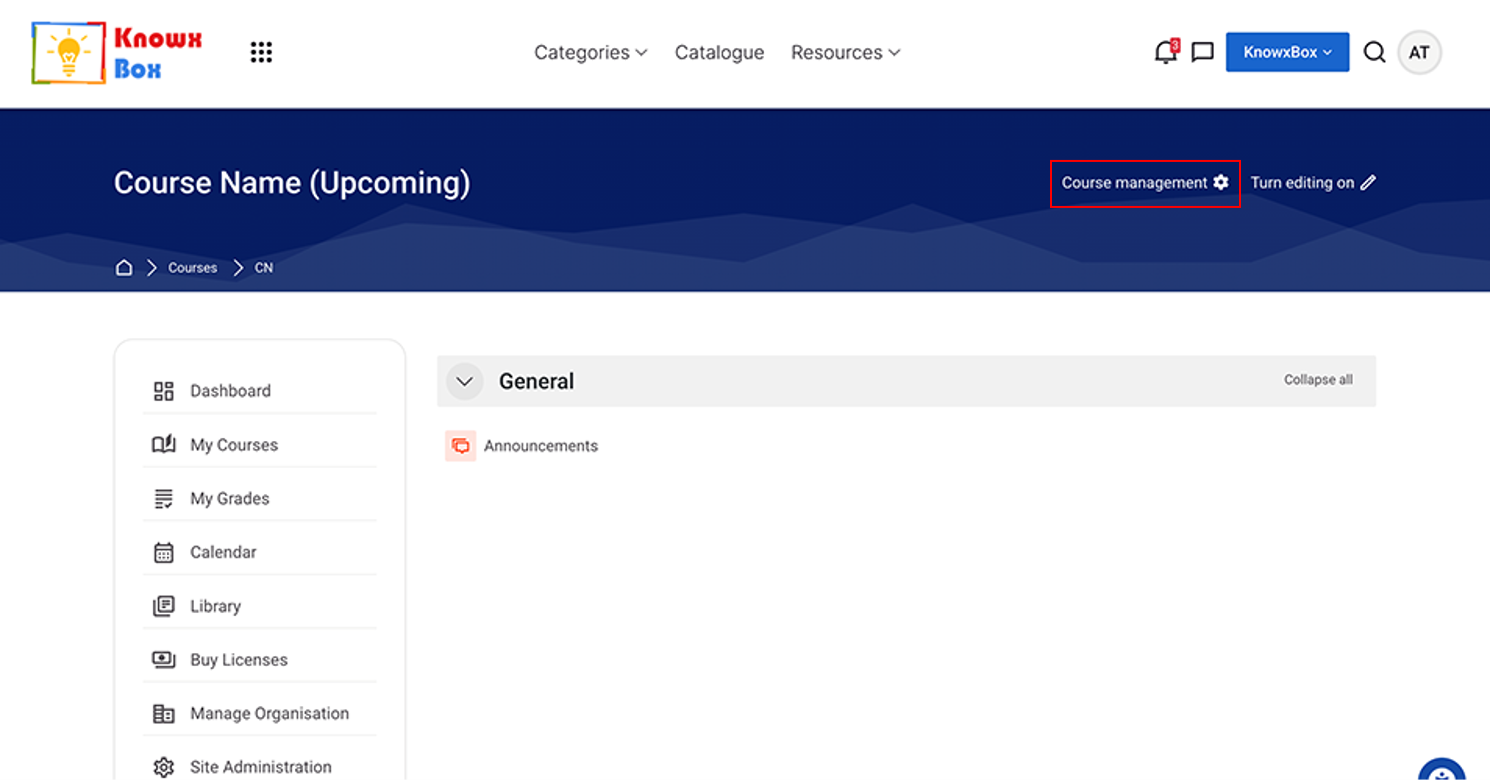
To resume the course creation, Come to the Course management.
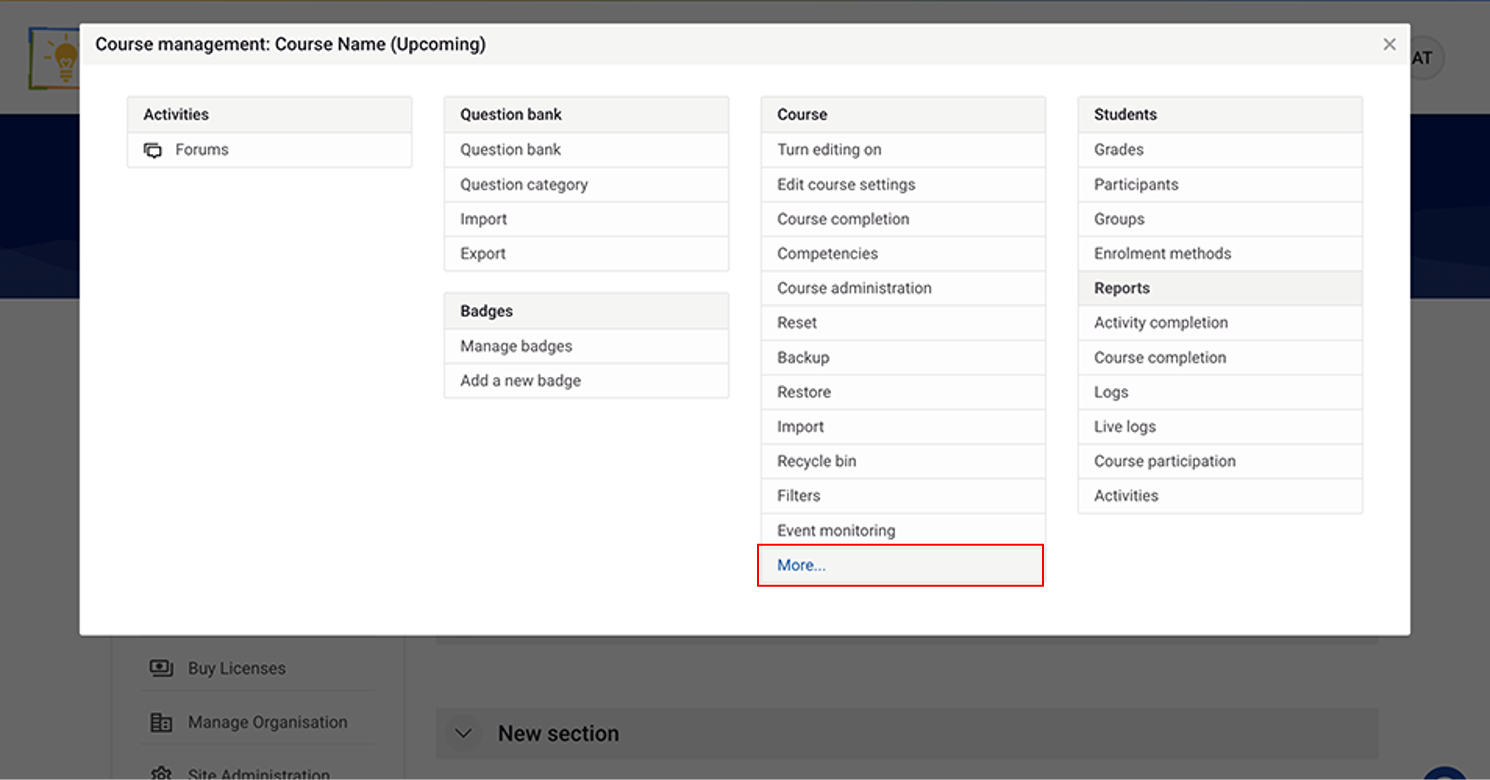
Click on More…
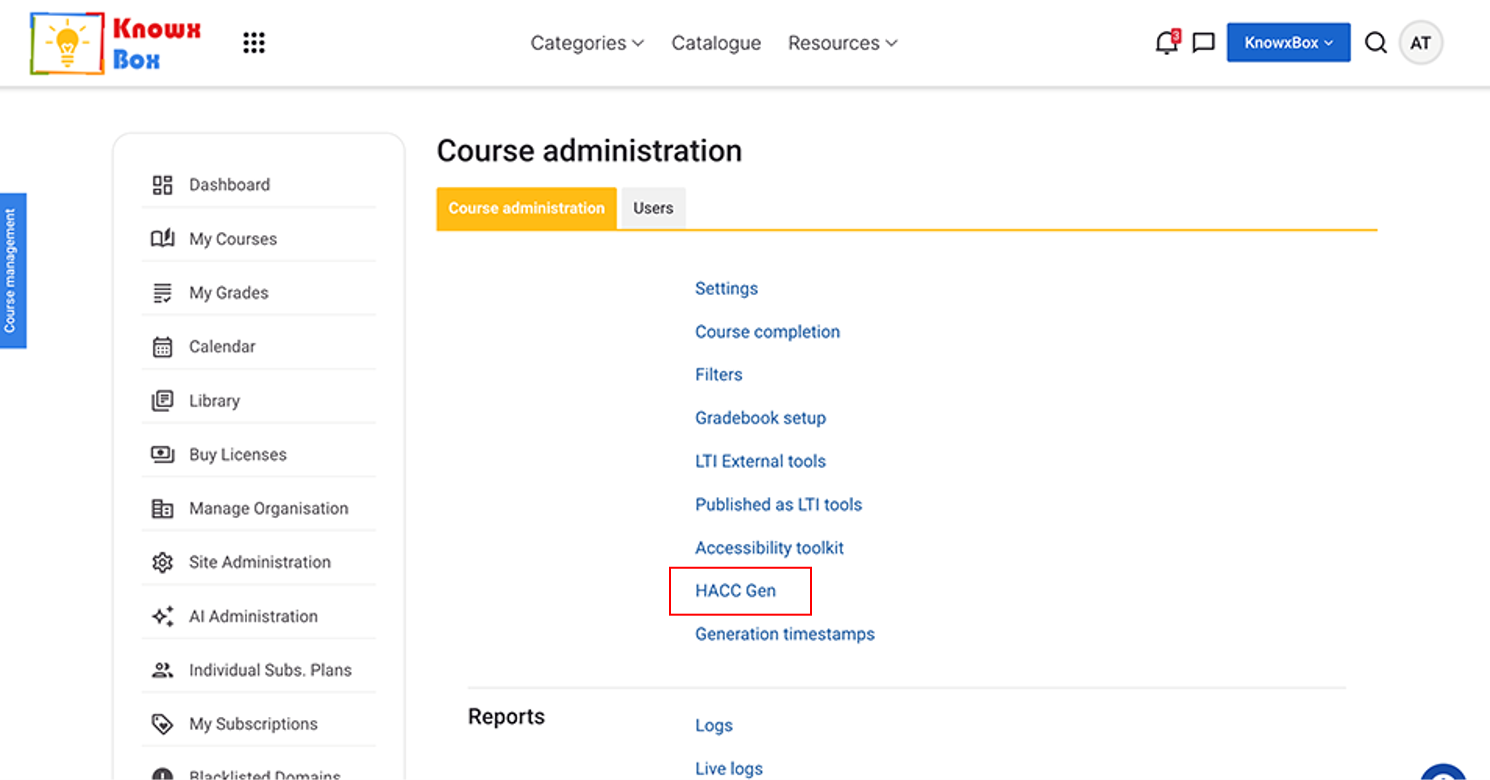
Select HACC Gen.
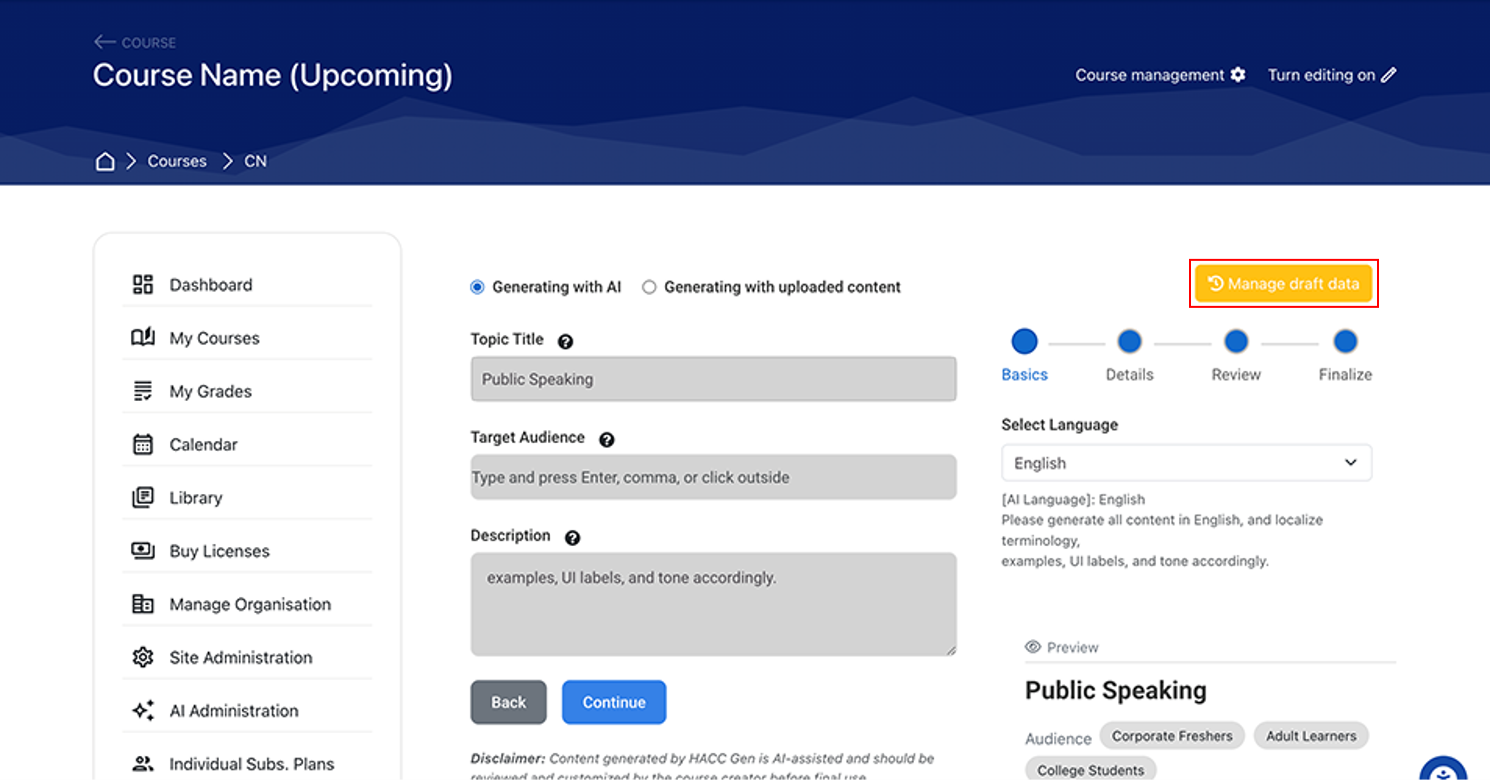
Click on the yellow button Manage Draft Data.
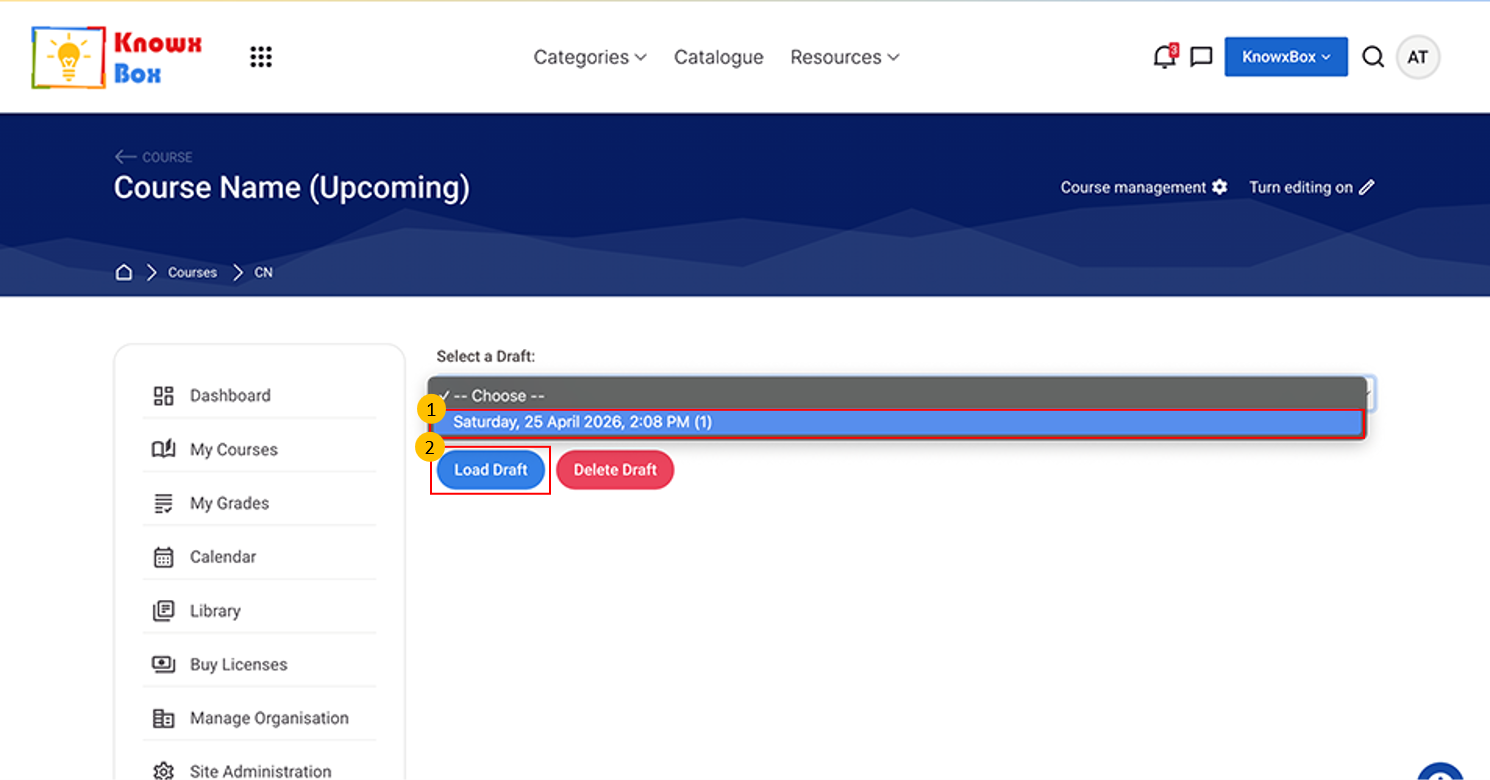
Select draft, from dropdown then Click on Load Draft.
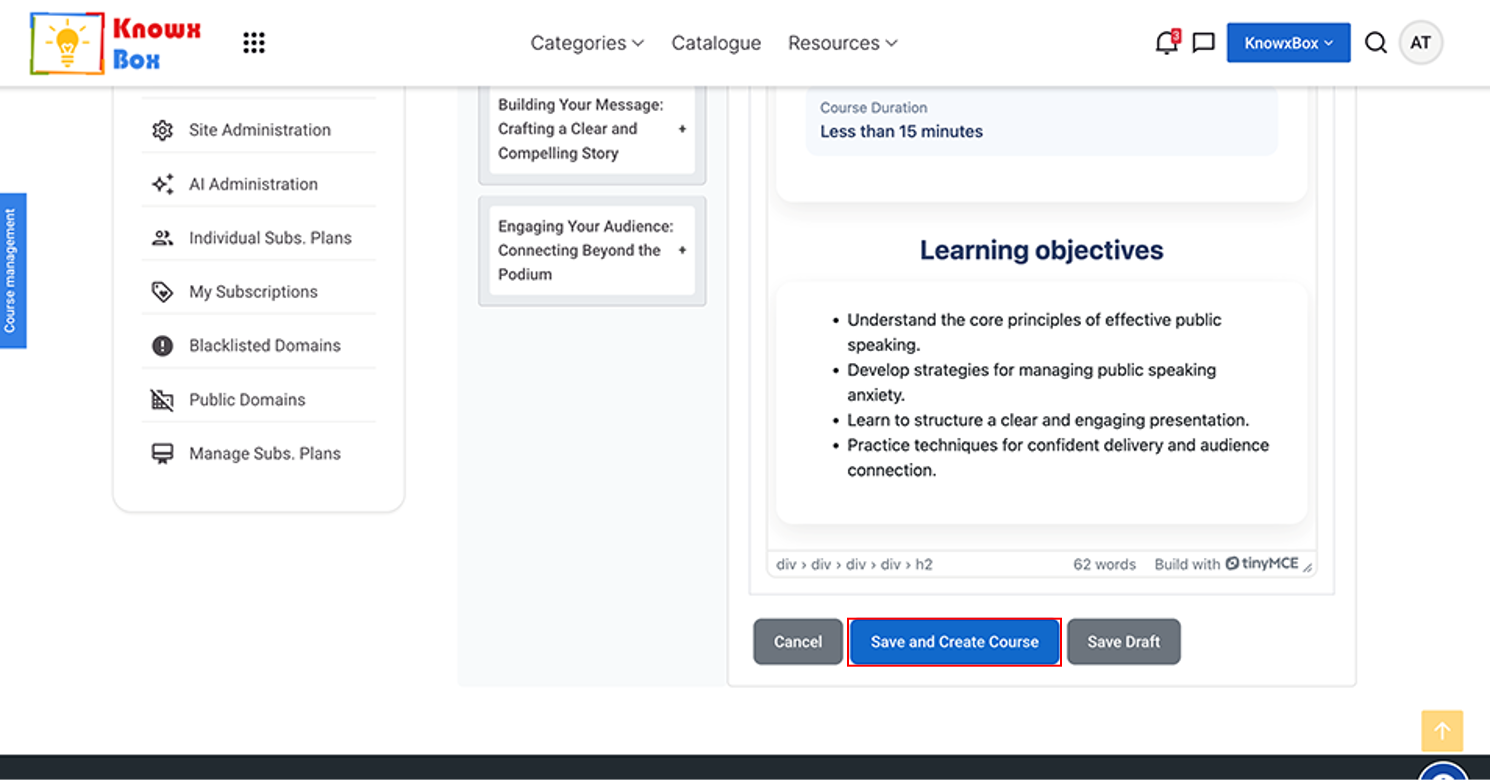
This is your complete content of course.
When you feel sure about the content then click on Save and Create Course.
Your course will be created.
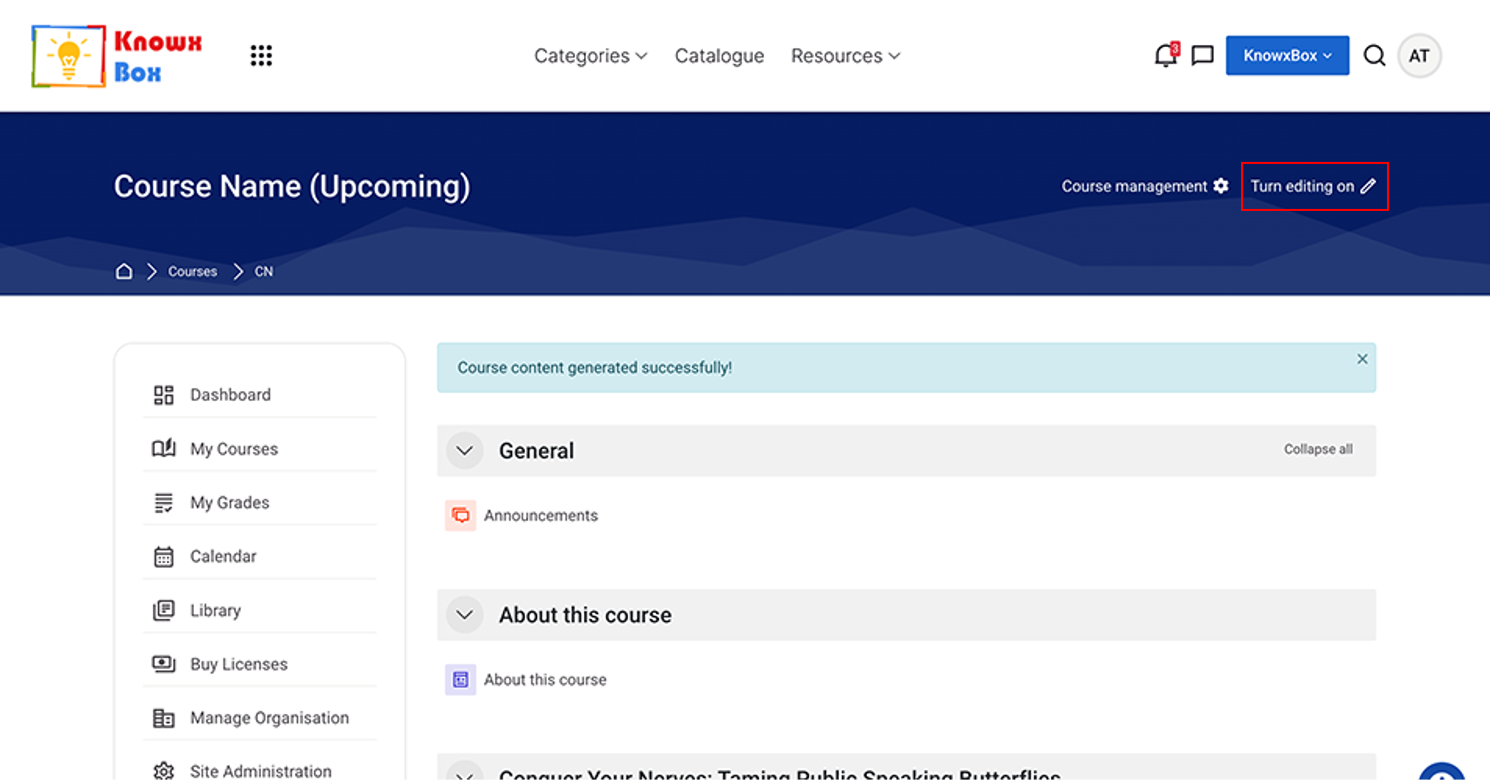
Ensure that ‘Turn Editing On’ is enabled.
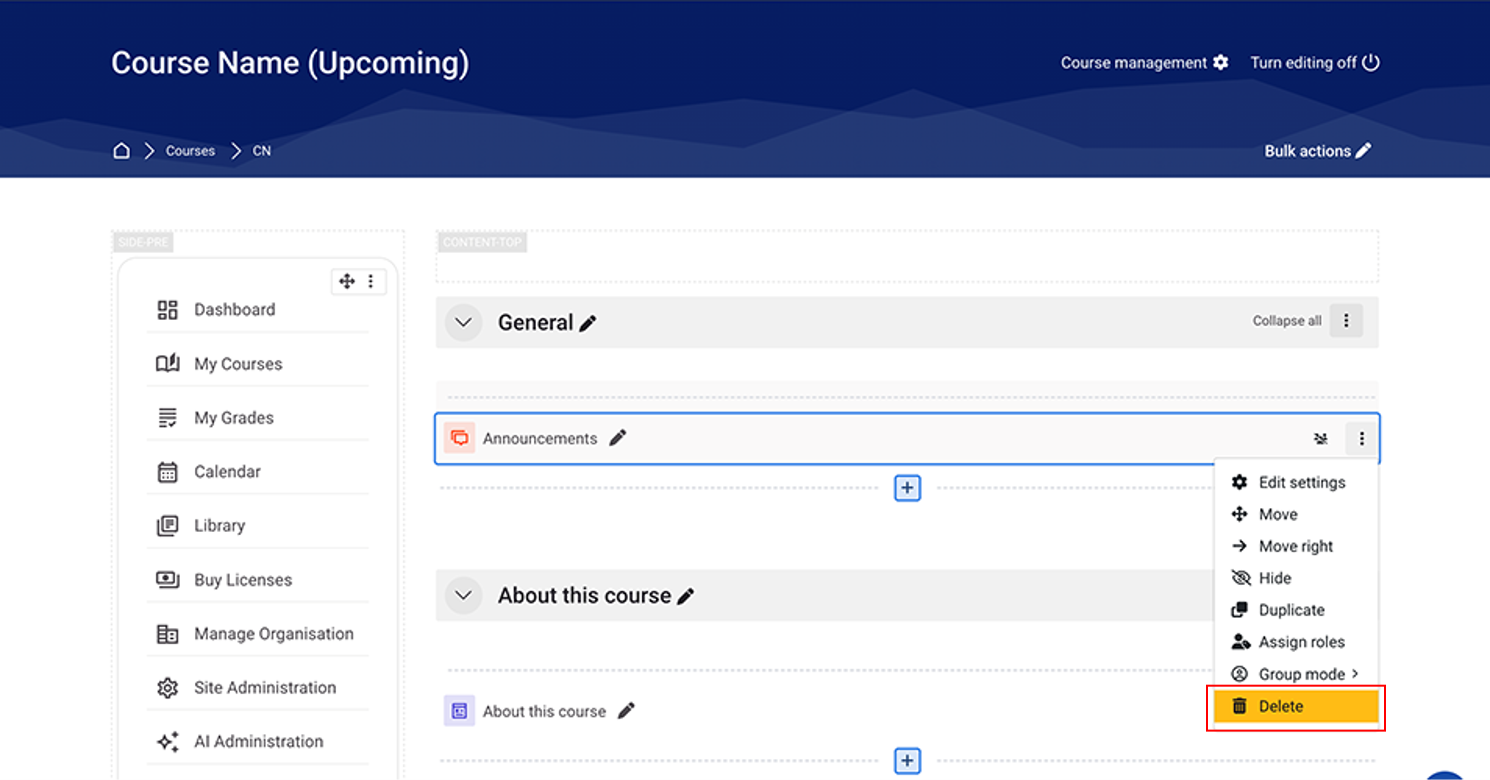
Delete New sections by clicking the 3 vertical dots on the right-side then select Delete.